Updated: 2026-09-05 10:46 ET · On the Page Readiness screen, look for: Favorites — save /
list / remove / empty state (requires login) and Home Preview — heart-toggle test surface (works logged out)
TLDR: 10 checks covering the full life of a favorite — trying to view
Favorites while logged out (should send you to log in), browsing without hearts showing when logged out,
saving a magazine article and a menu item once logged in, seeing them on the Favorites screen,
removing them until the list is empty, what happens if a saved favorite's content disappears, and confirming a
saved document actually opens for real — plus that favorites survive a full log-out / log-in cycle.
Favorites went live 2026-08-17, so saved items are now real rows on your account that survive a
restart, and document sets went live 2026-08-17 when the backend registered that item type — so
category rows are saveable again (Check 4b).
Before you start
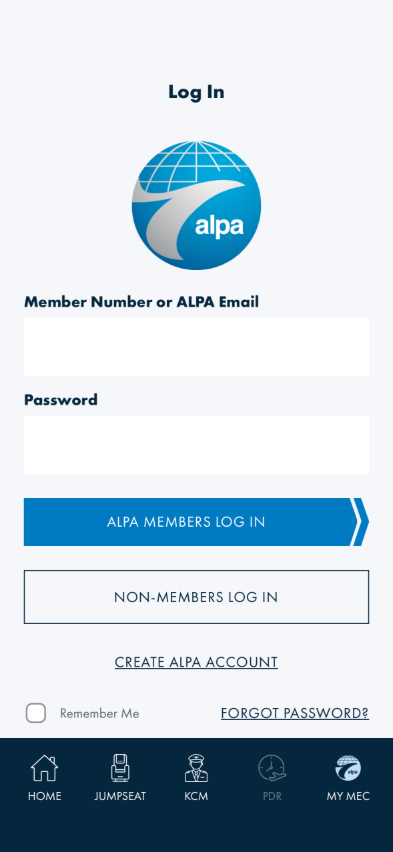
Start out logged out. You can check or reset this any time using Auth Status / Log Out on the
Page Readiness screen — see the Tester Guide if you're not sure how to
get there.
You don't need to pick a data source. As of 2026-07-09 the screens choose their own data
behind the scenes (the old Mock data / Live data switch is gone from the Page Readiness screen — it now
lives on the FTDT dashboard and only affects FTDT scenario testing). As of 2026-08-17 Favorites runs
on the live service — a favorite you save is a real row on your account and survives a force-quit,
which it did not before. Check 7 (a favorite whose content disappeared) still needs an engineer's help
to remove the underlying content.
SAMPLE rows deliberately have no heart. Rows labelled SAMPLE on Home Preview are
seeded on the device and exist nowhere on the server, so saving one would leave a permanent row your
account can never resolve. A missing heart there is the expected state, not a bug. Everything else —
documents, menu items, document categories — is saveable.
MEC feed tiles save as links. As of 2026-09-03 a tile or quick link on My MEC (PDR /
DYK / QRG, committee pages) saves as a shortcut to wherever it goes: on Favorites it renders as a
card-sm row with the title it had when you saved it, and tapping it opens the same destination the tile
did. Earlier that day those hearts were briefly hidden after they were found to write rows your account
could never open (Task AB#2271). A card with no destination (a plain text card) still shows no heart.
Member Resources tiles and every document surface are unaffected.
Where to save a favorite: use a screen showing real content — Member Resources (menu
item cards) or a document list under Documents. If Home Preview shows only SAMPLE rows, your
account's ALP MAG catalogue is empty and there is nothing favoritable on that screen.
You'll move between two screens: Home Preview (where you'll add favorites) and Favorites
(where you'll view and remove them) — both are rows on the Page Readiness screen.
Checks
1 · Try to open Favorites while logged out
Steps: While logged out, open the Page Readiness screen → tap Favorites.
What you should see: You're taken straight to the log-in screen — you never see the Favorites list
itself.
Something's wrong if: You see the Favorites screen at all before being asked to log
in — even an empty one.
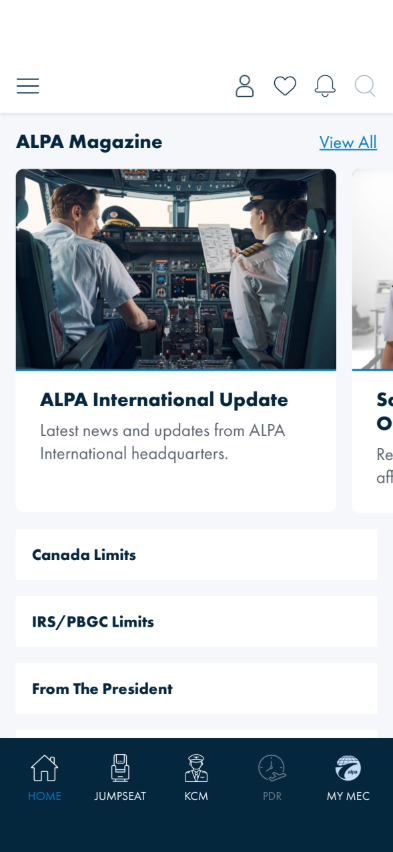
2 · Browse Home Preview while logged out
Steps: While still logged out, open Home Preview from the Page Readiness screen.
About the card photos: every article currently shows one of a few stock pilot/cockpit
photos, so covers repeat — that's expected. The backend doesn't supply document imagery yet (every document in
the live feed arrives without an image), so the app substitutes placeholder art rather than empty boxes. The
titles, order, dates, and links are the real live feed when you're signed in. Real cover images light up
automatically once the backend ships them — no app update needed.
What you should see: On first open the page may flash gray shimmer placeholders while it loads —
that's the intended loading treatment, same as the real Home screen. Once loaded: the ALPA Magazine carousel
and the category rows beneath it (Canada Limits, From The President, Press Release, …) display normally,
but there is no heart icon anywhere on the page — not even a grayed-out one.
Something's wrong if: You spot a heart on any card or category row while logged
out. Saving a favorite requires being logged in, so those hearts shouldn't appear at all until you are.
The heart in the top navigation bar is a different thing and is meant to be there — it is a
shortcut to the Favorites screen, and logged out it sends you to log in, exactly as in Check 1.
3 · Log in and save a document as a favorite
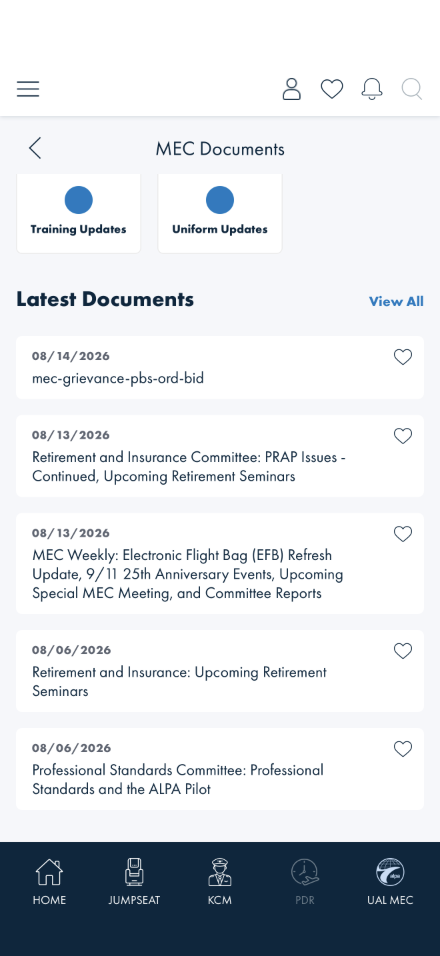
Steps: Log in (via Auth Status or the normal login screen). Open Documents for your
MEC, scroll to Latest Documents, and tap the heart on any row.
Why not Home Preview? You can use it if its cards are real. But if they say
SAMPLE, that account's ALP MAG catalogue is empty and the cards are seeded placeholders with no
heart at all (see "Before you start") — the Latest Documents rows are always real, so the check works on
any account.
Before — logged in, nothing saved yet
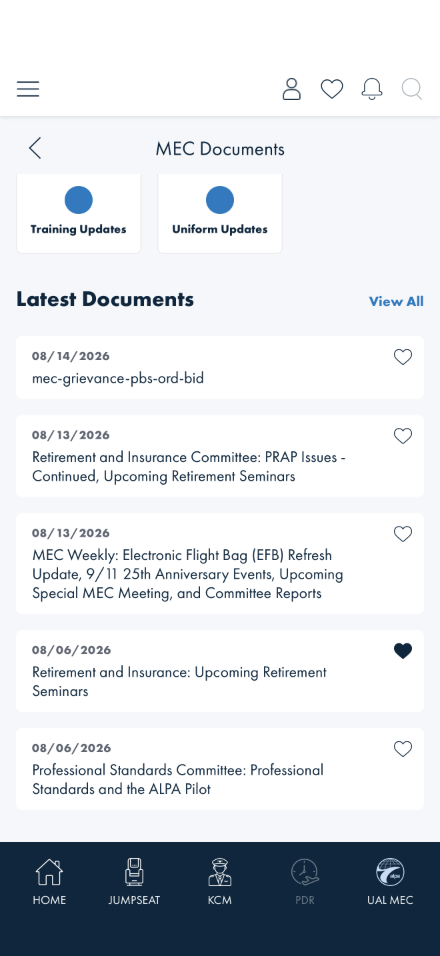
After — the heart fills in solid navy
What you should see: The heart fills in solid navy right away — no waiting, no page reload
needed. (Earlier builds filled it red; navy is the design-correct state as of 2026-07-09.)
Something's wrong if: Tapping the heart does nothing, or it fills in but doesn't
"stick" — leave the page and come back to check; it should still show filled in.
Note (updated 2026-07-16): the category rows below the carousel now show hearts
too once you're logged in — tapping one saves that category as a shortcut to its document list
(that's Check 4b). Logged out they show no hearts, same as everything else.
4 · Save a menu item as a favorite
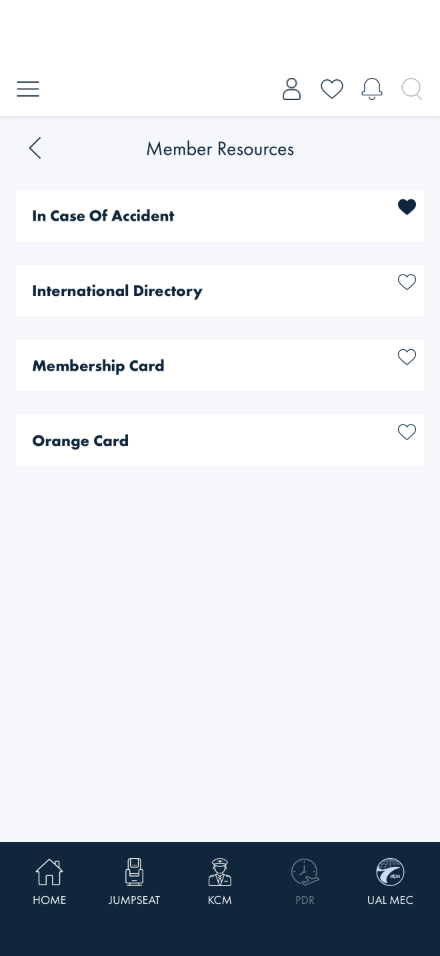
Steps: While logged in, open Member Resources and tap the heart on any card
(e.g. Membership Card or Orange Card). Then open Favorites and confirm it is listed.
Clean up by removing it when you're done.
What you should see: The heart fills in immediately and the item appears on the Favorites
screen. Unparked 2026-08-17 — this check was previously skipped for want of a screen with saveable
menu items; Member Resources is that screen.
Something's wrong if: You spot a heart that's visible but does nothing when
tapped, anywhere — a heart only appears on items that can actually be saved, so a dead one is a bug.
4b · Save a category as a favorite
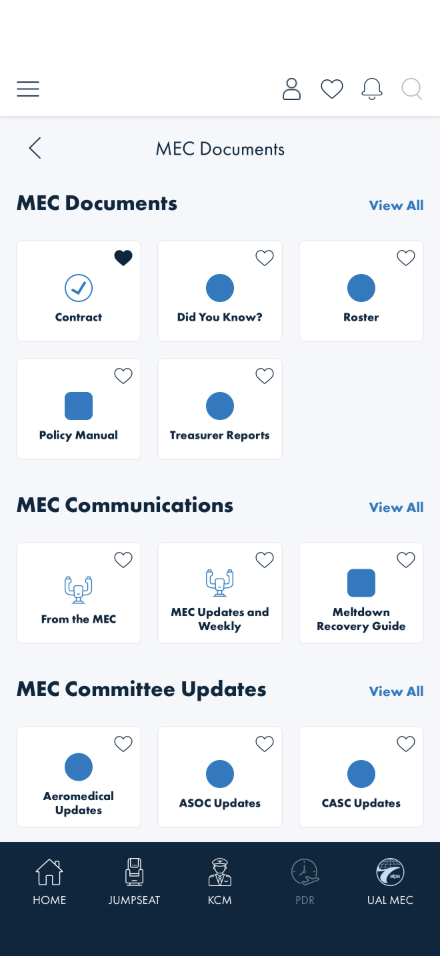
Steps: While logged in, open Documents for your MEC and tap the heart on any category
tile (e.g. Contract). The same hearts appear on the category rows under the Home Preview carousel
if that account has them.
A saved category — the rest stay outlined
What you should see: The heart fills in immediately, same as the document hearts in Check 3.
On the Favorites screen the category appears as a smaller titled row with an icon. Tapping the
row itself (not its heart) opens that category's document list; tapping its heart on the Favorites
screen removes it.
Something's wrong if: The heart doesn't stick (leave the page and come back to
check), the row on the Favorites screen shows a raw internal key instead of the category's friendly name,
or tapping the row takes you anywhere other than that category's document list.
Note: this check was parked between 2026-08-17 and the backend registering the
document-set item type later that day. If you see no hearts on category rows, you are on a build from
that window — update before filing a bug.
5 · View your Favorites
Steps: Open the Favorites screen (now that you're logged in).
While it loads you'll see shimmering placeholder rows. That's the intended
loading treatment, the same one Home Preview uses — not a stuck screen and not an empty list. Wait for
either your saved items or the "No Favorites Yet" message before judging what's there.
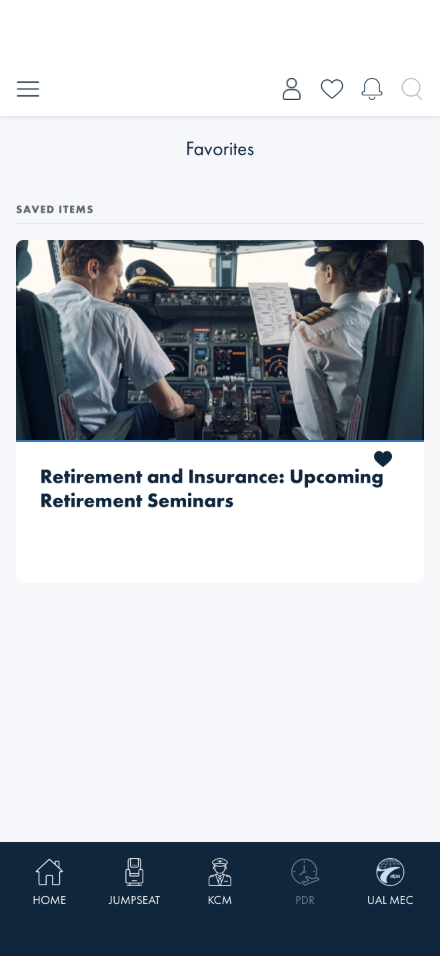
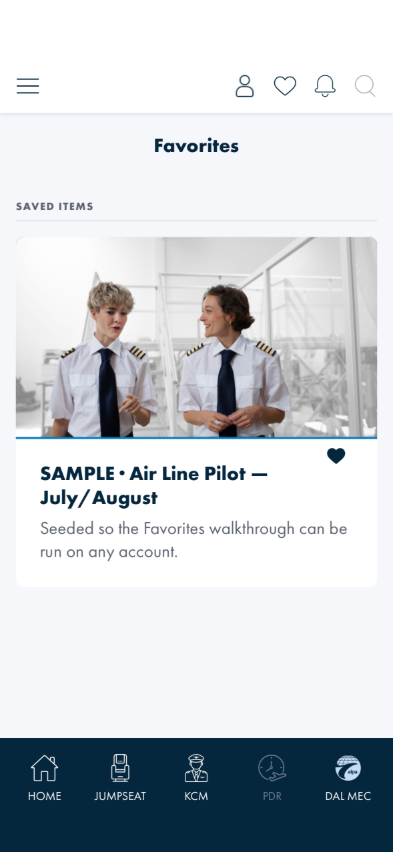
What you should see: Everything you saved is listed — the document from Check 3 and the menu
item from Check 4 — each with a filled-in heart, which on this screen is also how you remove it. A
document card with no description or photo is expected when the feed itself supplies none: the card
mirrors what the backend sends (a known data-quality item, AB#2247), so judge it on the title being
right.
Something's wrong if: A saved item is missing from the list, or shows up looking
like the wrong kind of item.
A raw-looking title is the document's own. Some live documents are published with
an internal-looking name (e.g. mec-grievance-pbs-ord-bid) instead of a readable one. If the
Favorites row shows the same string the document list showed, that is the backend's data, not a favorites
bug — it belongs on the AB#2247 data-quality list.
6 · Remove a favorite
Steps: On the Favorites screen, remove each saved item until none remain. There are two ways to
do it, and both must work on every row:
Tap the heart on the row.
Flick the row left. The row slides over to reveal a red trash zone on its right edge; tap
the trash. Flick the row right, or tap the row itself, to close the tray without removing.
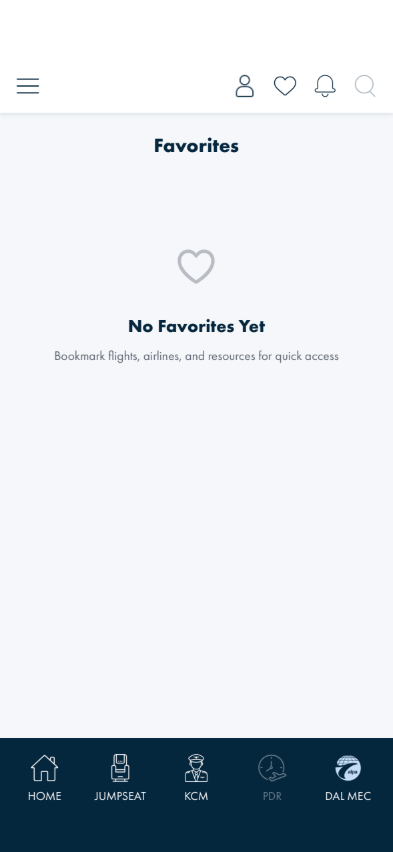
What you should see: Each heart tap or trash tap removes that item immediately — no
confirmation popup, it just disappears. Once the list is empty, you'll see a "No Favorites Yet"
message.
Something's wrong if: An item stays on screen after you tap its heart or its
trash zone, flicking a row left reveals nothing (AB#2678 — that was the shipped behaviour on build
20260905.1 and earlier), or the "No Favorites Yet" message doesn't appear once the list is actually
empty.
Same gesture as Flight Finder. The swipe tray is the one the Saved Flights,
Saved Searches and Recent Searches lists use — a flick, not a drag: the row does not follow your finger,
it snaps open once the flick is long enough (about 40 px sideways).
7 · A saved favorite that no longer exists
Steps: This one needs a bit of setup you can't do yourself in the app — ask an engineer to create
a favorite for your account that points to something that's since been deleted or removed. Once that's set
up, open the Favorites screen and tap that item.
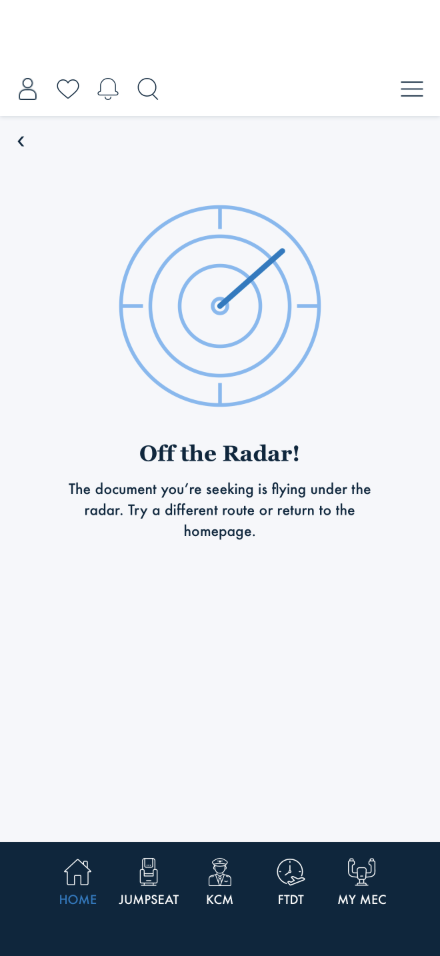
What you should see: The item still shows up in your list by its saved title, but tapping it takes
you to a friendly "Off the Radar!" page instead of a dead link or an error.
Something's wrong if: Tapping it shows a blank screen, crashes the app, or shows a
raw error page instead of the "Off the Radar" page.
8 · Tapping a document opens the real thing
Steps: On Home Preview, tap the body of a document card (not its heart icon).
What you should see: A brief "Opening document…" moment, then the document renders right on
the page — same top bar, a back chevron, and the document's name as the title. PDFs (most documents,
including the magazine) display inline; expect a longer loading spinner on a big issue — a full magazine
is a sizeable download. Web-type documents still open on the in-app web page titled with the document's
name, exactly like the production app. Use the back chevron to return to where you were.
Something's wrong if: Nothing happens when you tap, the app gets replaced by a
blank or error page, or the opened content clearly isn't the document you tapped.
9 · Favorites survive logging out and back in
Steps: While logged in, save an article as a favorite on Home Preview (as in Check 3) and note
its title. Then log out via Auth Status / Log Out, log back in with the same account, and open the
Favorites screen. Clean up by removing the favorite when you're done.
What you should see: The Favorites list comes back showing exactly what you had saved before
the log-out — same item, same title — because the list is re-fetched from your account, not remembered
by the screen. Nothing extra appears and nothing is missing.
Something's wrong if: The list comes back empty, shows different items than you
saved, or shows items belonging to a different account.
Note: as of 2026-08-17 this runs against the live service, so it now proves the
server round-trip — and you can force-quit the app as part of this check if you want a stronger
test. Favorites no longer reset on restart; if they do, that is a real failure, not the old sample-data
behaviour.
What's already covered by automated tests
These run with the UI suite (BlazorWalkthroughTests), so a regression should be caught
before it reaches you. Run the checks by hand anyway — the automation checks the behavior is
present, not that it reads well:
Check 1 — opening Favorites while logged out redirects to the log-in screen
(Favorites_WhileLoggedOut_RedirectsToLogin)
Checks 3/5/6 — the full save → view-as-hero-card → remove cycle for a document favorite, including
that the heart sticks across navigation
(Favorites_AuthenticatedDocumentCycle_SaveViewRemove) — self-skips without
ALPA_UITEST_USERNAME/ALPA_UITEST_PASSWORD set
What this checks, overall
The complete save → view → remove → broken-link cycle for favorites, that the heart icon never shows up
unless you're logged in, that trying to view your Favorites while logged out sends you to log in first, that
saved documents lead to real content rather than placeholders, and that your favorites come back intact
after a full log-out / log-in cycle.
What's not covered yet
There's a more compact, list-style view of favorites elsewhere in the design that isn't covered here —
its heart icon doesn't work yet.
Removing a favorite is immediate and final in this walkthrough — there's currently no "undo" option
after you remove one.
Home Preview is a stand-in screen used just for testing — it's not the final, real Home screen design
(that's still being worked on separately).
Menu-item favorites are testable again on Member Resources, and document-set (category) favorites
work as of 2026-08-17 — both were parked at various points and neither is now.
The rows under the carousel are document categories — tapping one opens that category's article
list, and as of 2026-07-16 they can be saved as favorites too (Check 4b).
The heart icon in the top navigation bar is a shortcut to this same Favorites screen — tap it
from any screen. Logged out, it sends you to the log-in screen, same as Check 1.