Updated: 2026-08-13 00:00 ET · Screenshots captured live on iOS simulator 2026-08-01 (airport detail re-shot 2026-08-13) ·
On the Page Readiness screen set the Area dropdown to KCM — it opens on the first area, so these rows are hidden until you pick it — then look for: KCM Airlines,
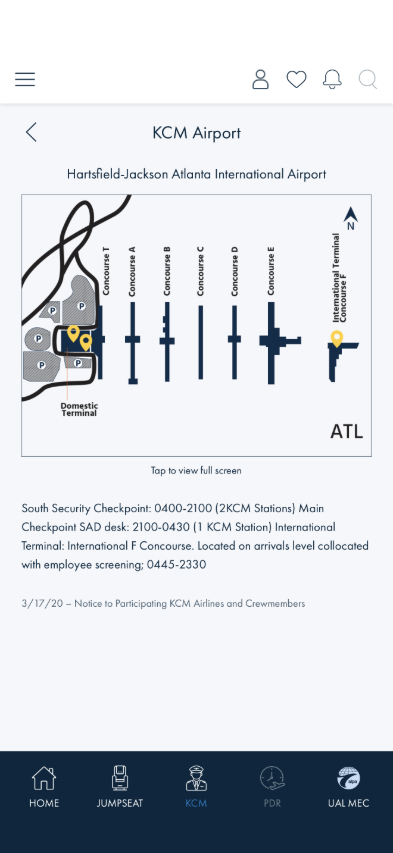
KCM Airports and KCM Airport Detail (ATL)
TLDR: 9 checks across the KCM area — reading the airline eligibility
table (who can jumpseat: pilots, flight attendants, or both), searching it, filtering it by crew role, browsing
the airports list, opening the NOTICE advisory, drilling into an airport's check-in details, and confirming the
app tells you when something isn't there instead of showing a half-empty screen. Checks 1–9 all work logged out;
none of them need a login.
Before you start
No login needed. Everything in KCM is public reference data, so you can run this whole walkthrough
logged out.
You don't need to pick a data source. The screens choose their own data behind the scenes.
You'll move between three screens, all reachable from the Page Readiness screen: KCM Airlines,
KCM Airports, and the airport detail screen you reach by tapping an airport.
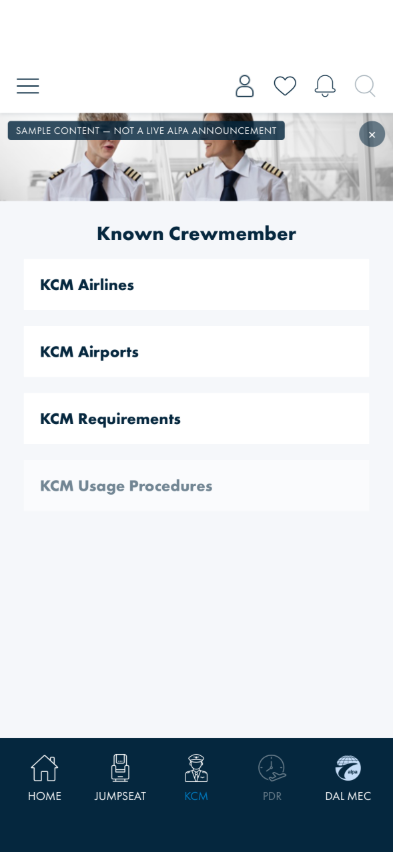
The KCM home you land on. The dark strip at the top is a test banner, not a real ALPA
announcement — it is labelled as such on purpose.
What "eligible" means here. The airlines table answers one question per column: does
this airline let pilots use KCM, and does it let flight attendants? An airline can allow one,
both, or neither. That's why every cell shows a mark either way — see Check 2.
Checks
1 · Open KCM Airlines and read the table
Steps: From the Page Readiness screen, tap KCM Airlines.
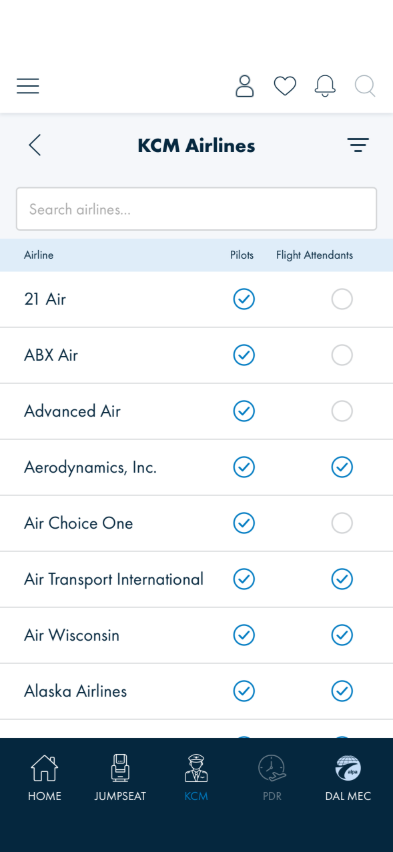
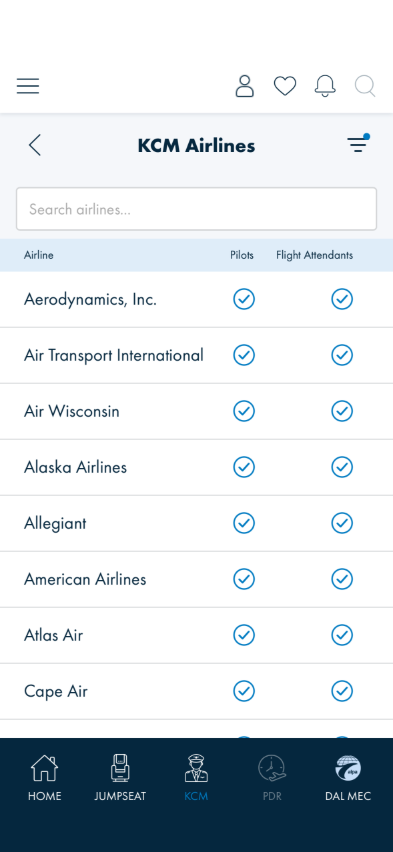
What you should see: A pale blue header strip with three column labels — Airline,
Pilots, Flight Attendants — and below it a long list of airlines, one per row. Each row has the
airline's name on the left and two round marks on the right, one under each crew column.
Something's wrong if: The header strip is missing, the columns don't line up with
the marks below them, or a row has only one mark instead of two.
2 · Check that "not eligible" is actually shown
Steps: Stay on KCM Airlines and scroll slowly through the first screenful or two. Compare rows —
for example, 21 Air against Aerodynamics, Inc.
What you should see: Two different marks. A blue circle with a tick means eligible; a plain
grey circle with no tick means not eligible. Most airlines allow pilots, so the Pilots column is mostly
ticked; the Flight Attendants column has plenty of grey circles.
Both marks are visible in the Check 1 shot above — 21 Air has a grey Flight
Attendants circle, Aerodynamics, Inc. a blue ticked one.
Something's wrong if: A cell is empty — no mark at all. An empty cell is a
bug, not a "no". This matters more than it looks: a blank space can't tell you whether the airline said no or
whether the app simply doesn't know, and that's exactly the confusion this table exists to remove.
Known design gap: the grey "not eligible" circle is our own design, not something the
design team specified — the Figma design only ever drew the ticked state. It's flagged for their review, so
the exact look may change. What must not change is that something is drawn.
3 · Search the airlines list
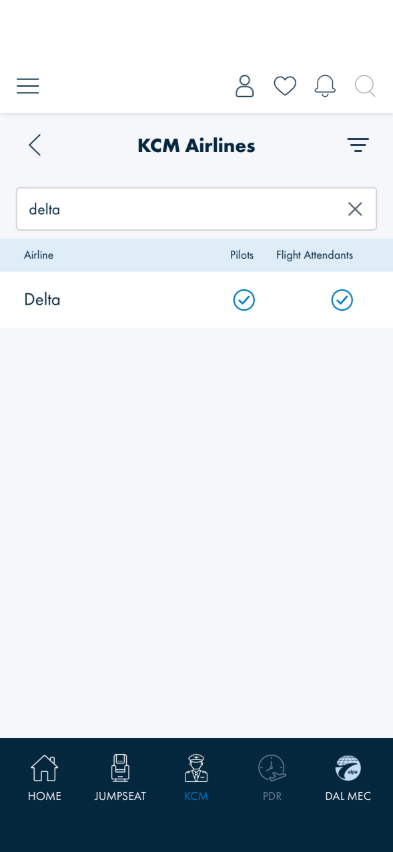
Steps: Tap the Search airlines… box at the top and type alaska. Then clear it.
What you should see: The list narrows as you type — no need to press anything. Clearing the box
brings the whole list straight back.
An × appears in the box once you've typed — that's the quickest way to clear it.
Something's wrong if: You have to submit the search, or clearing the box leaves the
list still filtered.
4 · Search for something that doesn't exist
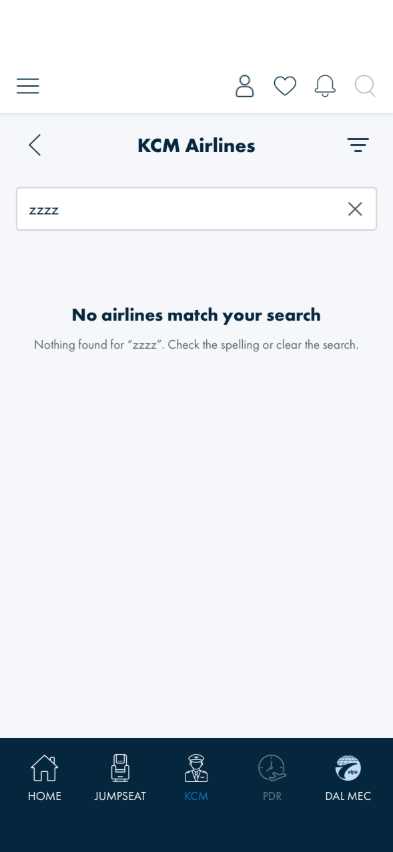
Steps: In the same search box, type zzzzzz.
What you should see: A short message saying nothing matched, quoting what you typed. The column
header strip should disappear along with the rows.
Something's wrong if: You're left staring at the blue header strip with nothing
under it, or you get a blank white area with no explanation. A header with no rows looks like the app broke
rather than like an empty search.
5 · Filter by crew role
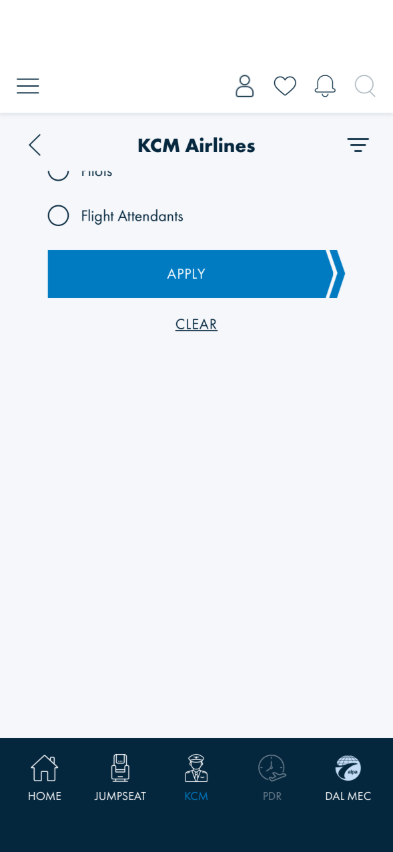
Steps: Clear the search first. Tap the filter icon at the top right of the KCM Airlines
screen (three stacked lines). Choose Flight Attendants, then tap APPLY.
What you should see: The panel closes and the list gets noticeably shorter — only airlines that
allow flight attendants remain, and every remaining row has a blue tick in the Flight Attendants column. A
small blue dot appears on the filter icon to remind you a filter is on.
The filter panel — pick a role, then APPLY.
After applying: a shorter list, and the blue dot on the filter icon top-right.
Something's wrong if: Any remaining row shows a grey circle in the Flight Attendants
column, or the filter icon looks exactly the same as before. That dot is the only thing telling you the list
you're reading isn't the full list.
6 · Clear the filter, and check that just looking doesn't change anything
Steps: Tap the filter icon again and tap Clear. Then tap the filter icon once more, tap
Pilots, and this time close the panel with the × instead of applying.
What you should see: After Clear, the full list is back and the blue dot is gone. After the
second part, the list is unchanged — picking an option and closing without applying must not filter
anything.
Something's wrong if: Closing with × applies the filter anyway. Opening the filter to
see what's there shouldn't silently change what you're reading.
7 · Open KCM Airports and the NOTICE advisory
Steps: Go back and open KCM Airports. Tap the outlined NOTICE button above the list.
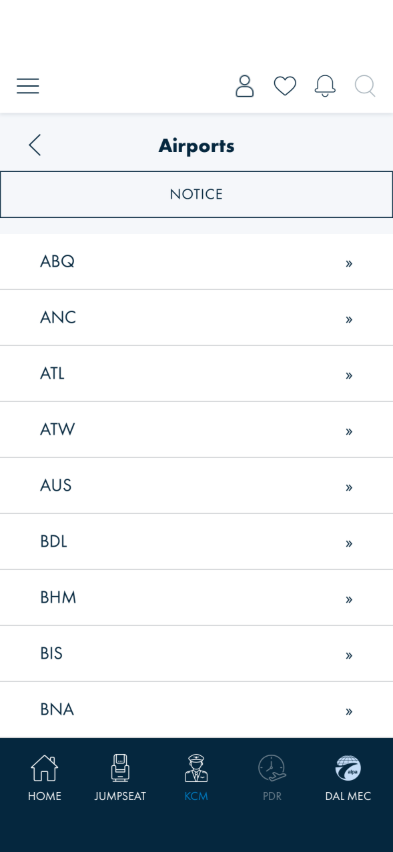
What you should see: A list of three-letter airport codes (ABQ, ANC, ATL, …), each with a chevron on
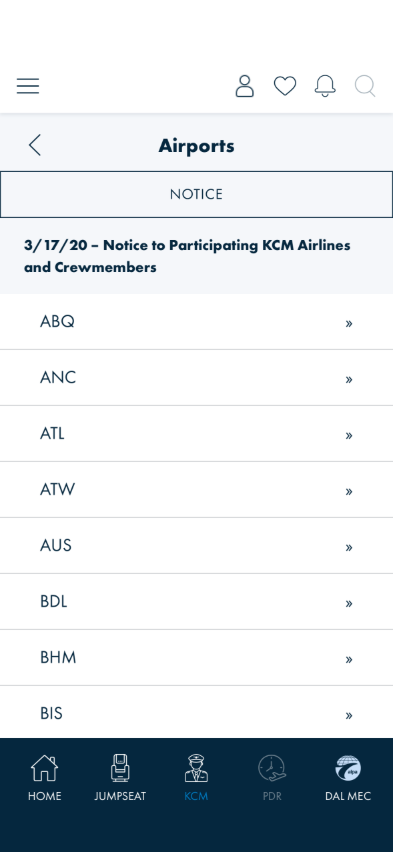
the right. Above them sits a single outlined NOTICE button. Tapping it expands to show the advisory
text; tapping again collapses it.
Collapsed — NOTICE is a button above the list, not a row in it.
Expanded — the advisory text appears between the button and the list.
Something's wrong if:
NOTICE appears as a row in the airport list (often as *NOTICE) — it's an advisory,
not an airport, and it belongs only in the button.
The button expands to show nothing — an empty panel means the advisory text isn't loading.
8 · Open an airport's details — and its map
Steps: Tap any airport row — ATL is a good one. Tap the map (or the "Tap to view full
screen" line under it), look at it full screen, then close it with the round ✕.
What you should see: A detail screen for that airport: its full name at the top, the
terminal map right on the page (a short spinner first if it isn't cached yet), a "Tap to view full
screen" line under the map, then the check-in notes describing where the KCM access point is, and the dated
advisory line at the bottom. Tapping the map fills the screen with it; ✕ brings you back. Maps are cached on
the device after the first view — if you've opened this airport before, the map should appear instantly, and
it should keep working with WiFi off. Offline with nothing cached, the map's place is taken by a card
saying "Map unavailable offline — connect to WiFi…" rather than a broken image.
Something's wrong if: The airport shown doesn't match the row you tapped (every row
used to open the same airport, so tap two or three and confirm each opens its own), the map area is a broken
image instead of the offline card, the full-screen view won't close, or the old KCM AIRLINES list is
back at the bottom — airline participation isn't airport-specific and now lives only on the KCM Airlines
screen.
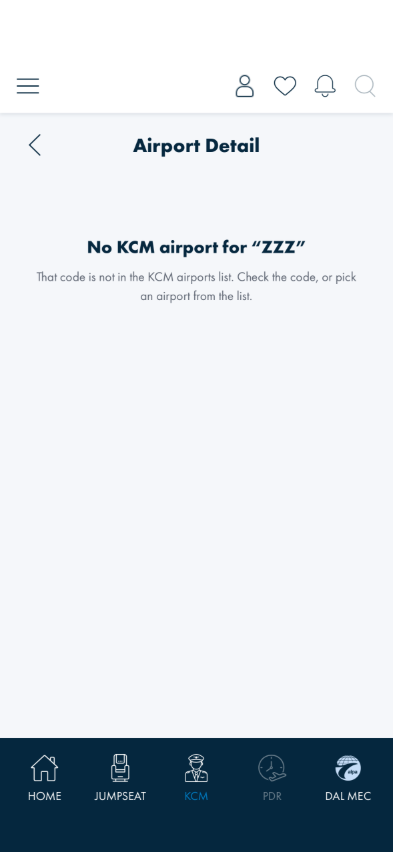
9 · Confirm the app admits when an airport isn't there
Steps: This one needs a hand from an engineer — ask them to open /kcm/airport/ZZZZ
directly.
What you should see: A clear message that there's no KCM airport for that code, and nothing else —
no airline list underneath.
Something's wrong if: You get a page with the KCM airlines list but no airport at the
top and no explanation, or the app quietly shows Denver instead. Showing a real airport nobody asked
for is worse than showing nothing.
What's already covered by automated tests
These checks are automated in KcmWalkthroughTests and run with the UI suite, so a regression in
them should be caught before it reaches you. Run them by hand anyway when you're testing this area — the
automation checks that the behaviour is present, not that it reads well:
Check 8 — the tapped airport is the one that opens (AirportDetail_RendersTheAirportThatWasTapped)
Check 9 — not-found states (AirportDetail_UnknownCodeShowsNotFoundRatherThanAHalfPage,
AirportDetail_NoCodeDoesNotFabricateAnAirport)
Notes for this release
The airlines table is new. It used to show coloured pills (PILOTS / FLIGHT ATTENDANTS) that only
appeared when the answer was yes. The two-column table replaces them so that a "no" is stated rather than
implied by a missing pill.
Search still sits in the page, not the nav bar. The design puts search and filter together in the
top bar; the filter moved there, search hasn't yet. Not a bug — just not finished.
The airport detail screen has no Figma design yet; it was rebuilt 2026-08-12 to match the
native (XAML) page instead — name, inline cached map with full-screen view, notes, advisory — using the
app's own styling. Test it for function and for parity with the native page, not against a design.