Updated: 2026-08-22 08:19 ET · On the Page Readiness screen, look for: Advocacy — PAC contributions / calls to action (requires login)
TLDR: 4 checks — the screen's PAC card and your contribution line,
the three links on that card opening ALPA's website inside the app already signed in, the SUBMIT MEETING
REPORT hand-off, and the Calls to Action list opening each action.
Before you start
Log in. The row says so; logged out it bounces to the log-in screen.
Data source on Live — everything here reads real ALPA-PAC and call-to-action data for your
account.
The in-app browser that opens from this screen has its own walkthrough:
In-App Browser. Here you only confirm that it opened the right
page.
Checks
1 · The PAC card
Steps: On the Page Readiness screen tap Advocacy — PAC contributions / calls to action.
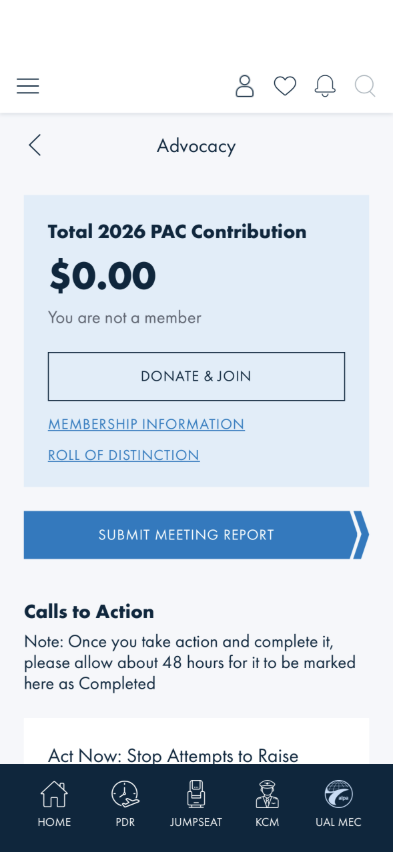
What you should see: Title Advocacy with a back chevron. A pale-blue card headed
Total 2026 PAC Contribution (the current year) with a dollar amount, a membership line (You are
not a member for a non-contributor, or your membership level), an outlined DONATE & JOIN
button, and two underlined links — MEMBERSHIP INFORMATION and ROLL OF DISTINCTION. Below the
card, the blue SUBMIT MEETING REPORT button, then the Calls to Action heading with its
48-hour note.
Something's wrong if: The amount is blank, the year is wrong, the card shows
someone else's status, or any of the three card controls is missing.
2 · The three card links open ALPA's site, signed in
Steps: Tap DONATE & JOIN. Close the browser (× in the floating cluster — see the
In-App Browser walkthrough). Repeat for MEMBERSHIP
INFORMATION and ROLL OF DISTINCTION.
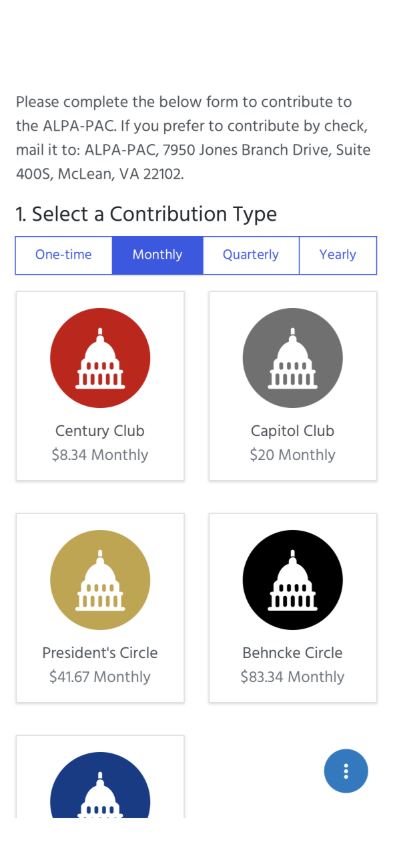
What you should see: Each opens a full-screen in-app browser on the matching alpa.org page
without asking you to log in again: the PAC contribution form (1. Select a Contribution
Type with One-time / Monthly / Quarterly / Yearly and the club tiles), the PAC membership page, and the
Roll of Distinction page. Closing returns you to Advocacy where you left it.
Something's wrong if: The page asks for a username and password, the tab bar and
ALPA top bar stay visible over the web page, the browser opens on alpa.org's home page instead of the
target, or closing it lands you on Home instead of Advocacy.
3 · SUBMIT MEETING REPORT
Steps: Tap SUBMIT MEETING REPORT.
What you should see: The in-app browser opens on the meeting-report form, signed in. Close
returns to Advocacy.
Something's wrong if: Nothing happens on tap, or a login prompt appears.
4 · Calls to Action
Steps: Scroll to Calls to Action and tap the first card (at capture time, Act Now: Stop
Attempts to Raise…).
What you should see: A list of white cards, each a title with a chevron. Tapping one opens that
action's page in the in-app browser. If you have no open actions, a single message line says so instead
of an empty gap.
Something's wrong if: A card opens a different action than its title, the list is
blank with no message, or the Completed marking contradicts what you have actually done (allow the 48
hours the note mentions).
What this checks, overall
The Advocacy screen reads your live PAC status and calls to action, and every tap on it hands off to
ALPA's website through the signed-in in-app browser and comes back where it started.
What's not covered yet
Completing a contribution or a meeting report — the web forms themselves are ALPA website
behaviour, not app behaviour; stop at the form.
Visibility gates — some members will not see the PAC card or a call to action at all, by
membership rules; the screen honours those gates and a missing block is not by itself a finding. Say which
block was missing and your pilot group.
Validated live 2026-08-22 on the simulator for Checks 1–2 with the development account; Checks 3–4
were spot-checked for the hand-off opening, not for the target forms' content.