Updated: 2026-08-24 17:20 ET · On the Page Readiness screen, look for the Documents section: Internal Comms (categories → article lists), Document viewer — Canadian Limits PDF, MEC Documents (save a favourite here)
TLDR: 8 checks covering how a member reaches a document and reads it
without leaving the app — the category rows on Home Preview, a category's article list with its dates and
unread dots, a PDF that fits the phone screen edge to edge (the 2026-08-20 fix, AB#2526), an HTML
document, the back chevron returning you to the list, the one-time PrefetchCount auto-download opt-in prompt
(AB#2576), and reaching the Document Cache list from the Favorites FAB (AB#2578).
Before you start
Log in first. Every documents screen (/documents) bounces a logged-out visitor
to the log-in screen — that is expected, not a finding (see the
Login & Logout walkthrough, Check 6).
Leave the data source on Live. The documents below come from the real ALPA library; titles and
dates will differ from the screenshots as new content is published — the shape is what you are
checking.
Steps: On the Page Readiness screen tap Home Preview — heart-toggle test surface, or tap
HOME in the tab bar.
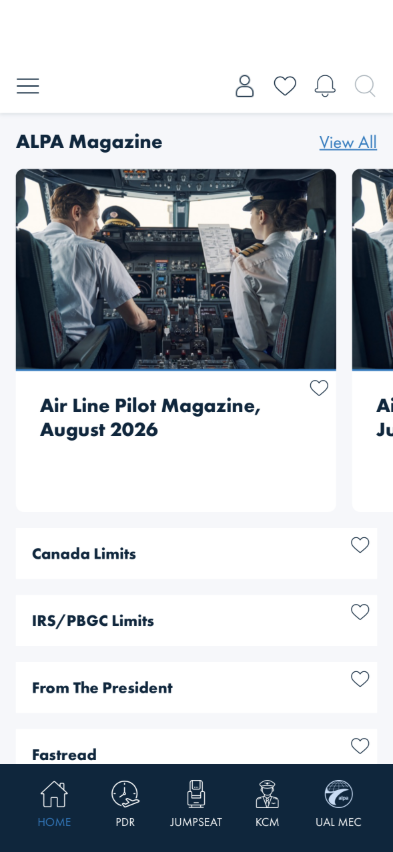
What you should see: An ALPA Magazine carousel with a View All link, then a stack of
category rows — Canada Limits, IRS/PBGC Limits, From The President, Fastread
and more as you scroll — each with an outline heart on the right. The screen appears within a few seconds
of launch; it no longer waits on the documents download before drawing (AB#2507).
Something's wrong if: The screen sits on a spinner for 10–20 seconds before
anything draws, the category rows are missing, or the rows have no hearts while you are logged in.
2 · A category opens its article list
Steps: Tap the Canada Limits row (not its heart).
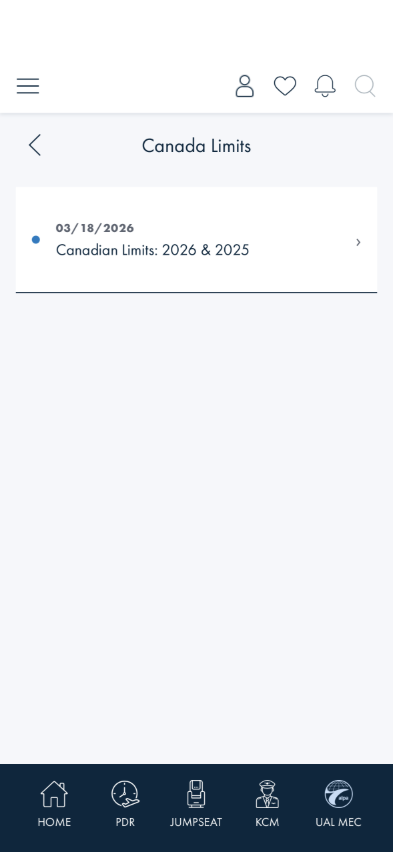
What you should see: A screen titled Canada Limits with a back chevron, listing each
document as a card: a date line (e.g. 03/18/2026), the title, a blue dot on the left when you have
not opened it yet, and a chevron on the right. A sparse category legitimately shows a single card.
Something's wrong if: The list is empty for a category that had content on the
ALPA website, the title bar shows a different category than the one you tapped, or the cards have no
dates.
3 · A PDF fits the screen
Steps: Tap the Canadian Limits: 2026 & 2025 card.
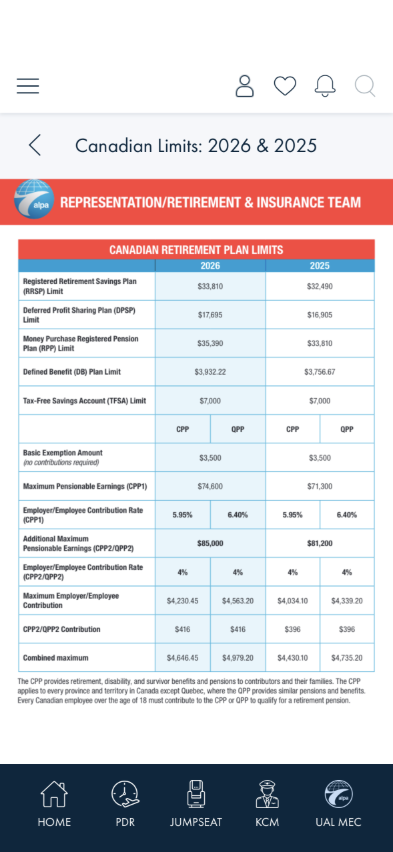
What you should see: The document opens inside the app — the top bar, a back chevron
with the document title, and the tab bar all stay in place. The PDF page is scaled to the width of the
screen: the red banner and the full table are visible without scrolling sideways, and the whole page is
readable top to bottom by scrolling. You may briefly see Opening document… with a spinner first.
Something's wrong if: Only the top-left corner of the page shows and you have to
drag sideways to see the rest (the pre-fix behaviour, AB#2526); the page renders tiny in the middle of an
empty frame; or the message This document couldn't be displayed here appears with an OPEN
NATIVELY button — that button is the fallback path and should not be needed for a normal PDF.
Currently reproduces on production as of 2026-08-23: the download call itself 400s before pdf.js
ever gets a page to fit — tracked as AB#2571 (backend) and AB#2570 (the fallback message itself is
misleading for a download failure).
4 · An HTML document reads like a web page
Steps: Tap the back chevron twice to return to Home Preview, then tap From The President
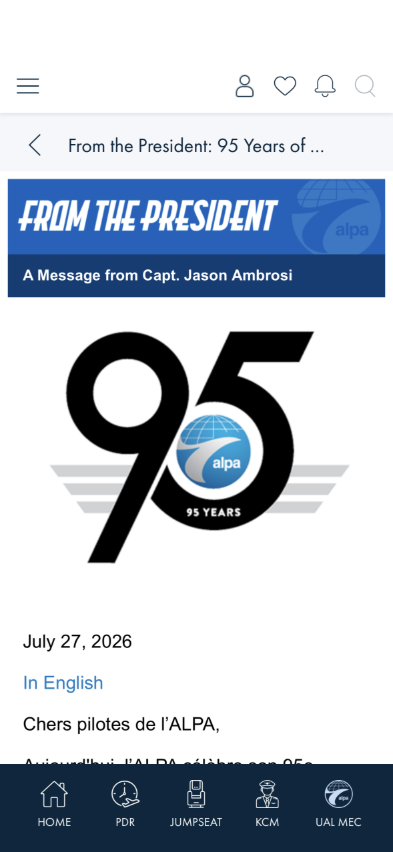
and open the newest entry (at capture time, From the President: 95 Years of Safer Skies).
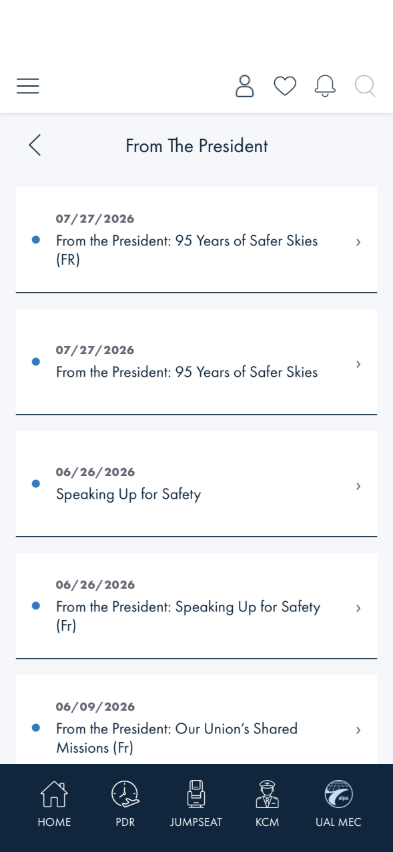
The category list — several dated cards, English and French pairs
The document — banner image, date, body text reflowed to the phone width
What you should see: The article renders with its banner, the date, an In English /
En français link and body text wrapped to the screen width. The title bar truncates long titles
with an ellipsis rather than wrapping.
Something's wrong if: Body text runs off the right edge, the page is blank after
the spinner clears, or the document opens in a separate browser sheet instead of inside the app.
Currently reproduces on production as of 2026-08-23 — same AB#2571 download failure as Check 3,
confirmed on this HTML article too, so it is not a PDF-specific problem.
5 · Back returns to the list, and the list is still there
Steps: From the open document tap the back chevron.
What you should see: You are back on the same article list, scrolled where you left it. Tapping
the chevron again returns to Home Preview.
Something's wrong if: Back lands on Home Preview directly (skipping the list),
re-loads the list from scratch with a spinner, or leaves you on a blank document frame.
6 · The one-time opt-in prompt on first document open
Steps: Open any document for the first time on this install (a clean install, or after
Document Cache → Clear All has never run and no document has been opened yet).
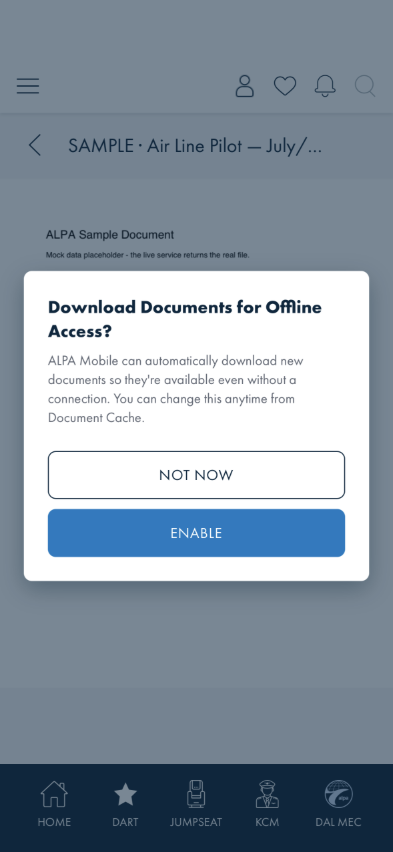
What you should see: A modal titled Download Documents for Offline Access? floats over the
document (which keeps loading behind it) with NOT NOW and ENABLE buttons. This is
AB#2576's PrefetchCount auto-download feature — it is off for every member until this prompt is
answered, and the prompt fires exactly once: whichever button you tap, it will not appear again on this
install.
Tapping ENABLE (or NOT NOW) simply dismisses the modal — the document underneath is
unaffected either way; the answer only governs whether future categories with a
backend-supplied PrefetchCount auto-download in the background.
Something's wrong if: The prompt appears again after you have already answered it
once, or it blocks/delays the document's own loading spinner underneath it.
7 · Document Cache — reached from the Favorites FAB
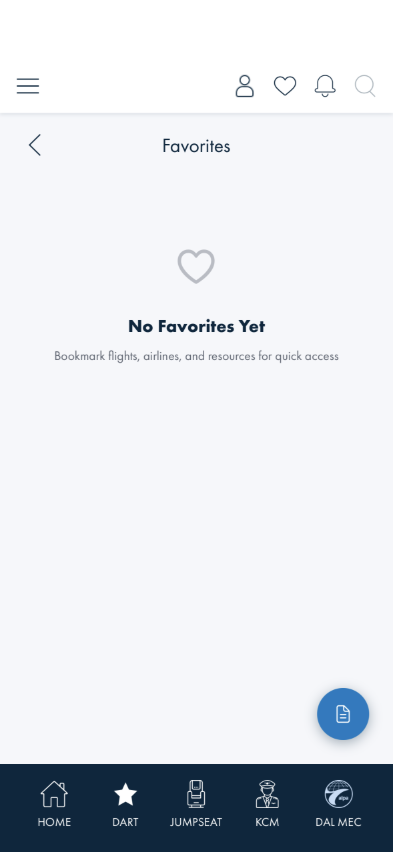
Steps: Tap the heart icon in the top bar (or the Favorites flyout item) to reach
Favorites, then tap the round document-icon button in the bottom-right corner.
What you should see: A blue floating action button with a document glyph, sitting clear of the
tab bar in the lower-right corner of Favorites. Tapping it opens Document Cache (AB#2578) — a
mechanism affiliated with Favorites by placement only, not a Favorites sub-list: it tracks documents
already downloaded to this device, separately from the heart/favorite state.
Something's wrong if: The FAB overlaps the tab bar, shows a text glyph instead of
the document icon, or does not navigate to Document Cache.
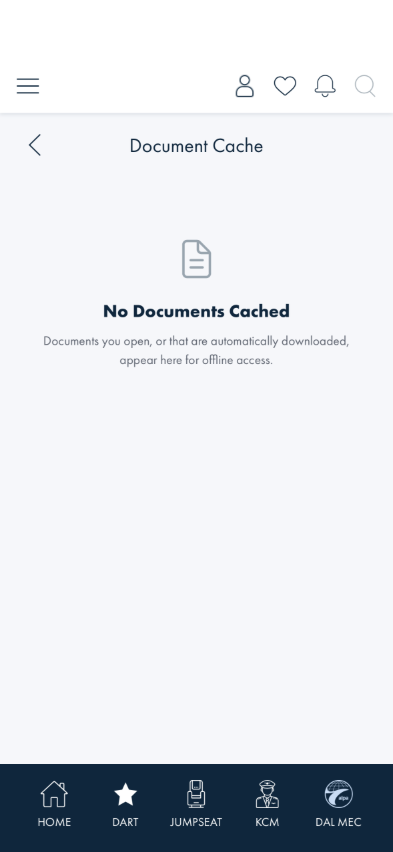
8 · Document Cache — empty state
Steps: Open Document Cache before any document has been downloaded (or after Clear All).
What you should see: A thin document-outline icon (the same glyph as the FAB, tinted dark navy —
not a down-arrow emoji), the heading No Documents Cached, and explanatory text. Once documents are
cached, this page groups them by category with a per-category auto-download toggle: turning a category
off clears its already-cached files after a confirmation dialog, and a Clear All button appears
once more than one document is cached (also confirmation-guarded).
Something's wrong if: The icon still shows a down-arrow or any other emoji, or the
page shows a spinner indefinitely instead of settling on the empty state.
Populating this list requires a document to actually finish downloading, which currently
reproduces the same AB#2571 production download failure noted in Checks 3 and 4 above — the grouped list,
per-category toggle, and Clear All confirmation could not be captured live against a working download this
round; they are covered instead by the DataManager/ViewModel unit test suite
(DataManager_DocumentCacheTests.cs, DocumentCacheViewModelTests.cs).
What this checks, overall
The member-facing documents path end to end: reaching a category from Home Preview, reading its list,
opening both document types (PDF and HTML) in the in-app viewer with the page fitted to the phone (the
viewer work delivered 2026-08-20, AB#2526/AB#2507/AB#2502), the one-time PrefetchCount auto-download opt-in
gate, and reaching the Document Cache list from Favorites (AB#2576/AB#2578, delivered 2026-08-24).
What's not covered yet
Read / unread state — whether the blue dot clears after you open a document is not asserted
here (not checked on this build).
Refresh on Home Preview — Home now renders from the on-device copy first and only offers a
refresh when the feed actually changed (AB#2502). Provoking a real feed change is not something a tester
can do, so that path is not scripted.
"Webpage" documents and unknown file types — these hand off to the native viewer; none were
present in the categories walked above.
MEC Documents (/documents?scope=MEC) — its content is static while the page is in
progress; the hearts on it are covered by the Favorites walkthrough.
The open polish items from the 2026-08-20 documents sweep are tracked under AB#2525; AB#2529 (pinch
inside an HTML document scales the whole window) is noted in the
Accessibility & Zoom walkthrough.
Document viewer currently broken in production (AB#2571). Checks 1, 2 and 5 were validated
live 2026-08-23 (iPhone 16 simulator, account AIE/2224202) and pass. Checks 3 and 4 could not be
completed live — every document tried (the Canadian Limits PDF and an unrelated From The President HTML
article) hit the same gateway.alpa.org/v2/api/doc/downloadfile 400, landing on the
"couldn't be displayed here" fallback rather than the content described above. That written description
reflects the intended AB#2526 behaviour, not something captured against a working build. AB#2570 tracks
the fallback message being misleading for a download failure, separate from the download failure itself.
Document Cache's grouped list, per-category toggle, and Clear All (AB#2578) — Checks 6, 7 and 8
were validated live 2026-08-24 (iPhone 16 simulator, DAL MEC test account). The opt-in prompt, its
dismissal, and the FAB/empty-state screens were captured against a real running build. The grouped
category view with a populated cache — and the per-category toggle-off / Clear All confirmation dialogs —
could not be captured live this round, since populating the cache needs a document download to succeed,
which hits the same AB#2571 failure as Checks 3–4. That behavior is covered instead by the unit suite
(UnitTest/DataManager_DocumentCacheTests.cs, UnitTest/DocumentCacheViewModelTests.cs),
not a screenshot here; revisit once AB#2571 is resolved.
Backend PrefetchCount field (AB#2576) — the backend has not shipped the PrefetchCount
field on GetDocuments yet, so no category currently auto-downloads in production; that half of
the feature is validated via a DEBUG-only QA hook on DataManager, not through this walkthrough.