Updated: 2026-08-22 08:19 ET · On the Page Readiness screen, look for: Login — Member,
Login — Non-Member, and the Auth Status / Log Out utility row
TLDR: 8 checks covering the whole sign-in story — what the member
log-in screen offers, what a wrong password looks like, what a successful log-in does, reading your session
on the Auth Status utility, logging out, and confirming that logged-out visitors get bounced to the log-in
screen when they try member-only areas — plus what a logged-out visitor CAN browse (Jumpseat policies, KCM airports) since 2026-08-21.
Before you start
Start out logged out — use Auth Status / Log Out on the Page Readiness screen if you aren't.
Check 3 needs your own ALPA credentials (member number or ALPA email + password).
Checks
1 · The member log-in screen
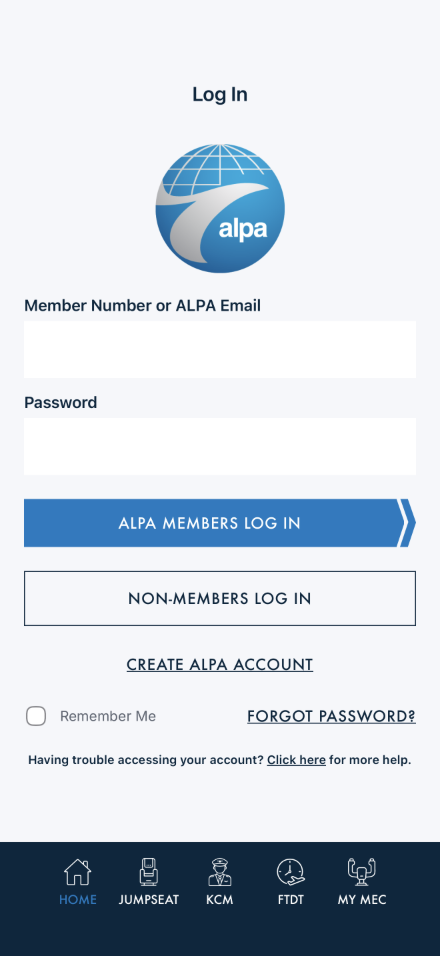
Steps: On the Page Readiness screen, tap Login — Member.
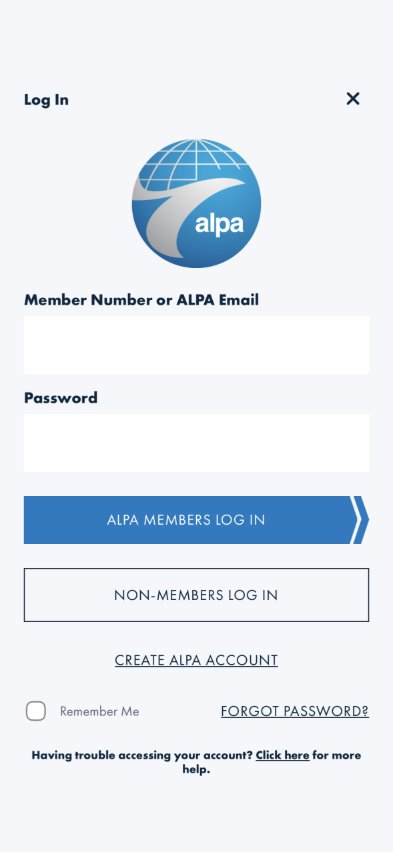
What you should see: The ALPA globe, a Member Number or ALPA Email field, a
Password field, the blue ALPA MEMBERS LOG IN button, an outlined NON-MEMBERS LOG IN
button, a CREATE ALPA ACCOUNT link, and the Remember Me / FORGOT PASSWORD? row.
Something's wrong if: Any of those controls is missing, or tapping a field doesn't
bring up the keyboard.
Note: if spelling-suggestion chips appear above the keyboard while you type, that's
your device's own predictive-text/autocorrect feature — an operating-system keyboard setting, not app
behavior. Turn it off under Settings if it's in your way: iOS is General → Keyboard; Android is
System → Languages & input → On-screen keyboard → (your keyboard) → Text correction.
2 · Wrong credentials are rejected clearly
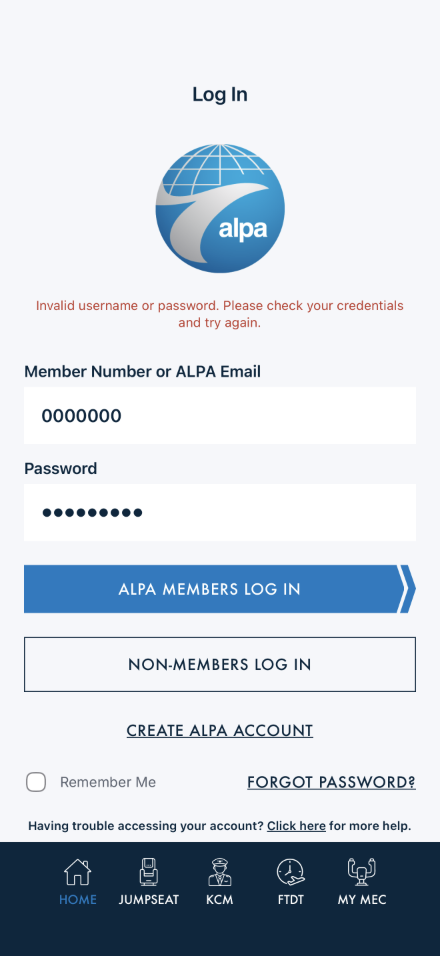
Steps: Type a made-up member number (e.g. 0000000) and any password, then tap
ALPA MEMBERS LOG IN. Also try tapping it with one of the fields left empty.
What you should see: You stay on the log-in screen with a clear message — "Invalid username or
password. Please check your credentials and try again." for bad credentials, or a "You must enter…" prompt
when a field is empty. The button shows LOGGING IN… while it checks.
Something's wrong if: Nothing happens at all, the app appears logged in anyway, or
the screen locks up with the button stuck on LOGGING IN…
3 · Log in with your credentials
Steps: Enter your real member number (or ALPA email) and password, then tap
ALPA MEMBERS LOG IN.
What you should see: You land on the Home screen. From here, member-only features unlock —
for example the save-a-favorite hearts covered in the
Favorites walkthrough.
Something's wrong if: Correct credentials are rejected, or log-in succeeds but you
land somewhere other than Home.
4 · Read your session on Auth Status
Steps: Back on the Page Readiness screen, tap Auth Status / Log Out.
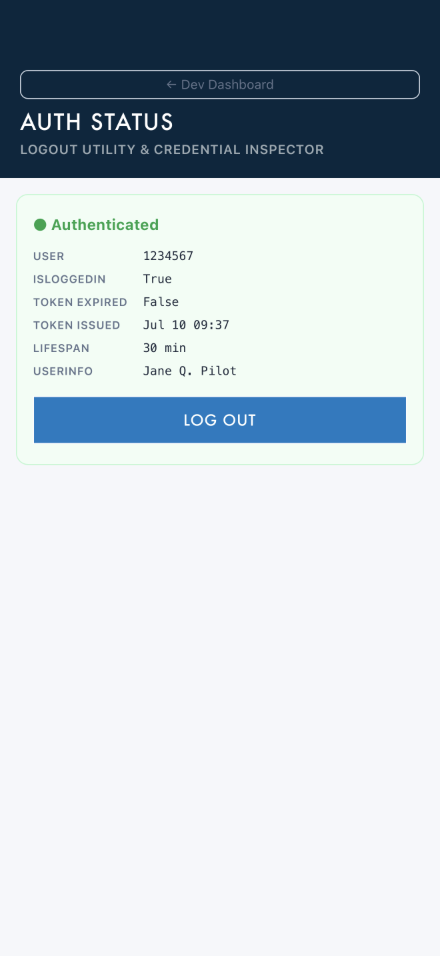
Signed in — identity + session details + LOG OUT
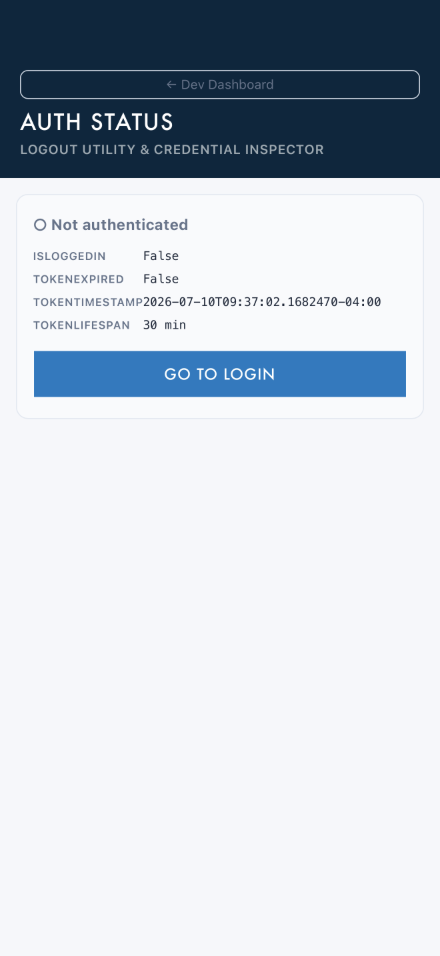
Signed out — raw state + GO TO LOGIN
What you should see: While signed in: ● Authenticated with your ALPA email, when the
session token was issued and its lifespan, and a LOG OUT button. While signed out:
○ Not authenticated and a GO TO LOGIN button.
Something's wrong if: The badge disagrees with reality — e.g. it says
Authenticated right after you logged out, or shows someone else's identity.
5 · Log out
Steps: On Auth Status, tap LOG OUT.
What you should see: You're taken to the log-in screen. Re-opening Auth Status now shows
○ Not authenticated.
Something's wrong if: You still appear signed in afterwards, or member-only
screens keep working after logging out.
6 · Logged-out visitors get sent to log in
Steps: While logged out, try a member-only area: tap Favorites on the Page Readiness
screen, or the heart icon in the top navigation bar.
What you should see: You're taken straight to the log-in screen — the member-only content never
appears (same behavior as the Favorites walkthrough, Check 1).
Something's wrong if: A member-only screen renders anything at all before asking
you to log in.
7 · The non-member path
Steps: From the log-in screen (or the Page Readiness row Login — Non-Member), open
NON-MEMBERS LOG IN. Try a member-style login as the username — a member number (e.g.
1234567 or S1234567) or any @alpa.org email.
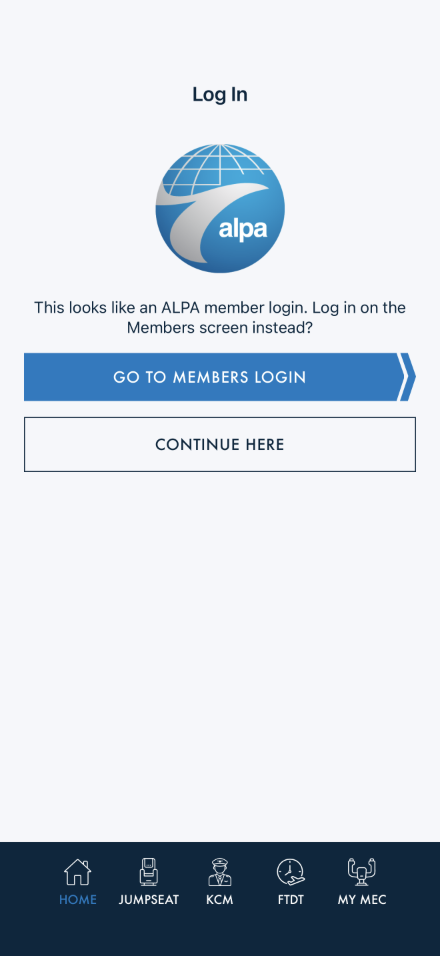
What you should see: A separate log-in form for non-member accounts. If your username looks like
an ALPA member login, the screen asks whether you meant to use the Members screen instead — with a button
to jump there and a CONTINUE HERE option. Try both: GO TO MEMBERS LOGIN takes you to /login
with what you typed carried over into the Member Number field (password never carries over — you re-enter
it there); CONTINUE HERE stays on this screen and actually attempts non-member login with what you
typed, rather than blocking you — with fake credentials it rejects with an error message (the exact copy
depends on account-attempt history: a plain "Invalid email or password" on a first bad attempt, or the
account-lockout message — "There is an issue with your login. You may need to unlock your account and/or
reset your password." — after enough failed attempts against the same identifier).
Something's wrong if: The member-number prompt never appears, choosing "go to
members" doesn't take you to the member log-in screen (or drops the typed identifier), or CONTINUE HERE
does nothing instead of attempting the login.
8 · Browsing while logged out (2026-08-21, AB#2528)
Steps: Log out (Check 5). Without logging back in: tap JUMPSEAT in the tab bar, open any
airline (e.g. Alaska Airlines); tap KCM; tap LOGIN; close the log-in sheet with its
× and open the drawer (☰ top left).
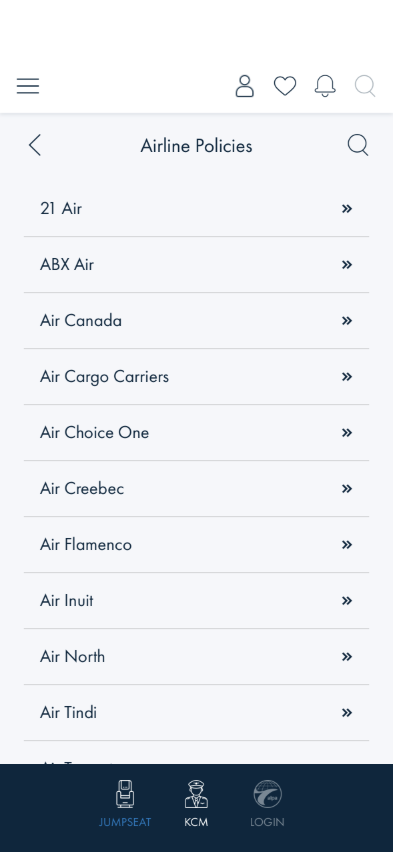
JUMPSEAT — the Airline Policies directory; note the 3-item bar
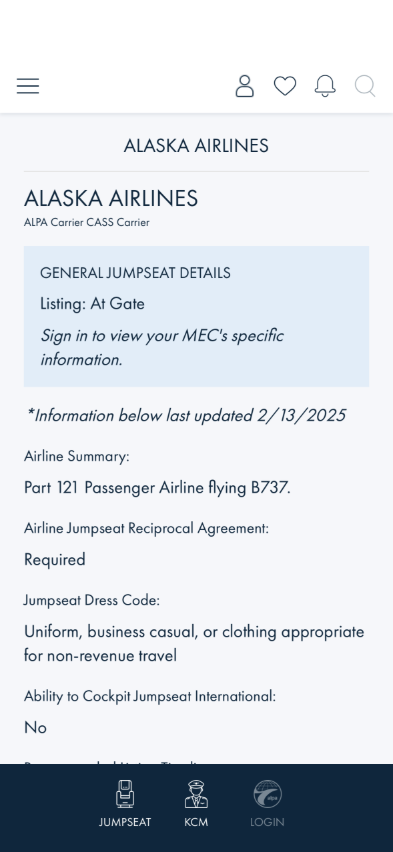
A policy — general details shown, MEC block withheld
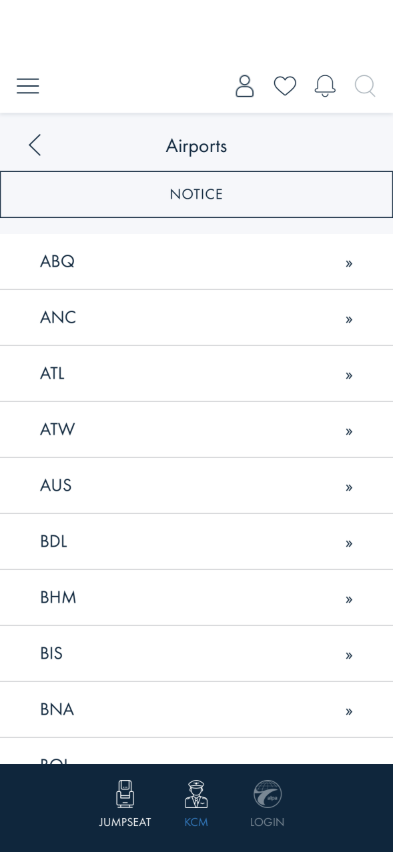
KCM — the Airports list with its NOTICE bar
LOGIN — the log-in sheet, presented over the page
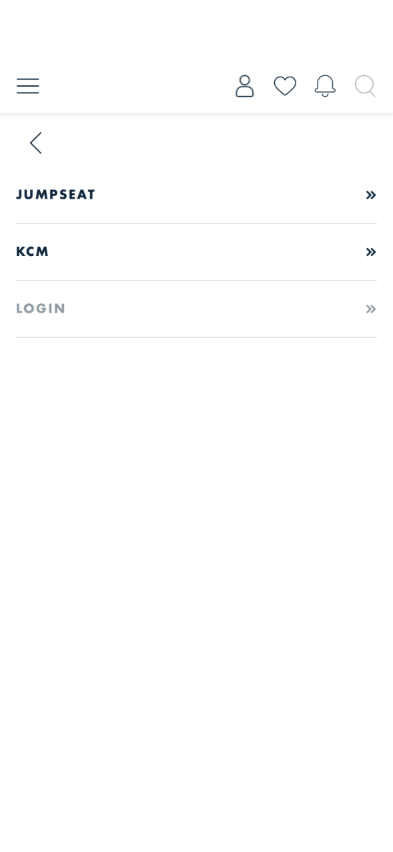
The drawer — JUMPSEAT, KCM, LOGIN (dimmed, current)
What you should see: The tab bar has exactly three slots — JUMPSEAT, KCM,
LOGIN. JUMPSEAT opens the Airline Policies directory (not the search form); a policy shows
its GENERAL JUMPSEAT DETAILS and the italic line Sign in to view your MEC's specific
information. where the MEC block would be. KCM opens the Airports list with the NOTICE
bar. LOGIN slides the Log In sheet up over the page you were reading — closing it with ×
leaves you on that page, not on a log-in screen. The drawer lists the same three entries.
Member-only controls still bounce: the heart (Favorites) and the person (Profile) icons in
the top bar take you to the full log-in screen, as in Check 6.
Something's wrong if: The bar shows five slots (HOME / PDR / … / MEC) while logged
out; JUMPSEAT opens the flight search and lets you search; a policy shows MEC-specific text without a
login; the LOGIN tab navigates away from the page instead of presenting the sheet; or × on the sheet
lands you somewhere other than where you were.
What this checks, overall
The full session lifecycle — signing in (member and non-member paths), clear rejection of bad
credentials, an honest session readout on the Auth Status utility, logging out, the logged-out
protections in front of member-only screens, and the logged-out browsing surface (Jumpseat policies and
KCM airports) that stays open without a session.
What's not covered yet
Session expiry — the session token has a limited lifespan (visible on Auth Status); what the
app does when it lapses mid-use isn't scripted here yet.
Remember Me — persistence across app restarts isn't covered.
FORGOT PASSWORD? / CREATE ALPA ACCOUNT / the footer "Click here" help link — these all leave the
app for ALPA's website and aren't walked as full scenarios here. The footer link (both login screens,
"Having trouble accessing your account?") was spot-checked live and correctly opens
alpa.org/login-help in the in-app browser sheet.