Updated: 2026-08-11 20:10 ET · Screenshots captured live on iOS simulator (ALPA-Notif-Dev) 2026-08-11 ·
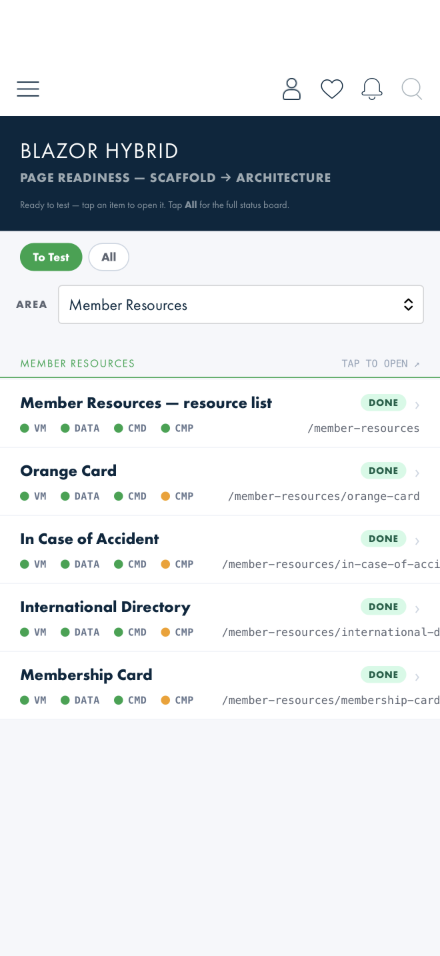
On the Page Readiness screen set the Area dropdown to Member Resources — it opens on the first area, so this section is hidden until you pick it — then look for: Member Resources — resource list,
Orange Card, In Case of Accident, International Directory, and Membership Card
TLDR: 11 checks across the resource list and its four destinations —
what the list shows logged in vs. logged out, the Orange Card hotline reference, the In Case of Accident topic
list (with its "Numbers To Call" shortcut and Orange Card exclusion), the International Directory's search and
country detail, Membership Card's login gate and real card + barcode, and saving a destination as a favorite.
6 of the 11 (the checks that don't depend on live account content) now run automated —
MemberResourcesWalkthroughTests — see "What's already covered by automated tests" below.
Before you start
Every screen here runs on live data — there is no mock story for Member Resources.MenuQueriesRouter/ContentQueriesRouter have no mock branch for this feature, so
what you see is whatever the real backend currently returns for your account.
Start out logged out for Checks 1–8 (use Auth Status / Log Out on the Page Readiness screen
if you aren't). Log in for Checks 9–11 — Membership Card and favoriting both require it.
The resource list's content depends on whether you're logged in — see Check 2. This isn't a bug,
it's how the live menu feed currently behaves.
Checks
1 · Find the section
Steps: On the Page Readiness screen, tap To Test, then set the Area dropdown to
Member Resources.
What you should see: Five rows — the resource list plus all four destinations (Orange Card, In
Case of Accident, International Directory, Membership Card) — all marked DONE.
Something's wrong if: Member Resources isn't in the Area dropdown at all, or fewer
than five rows show under it.
2 · Open the resource list — logged out
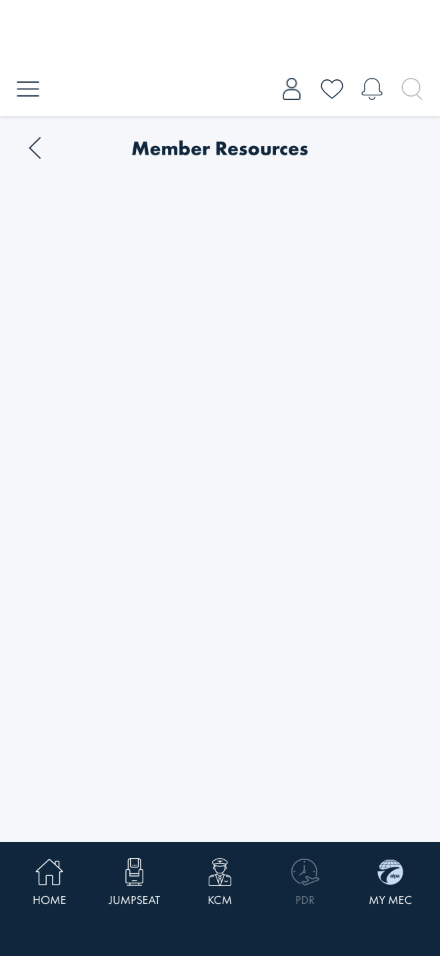
Steps: While logged out, tap Member Resources — resource list.
What you should see: The title and back chevron render, but the body is empty — no rows, no
error. The live menu feed's MemberResources item currently returns no child destinations for an
anonymous request, and the dynamic resource-links feed (a separate list of comms-managed web links that can
render above the destinations) is also empty right now. An empty body here is the correct reflection of what
the backend actually sent, not a stuck or broken page.
Something's wrong if: The page shows a spinner that never resolves, a raw error
banner, or crashes — an empty result should render as a clean blank list, never an error state.
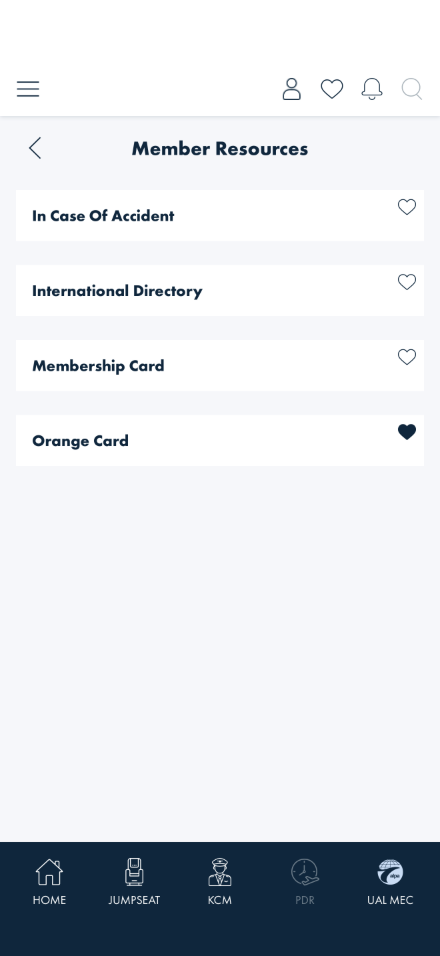
3 · Open the resource list — logged in
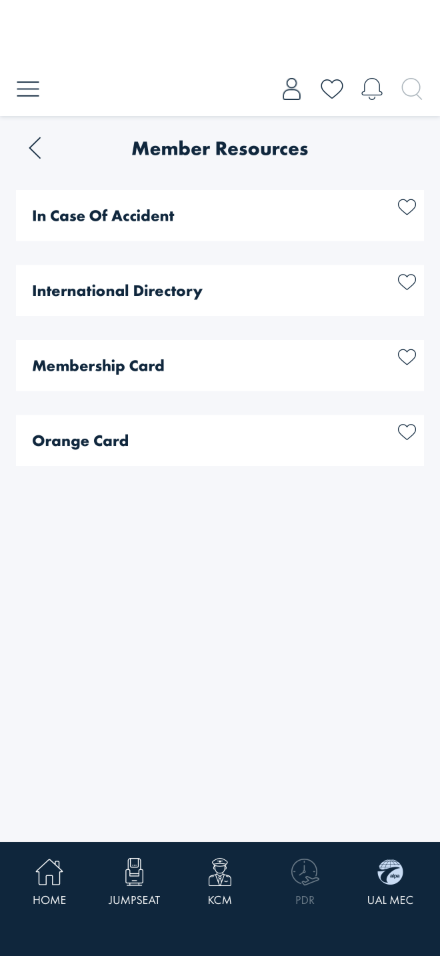
Steps: Log in, then open Member Resources — resource list again.
What you should see: All four destinations now appear, each with an outlined heart on the right.
Row order and casing come straight from the live feed and can vary by account — that's expected, not a
layout bug.
Something's wrong if: A row has no heart at all (favoriting should be available on
every destination here), or tapping a row does nothing.
4 · Orange Card
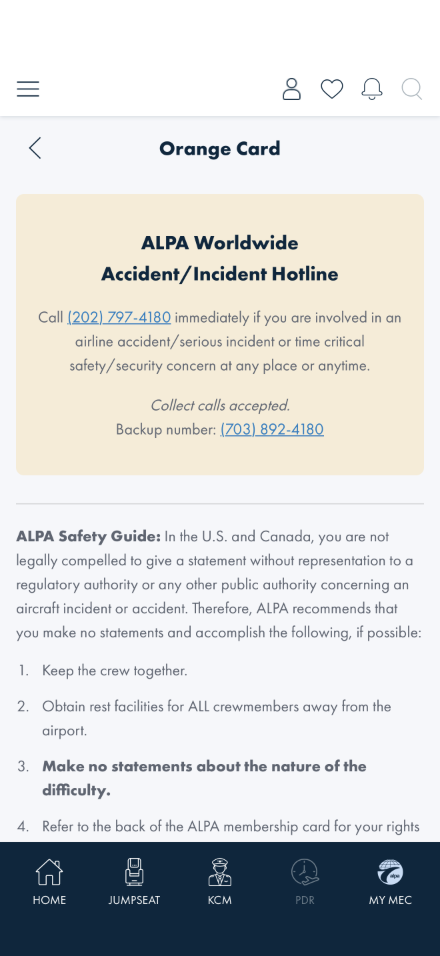
Steps: From the resource list (or the Page Readiness board directly), open Orange Card.
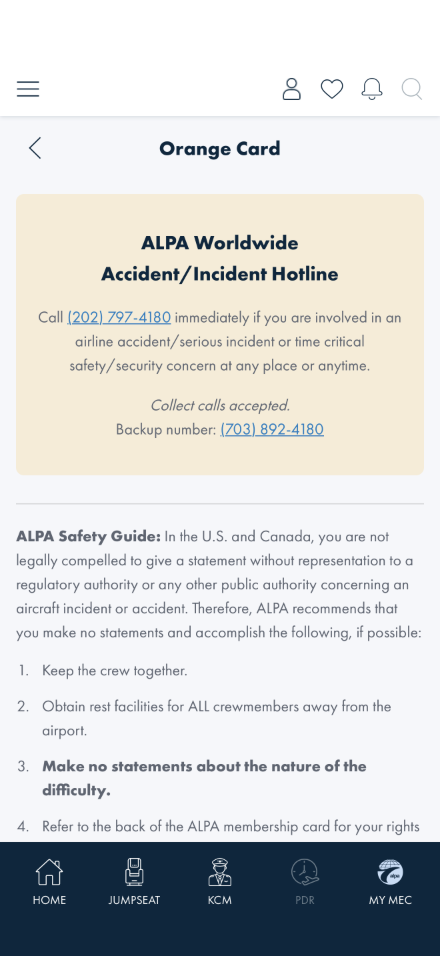
What you should see: A tan/orange hero block with the worldwide accident/incident hotline number
and a backup number, both tappable tel: links. Below a divider, the ALPA Safety Guide's
four-step numbered list, then a closing paragraph about accidents outside the U.S./Canada. This is static
copy — nothing here is fetched live.
Something's wrong if: Either phone number doesn't open the dialer, or the numbered
list is out of order.
Item 4 ("Refer to the back of the ALPA membership card…") is plain text, not a link
— even though Membership Card is now a real destination. No Figma frame exists for this screen, so this
wasn't wired up as a cross-reference link. Known, not a bug to report.
5 · In Case of Accident — the topic list
Steps: Open In Case of Accident.
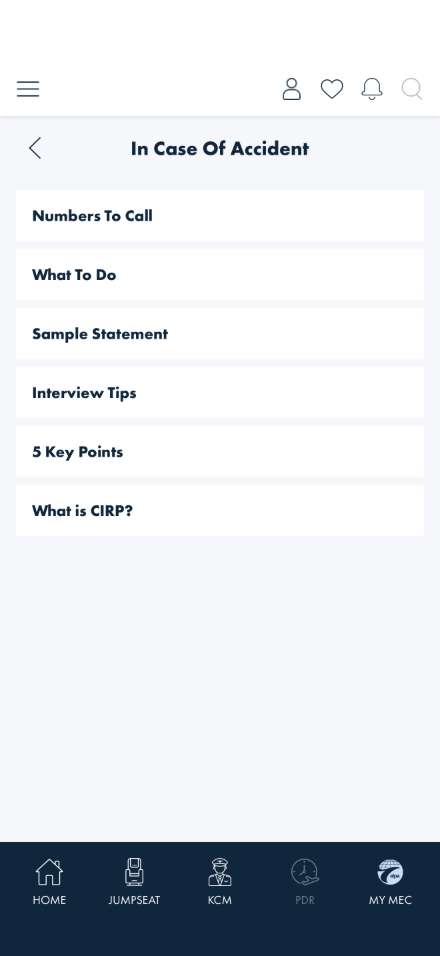
What you should see: A list of reference topics from the live backend (six at the time of writing —
the exact set can change). "Orange Card" never appears in this list — it's filtered out because it
has its own destination (Check 4).
Something's wrong if: "Orange Card" shows up as a row here, or the list is empty
(this list, unlike the parent resource list in Check 2, is expected to always have content).
6 · "Numbers To Call" jumps straight to Orange Card
Steps: On the In Case of Accident list, tap Numbers To Call.
What you should see: You land directly on the Orange Card page — not a "Numbers To Call"
detail screen. This is a deliberate special case (every other topic opens its own detail, this one
redirects).
Something's wrong if: A "Numbers To Call" detail page opens instead of Orange
Card, or nothing happens when you tap it.
7 · A regular topic opens its own detail
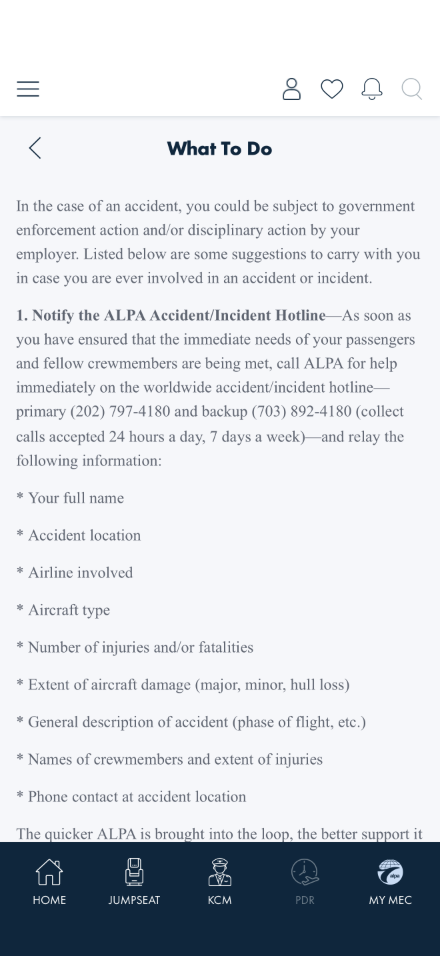
Steps: Go back to the In Case of Accident list and tap any topic other than Numbers To
Call (e.g. What To Do).
What you should see: A detail page titled with that topic's name, showing its full CMS-authored
text.
Something's wrong if: The detail page shows a different topic's content than the
one you tapped, or shows raw unstyled HTML/markup instead of formatted text.
8 · International Directory — search and country detail
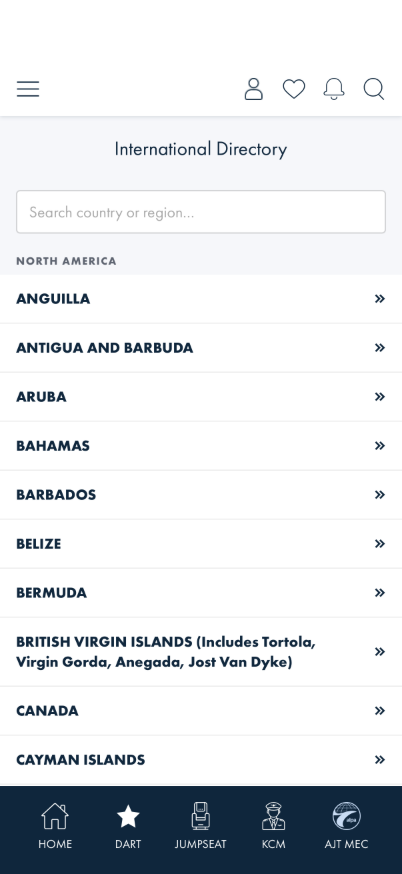
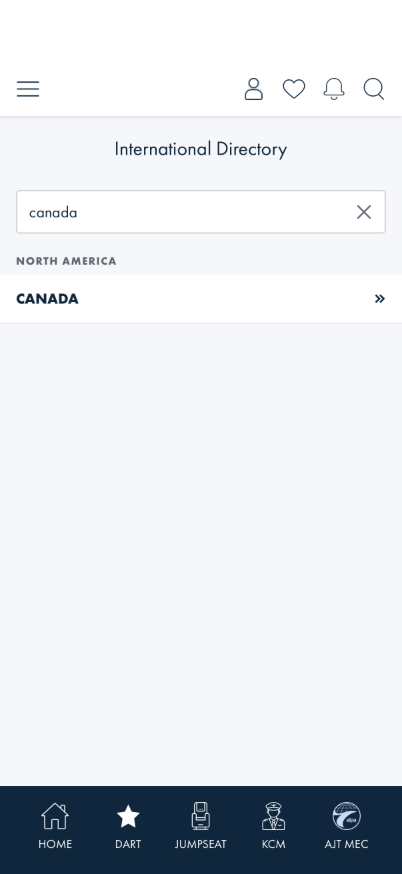
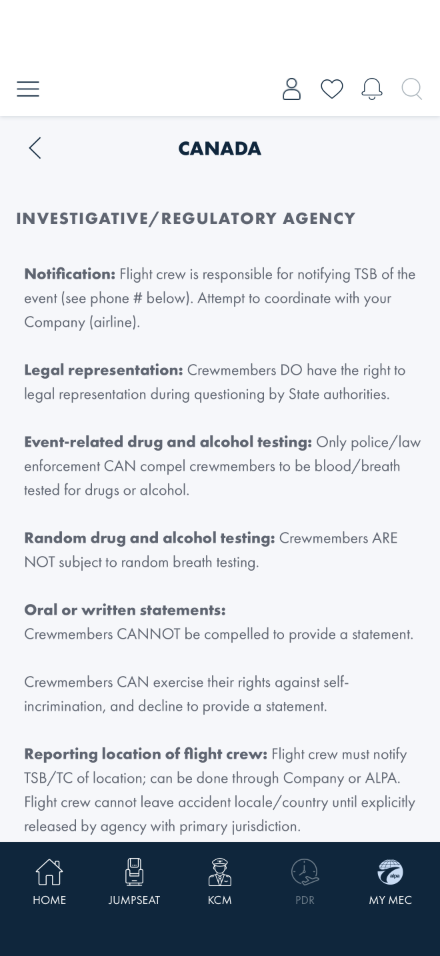
Steps: Open International Directory. Read the continent-grouped country list, then type
into the search box (e.g. canada). Tap the X to clear, then tap a country.
Full list, grouped by continent
Search narrows to matching countries
What you should see: The list groups countries under continent headers. Typing narrows the list
to matching countries (or continents whose name matches, which keeps every country under that continent).
Tapping a country opens a detail page with only the sections that have real content — you won't see an
empty "OTHER" heading with nothing under it, for example.
Something's wrong if: Search doesn't narrow the list, the clear (X) button doesn't
restore the full list, or a country's detail page shows a different country's information.
8b · International Directory — no matches
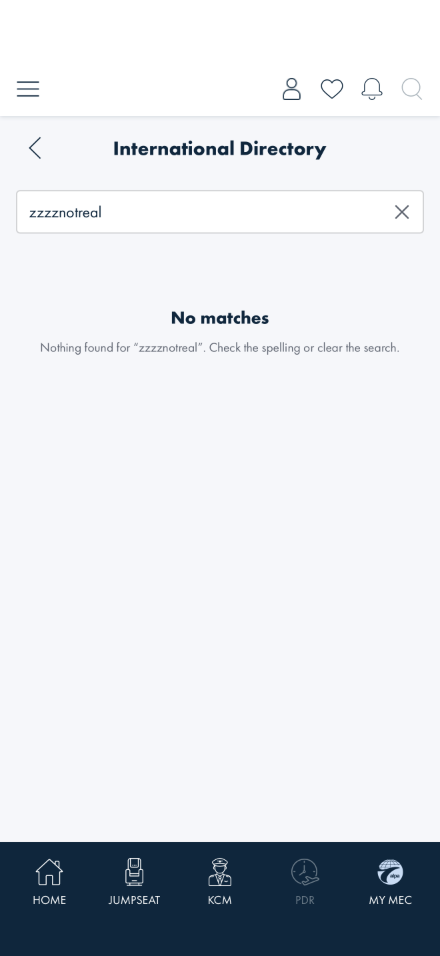
Steps: In the search box, type something that won't match anything (e.g. zzzznotreal).
What you should see: A "No matches" message that quotes your search term back to you.
Something's wrong if: The screen just goes blank with no explanation, or shows the
generic "couldn't load" error instead of a search-specific "no matches" message.
9 · Membership Card requires login
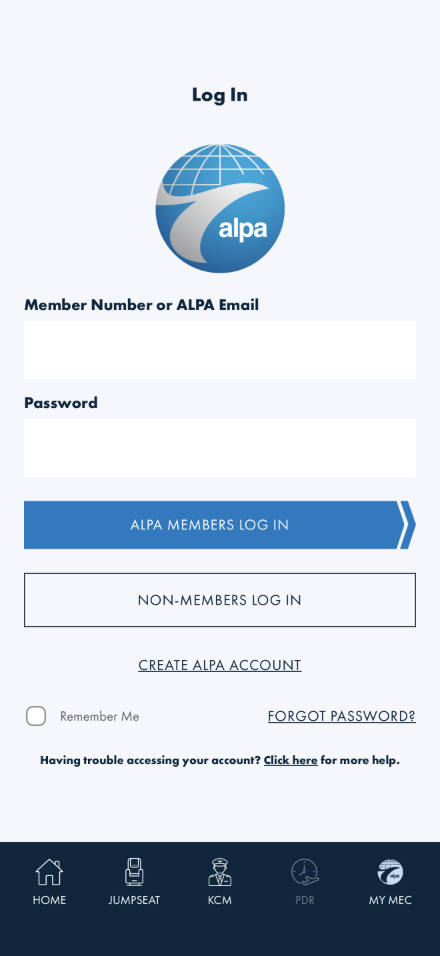
Steps: While logged out, open Membership Card.
What you should see: You're taken straight to the log-in screen — same guard as Profile and
Favorites. You never see an empty or placeholder card first.
Something's wrong if: You see any part of the Membership Card page — even a blank
one — before being asked to log in.
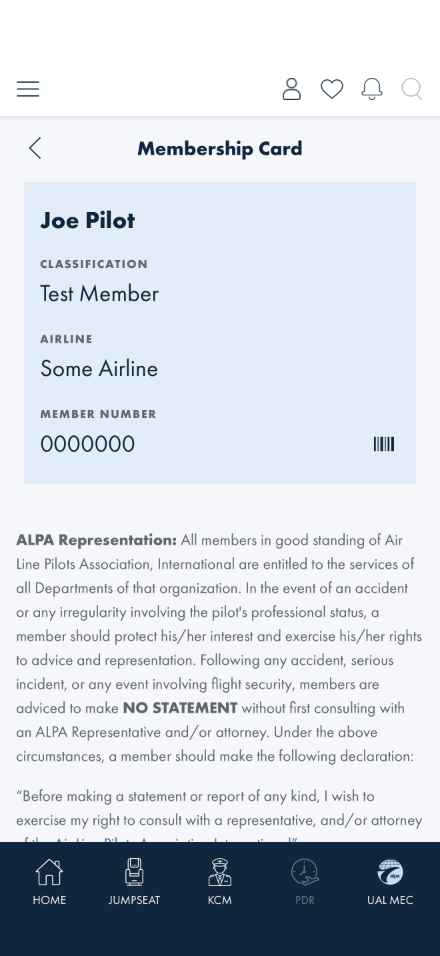
10 · Membership Card — real card and barcode
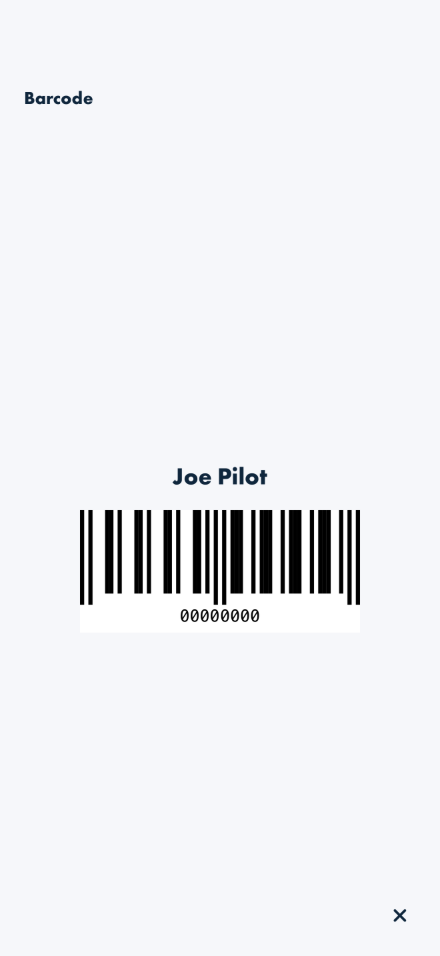
Steps: Log in and open Membership Card. Tap the barcode icon next to the member number.
Real member identity fields
Barcode modal, tap the ✕ to close
What you should see: Your name, classification, airline, and a 7-digit member number. Tapping the
barcode icon opens a modal with your name above a scannable EAN-8 barcode and an ✕ to close it.
Scrolling down shows the ALPA Representation rights text and a call/email link
(888-FLY-ALPA / membership@alpa.org).
Something's wrong if: The card shows a display name that doesn't match your
account at all (a name mismatch between screens is a separate, known quirk — see the note below, not this
failure), the barcode modal doesn't open or doesn't close, or the phone/email links don't work.
Note: the name shown on this card comes straight from your member record's
first/last name fields, which can read differently from a friendly display name shown elsewhere in the app
(e.g. the Home screen's "Welcome" greeting) — that's two different data sources, not a bug in either
screen.
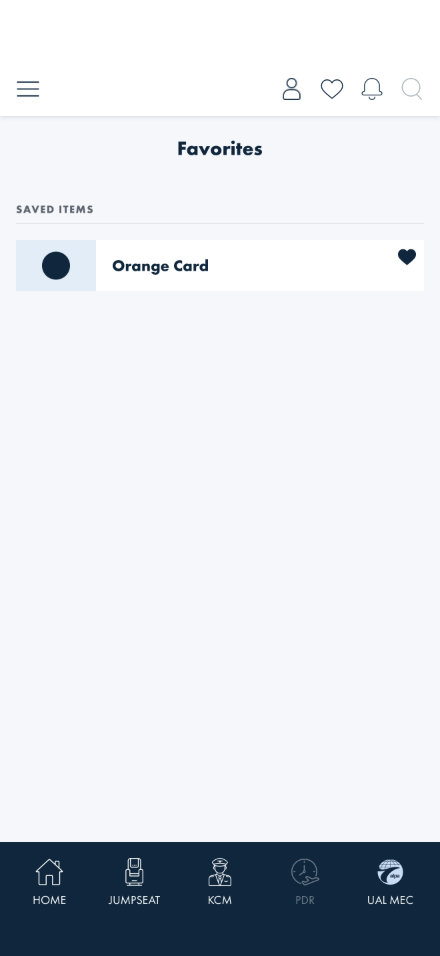
11 · Save a Member Resources destination as a favorite
Steps: While logged in, on the resource list (Check 3), tap the heart on any row (e.g.
Orange Card). Then tap the heart icon in the top navigation bar to open Favorites.
Heart fills in immediately
Shows up on the Favorites screen
What you should see: The heart fills in solid navy right away. On the Favorites screen, the
destination appears as a smaller titled row with a plain icon (no artwork exists for these four
destinations yet — see the resource list's own known gap). Tapping the row opens the real destination page.
Tap its heart again on Favorites to remove it and clean up after yourself.
Something's wrong if: The heart doesn't stick (leave and come back to check), the
row doesn't appear on Favorites at all, or tapping it opens the wrong page.
This fills a gap the Favorites walkthrough couldn't test before (its Check 4 was
parked — there was no screen with a real, saveable menu-item favorite). Member Resources is that screen now.
What's already covered by automated tests
MemberResourcesWalkthroughTests (UITests.Shared) runs with the UI suite, so a
regression in these should be caught before it reaches you. Run the checks by hand anyway — the
automation checks the behavior is present, not that it reads well. Only checks whose
outcome doesn't depend on live account content are automated — see the note at the top of this
page for why the rest stay manual-only:
Check 5 — Orange Card never appears as a row in the In Case of Accident list
(IncaseOfAccident_ExcludesOrangeCardFromTheList)
Check 6 — "Numbers To Call" redirects straight to Orange Card
(NumbersToCall_RedirectsDirectlyToOrangeCard)
Check 8 — International Directory search narrows the list and clearing restores it
(InternationalDirectory_SearchNarrowsTheList_AndClearRestoresIt)
Check 8b — a no-match search shows the "No matches" empty state, not a blank screen
(InternationalDirectory_NoMatchShowsEmptyState)
Check 9 — Membership Card redirects to the log-in screen while logged out
(MembershipCard_WhileLoggedOut_RedirectsToLogin)
Check 11 — favoriting a destination on the resource list shows it on Favorites
(Favorites_ToggleOnResourceList_SavesAndShowsOnFavorites) — self-skips without
ALPA_UITEST_USERNAME/ALPA_UITEST_PASSWORD set, same as the
equivalent Favorites-walkthrough automation
What this checks, overall
That the resource list and all four destinations (Orange Card, In Case of Accident, International
Directory, Membership Card) render real live content, that navigation between the list and each destination
works both ways, that the two special cases (Numbers To Call's redirect and Orange Card's exclusion from the
In Case of Accident list) behave correctly, that Membership Card's login gate holds, and that these
destinations can now be saved as favorites end-to-end.
What's not covered yet
Checks 1–4, 7, and 10 stay manual-only — the resource list's contents, the topic
list, and country data are live and account-dependent, so pinning exact expected values would
make the suite flaky the moment backend content changes rather than when the app breaks. No
regression safety net exists for these today.
None of the five Member Resources screens has a Figma frame — layout and copy were ported from the
native app's hardcoded strings, not a design source. "Doesn't match Figma" isn't a bug to report here.
No artwork exists for the four destination rows (Orange Card, In Case of Accident, International
Directory, Membership Card) — they render as clean text-only rows rather than with a generic fallback icon,
per a deliberate call rather than a missing-asset bug.
The resource list's dynamic, comms-managed web-link row (a feed separate from the four destinations)
was empty for every account checked while writing this — it's real to test, but there was no live example
with content to walk through yet.
Membership Card's front/back flip-card presentation from the native app isn't reproduced — this screen
stacks the card and the rights text as one page instead.