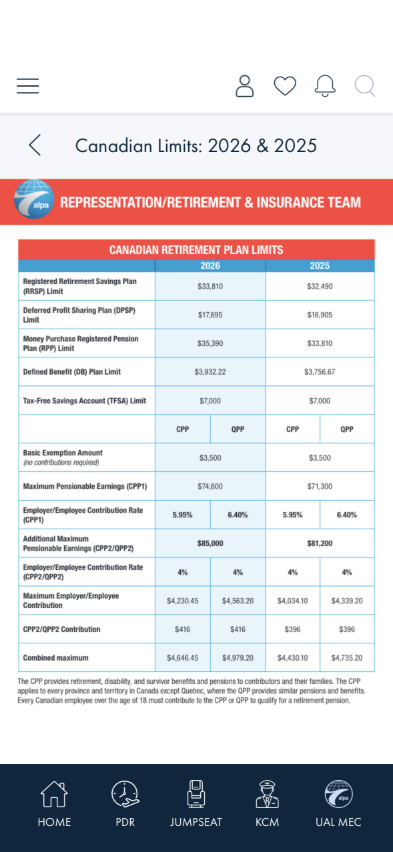
Updated: 2026-08-22 08:19 ET · No single readiness row — start from the Documents section (Document viewer — Canadian Limits PDF) and use any document
TLDR: 5 checks on how documents respond to pinching and rotating —
pinch zooms only the page (never the top bar or tab bar), zoom does not leak from one document into the
next, phones stay upright except inside a document, rotating a phone into landscape hides the chrome, and
rotating an iPad with a document open does not leave the page stuck zoomed-in. All fixed 2026-08-20/21
(AB#2531, AB#2532, AB#2534, AB#2538, AB#2527 in part).
Checks 3–5 need a real device in your hand (rotation). Check 5 needs an iPad.
Turn orientation lock off in Control Center before Checks 3–5.
Checks
1 · Pinch zooms the document, not the app
Steps: With the PDF open, spread two fingers on the page to zoom in, then drag around.
Before — page fitted to the screen
After a pinch — page enlarged, top bar / title / tab bar unchanged
What you should see: The page content enlarges and you can pan it in every direction. The top
bar, the title row with its back chevron, and the tab bar stay exactly the same size and position. Pinch
closed and the page shrinks back down to fit.
Something's wrong if: The whole screen enlarges — tab bar icons getting bigger
and sliding off the edge is the tell (that is the AB#2529 symptom, see below for where it is still
expected); or the pinch does nothing at all.
2 · Zoom does not follow you to the next document
Steps: Leave the PDF zoomed in. Tap the back chevron, then open a different document (or the same
one again).
What you should see: The list is at normal size, and the newly opened document starts fitted to
the screen — not at the zoom you left behind. Pinching it zooms from scratch.
Something's wrong if: The list or the next document opens already enlarged, or the
first pinch on the new document appears to do nothing (the carried-over-zoom bug, AB#2532).
3 · A phone stays upright — except in a document
Steps: On a phone, with orientation lock off, turn the phone sideways on Home Preview, then on
a category list, then with a document open.
What you should see: Home Preview and the list do not rotate — they stay portrait. The
open document does rotate into landscape (AB#2534).
Something's wrong if: Home or a list rotates into landscape on a phone, or the
document refuses to rotate.
4 · Landscape on a phone goes immersive
Steps: With a document open on a phone, hold it in landscape.
What you should see: The top bar, the title row and the tab bar all hide; the document gets the
whole screen. Turning the phone back upright brings all three back (AB#2538).
Something's wrong if: The chrome stays and the document is squeezed into a short
band; the chrome hides but does not come back in portrait; or the page sits offset under the notch with a
blank strip on one side (AB#2527 is still Active for that rotation-insets case — report it with the
device model).
5 · iPad: rotating with a document open does not stick a zoom
Steps: On an iPad, open a document, rotate the iPad to landscape, then back to portrait. Repeat a
few times.
What you should see: After each rotation the page re-fits to the new width. The chrome stays
visible throughout (tablets keep their chrome; only phones go immersive).
Something's wrong if: After a rotation the whole page — chrome included — is
zoomed in and only a pinch-out clears it (AB#2531).
What this checks, overall
That zoom and rotation inside a document are scoped to the document: the content scales, the app does
not; the zoom state dies with the document; and each device class follows its orientation rule.
What's not covered yet
HTML documents and pinch (AB#2529, Active). Check 1 is written for a PDF. On an HTML document
(e.g. a From The President article) a pinch may still scale the whole window — the zoom guard cannot see
gestures inside the document frame. Known; report it only if you see it on a PDF.
Phone landscape safe-area insets (AB#2527, Active). Checks 3–4 were validated on the simulator
and on device for the immersive behaviour; the exact inset placement after rotation is still being
re-measured.
Checks 1–2 were validated live on an iPhone 16 simulator on 2026-08-22; Checks 3–5 are written from the
delivered fixes and have not been re-walked on a physical device for this guide.