Updated: 2026-08-11 16:31 ET · On the Page Readiness screen, look for:
Page Banner test — render / tap / dismiss (Mock)
TLDR: 4 checks on the promotional banner that sits at the top of
Home, KCM, and Member Resources — that it shows up, that tapping it opens the campaign page in the in-app
browser, that the ✕ dismisses it for the rest of your session (and it returns after an app restart), and
that the image-only style renders on the other two pages. Works logged in or out.
Before you start
The banner content here is a sample campaign ("Survey Now Open") served on every launch so
there's always something to test — it is not a live ALPA announcement.
No login needed for any of these checks.
Checks
1 · The banner renders on Home
Steps: On the Page Readiness screen, tap Page Banner test — render / tap / dismiss (Mock)
(it opens the Home screen).
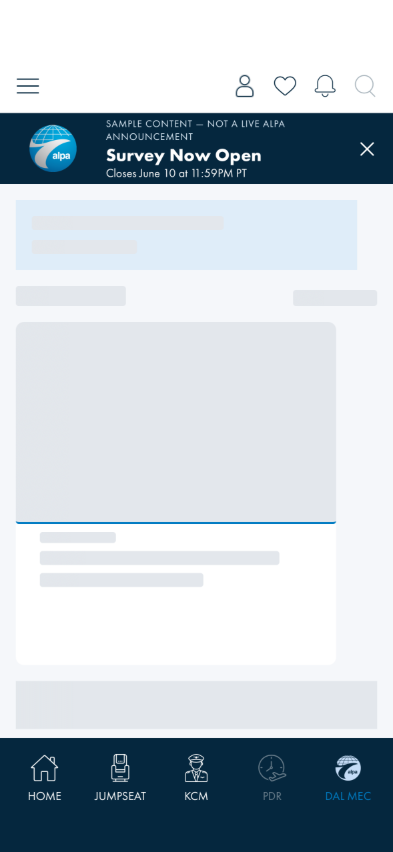
What you should see: A navy banner across the top with the ALPA logo, the campaign title
("Survey Now Open"), a subtitle with the closing date, and a ✕ on one side.
Something's wrong if: No banner appears at the top of Home, or it renders as a
broken image / missing text.
2 · Tapping opens the campaign page
Steps: Tap the banner anywhere except the ✕.
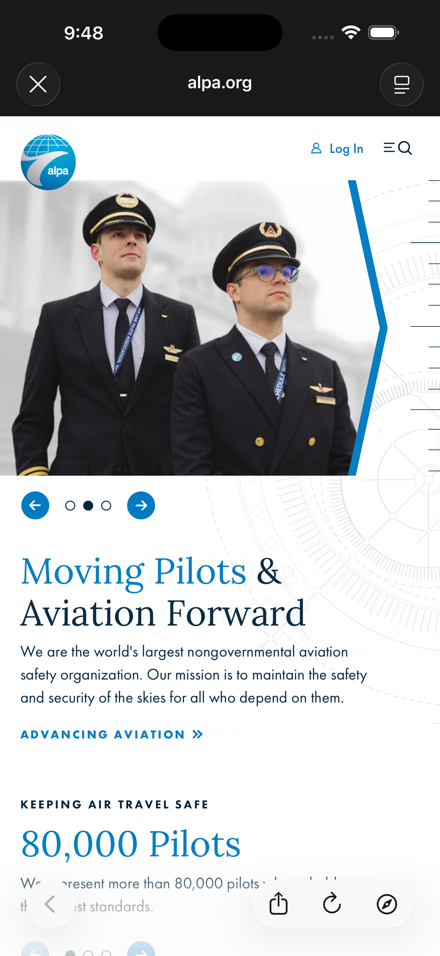
What you should see: An in-app browser sheet slides up and loads the campaign's real web page
(the sample campaign opens www.alpa.org). Close it with the ✕ in its top-left corner and you're back on
Home with the banner still showing.
Something's wrong if: Nothing opens, a blank page loads, or closing the browser
doesn't bring you back where you were.
Manual only, by design: the in-app browser sheet is a genuine OS-level view
outside the Blazor WebView these automated tests drive (same boundary as the FAR 117 Guide / login-help
links in the Login & Logout walkthrough) — these system sheets have proven unreliable to close
programmatically, risking every later automated test getting stuck behind a stray native modal. Verified
live via MauiDevFlow instead (2026-07-18): tapping the banner opens alpa.org correctly and closing returns
to Home with the banner intact.
3 · Dismiss — gone for the session, back after restart
Steps: Tap the banner's ✕. Then navigate away and back to Home. Finally, force-quit and
reopen the app.
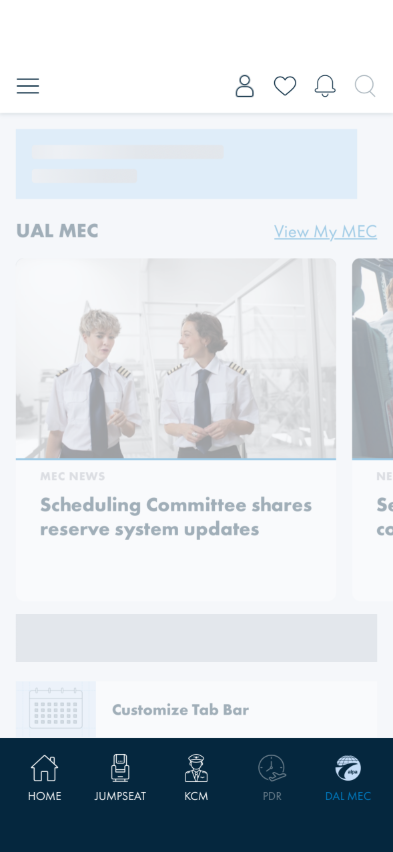
What you should see: The banner disappears immediately and stays gone while you move around the
app — but after the app restarts it shows again. (Dismissal is per-session by design while the campaign is
active.)
Something's wrong if: Dismissing also navigates you somewhere (the ✕ should never
open the campaign page), the banner reappears during the same session, or it's still gone after a full
app restart.
4 · The image-style banner on KCM and Member Resources
Steps: Open KCM (bottom navigation) and then Member Resources (directly routable at
/member-resources — reachable today via the Page Readiness screen's All view).
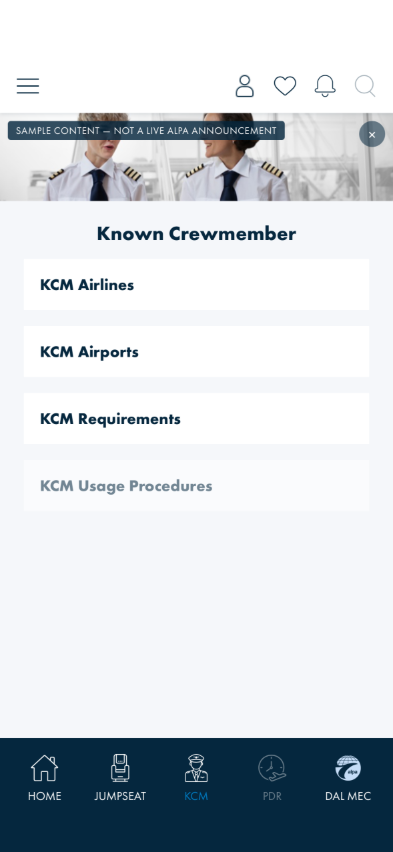
KCM — image-only banner + ✕
Member Resources — image-only banner + ✕
What you should see: These pages carry the banner's simpler style — a full-width image with a ✕
overlay. Tap and dismiss behave exactly like Checks 2–3, per page (dismissing KCM's banner doesn't dismiss
Home's).
Something's wrong if: The banner area is empty on these pages, or dismissing one
page's banner hides another page's.
What's already covered by automated tests
These run with the UI suite (BlazorWalkthroughTests), so a regression should be caught
before it reaches you. Run the checks by hand anyway — the automation checks the behavior is
present, not that it reads well:
Check 3 — the banner renders on Home and dismissal persists across in-app navigation
(PromoBanner_RendersOnHome_AndDismissalPersistsAcrossNavigation)
Check 4 — the image-style banner renders independently on KCM and Member Resources, and dismissing
one page's banner doesn't dismiss the other's
(PromoBanner_ImageStyle_RendersOnKcmAndMemberResources_DismissedIndependently)
What this checks, overall
The banner slot on all three host pages — always-on sample campaign, tap-through into the in-app
browser, per-page ✕ dismissal that lasts the session and resets on restart, and both visual styles
(structured text banner on Home; image banner on KCM / Member Resources).
What's not covered yet
Live campaigns — the banner slot currently always serves the sample campaign; behavior with a
real (or absent) live campaign isn't testable yet.
Which style is final — whether campaigns ship as the structured text banner or a supplied flat
image is an open design/backend question (DQ-26 / backend Change 5); both styles are correct today.
Engineers only: swiping horizontally across the structured banner swaps its two design
variants (✕ left vs ✕ right) — that's a temporary review aid for the design team, not a tester feature;
ignore it if you trigger it by accident.