Updated: 2026-08-22 08:19 ET · On the Page Readiness screen set the Area dropdown to Jumpseat / Flight Finder — it opens on the first area, so these rows are hidden until you pick it — then look for:
Flight Finder Search (the rest of the Jumpseat rows are reachable from inside the feature)
TLDR: 12 checks across the whole Jumpseat Flight Finder area —
the search form (typeahead, guard rails, advanced options), live flight results with expandable detail
cards, sort & filter, the jump into an airline's jumpseat policy and back, the Airline Policies
directory, and the recent/saved lists. Searches hit the real flight-search service, so results are
live flights — expect timings and statuses to differ from the screenshots. Requires a member login. Most
checks (all but 1) have automated UI-test coverage — see "What's already covered by automated tests"
below.
Before you start
Log in first. Flight search requires a member session — logged out, searches come back empty
with a sign-in message (that state is itself Check 3's second half).
Searches run against the production flight-search service and take a few seconds — one-stop
searches can take 15–20s. The list shows Searching flights… while it works.
Route suggestions come from the airports reference list, which also needs the login.
Checks
1 · The search form
Steps: On the Page Readiness screen, tap Flight Finder Search.
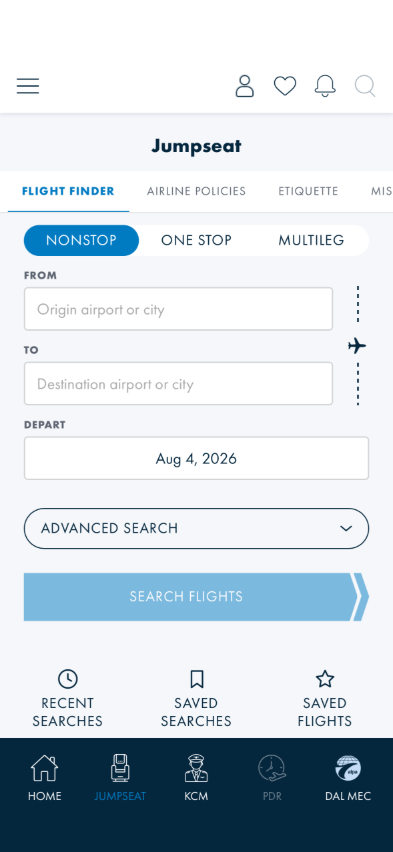
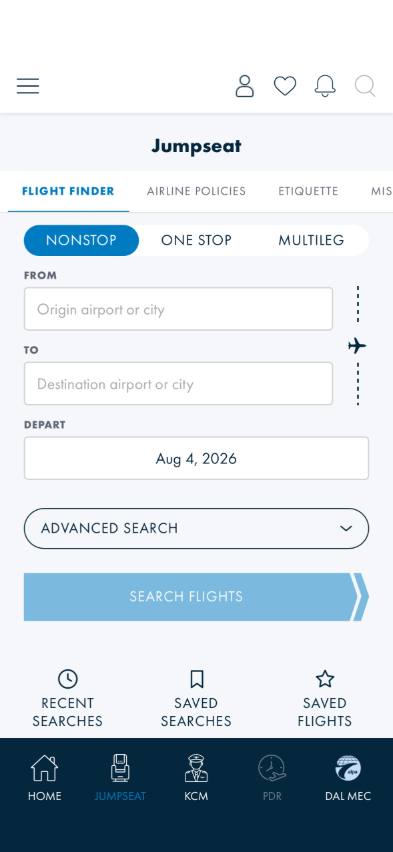
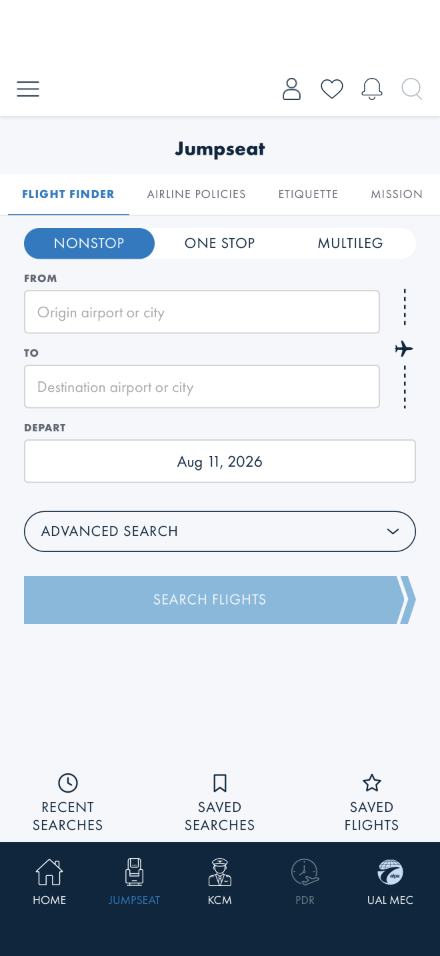
What you should see: The Jumpseat screen on its FLIGHT FINDER tab: trip-type pills
(NONSTOP / ONE STOP / MULTILEG, Nonstop pre-selected), FROM and TO fields with the dashed flight-path rail and plane graphic to their right, a DEPART date & time field (defaults to the current date and time; tapping it opens the
platform's own picker — on iOS a combined date-and-time popover, on Android a date dialog followed by a
time dialog), an ADVANCED SEARCH expander, and the SEARCH FLIGHTS
button with its pointed end.
Something's wrong if: Any control is missing, or the screen opens on a
different tab.
2 · Route entry with suggestions
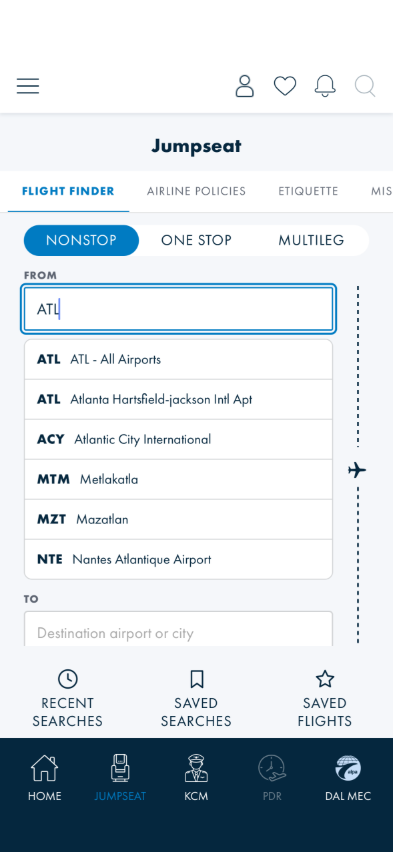
Steps: Type atl (lowercase is fine) into FROM. Tap a suggestion. Do the same in
TO with another city. Tap the plane on the rail — it swaps FROM and TO. Then tap somewhere outside a field while suggestions are
open.
What you should see: A suggestion list appears under the field as you type (code + airport
name); tapping one fills the field and closes the list. Tapping the rail plane exchanges FROM and TO. Tapping outside a
field closes its suggestions on their own after a beat.
Something's wrong if: Tapping a suggestion doesn't take (the list closes but
the field keeps your raw typing), the list stays open after you leave the field, or the plane tap mixes up the
values.
Note: if spelling-suggestion chips appear above the keyboard while you type, that's
your device's own predictive-text/autocorrect feature — an operating-system keyboard setting, not app
behavior. Turn it off under Settings if it's in your way: iOS is General → Keyboard; Android is
System → Languages & input → On-screen keyboard → (your keyboard) → Text correction.
3 · Search guard rails
Steps: Clear the FROM field — look at SEARCH FLIGHTS. Set FROM and TO to the same airport —
look again. (And if you're logged out: run any valid search.)
What you should see: SEARCH FLIGHTS dims and refuses taps whenever FROM or TO is empty, or
both point at the same place. Logged out, a search lands on a clear "Sign in to search flights" message
instead of fake results.
Something's wrong if: The button fires a search anyway, or a logged-out search
blames the service ("briefly unavailable") instead of asking you to sign in.
4 · Advanced search options
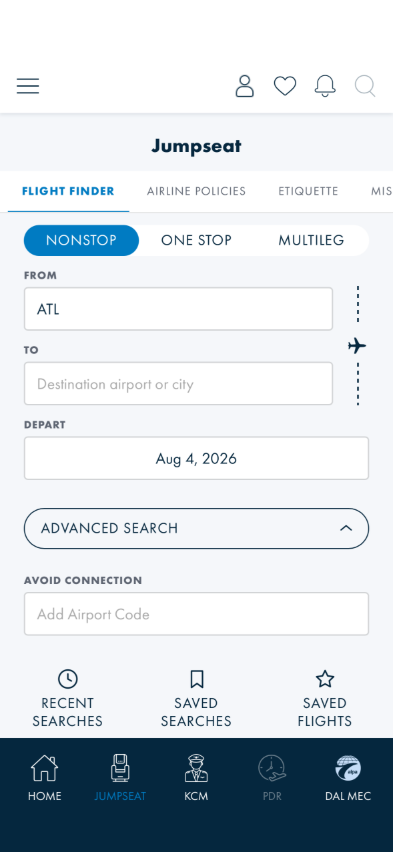
Steps: Tap ADVANCED SEARCH to expand it.
What you should see: Avoid Connection and Connect Via airport fields, the Min Connection Time
and Length of Travel sliders (values update as you drag), the three checkboxes (Search by Arrival Date,
Include Cargo Carriers, Show Codeshare), and Save Search to Favorites. Tapping ADVANCED SEARCH again
collapses it.
Something's wrong if: Slider labels don't track the thumb, or the expander
won't close.
Heads up: Save Search to Favorites is still a stub — saved/recent lists run on
sample data for now (Check 11).
5 · Run a nonstop search
Steps: NONSTOP pill, ATL → TPA (or any busy pair), SEARCH FLIGHTS. Wait out the
Searching flights… line.
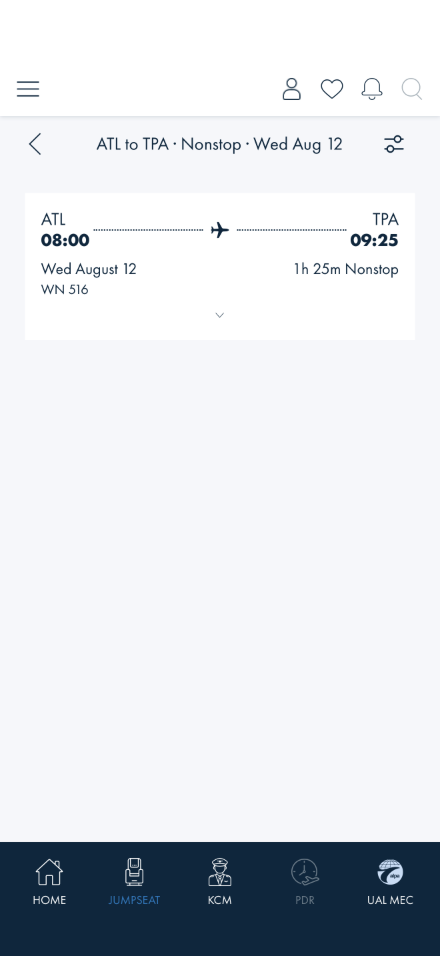
What you should see: A results list of flight cards — airport codes and times on a dotted
line with a plane, the date and total duration/trip type, the flight number, and a VIEW DETAILS bar
spanning the card. The nav row above the list is a back chevron, your search read back ("ATL to TPA ·
Nonstop · …") centered between it and the sort & filter icon (a count badge appears on the icon
when a sort or filters are applied) — no separate "Jumpseat" title bar above it (Figma 4713:25180).
Something's wrong if: Nothing ever loads and no message appears, the summary
doesn't match what you searched, cards render with missing pieces, or the back chevron is missing or
doesn't return you to the search form.
6 · Open a flight's details
Steps: Tap VIEW DETAILS on any card.
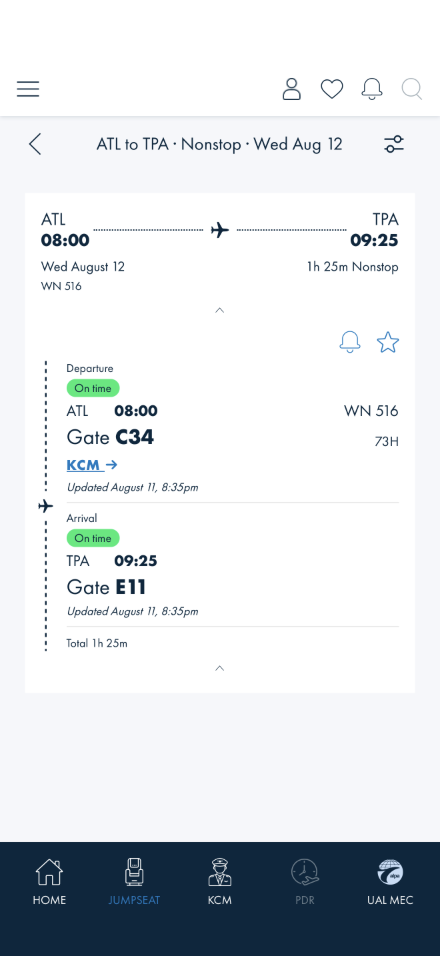
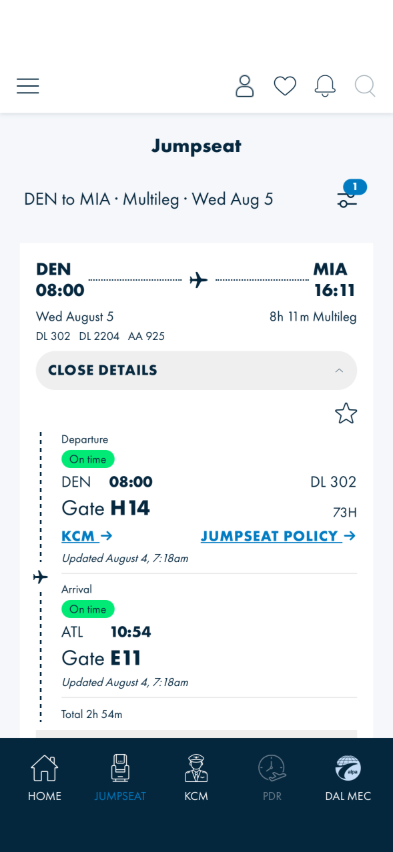
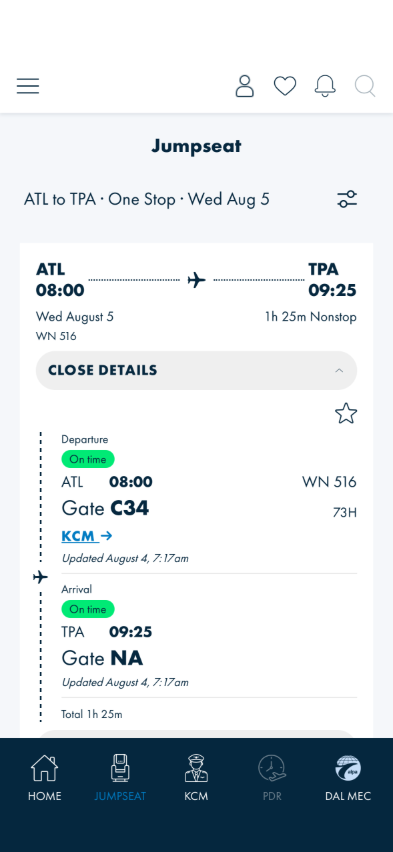
What you should see: The card expands in place (no page change): Departure and Arrival blocks
with live status chips ("On time", "Delayed 34m", "Early 7m"), airport + time, gate (NA when the
airport hasn't posted one yet), the aircraft type, a JUMPSEAT POLICY link (and KCM when the airport is
a KCM checkpoint), and italic "Updated …" lines. CLOSE DETAILS at either end collapses it. Several
cards can be open at once.
Something's wrong if: Tapping VIEW DETAILS navigates away, the same status
shows on Arrival as Departure when the airline has posted different estimates, or the details clearly
belong to a different flight than the card header.
Note: Results cards expand in place — that is deliberate and unchanged. The separate
Flight Details screen (check 6b) is where a tapped push alert lands, not where a card tap goes.
Since 2026-08-20 (AB#2503): the KCM → and Jumpseat Policy → slots are
drawn the moment the card expands and then fill in — they do not appear later and push the text down.
A slot that does not apply shows dimmed, and tapping a dimmed slot explains why instead of doing nothing.
Known false negative (AB#2540, open): the KCM slot can show dimmed at an airport that is a
KCM airport. Already tracked — note the airport code in your report but do not file it again.
6b · A tapped flight alert opens the flight (2026-08-14)
Steps: You need a flight alert whose flight is on this device. The quickest setup:
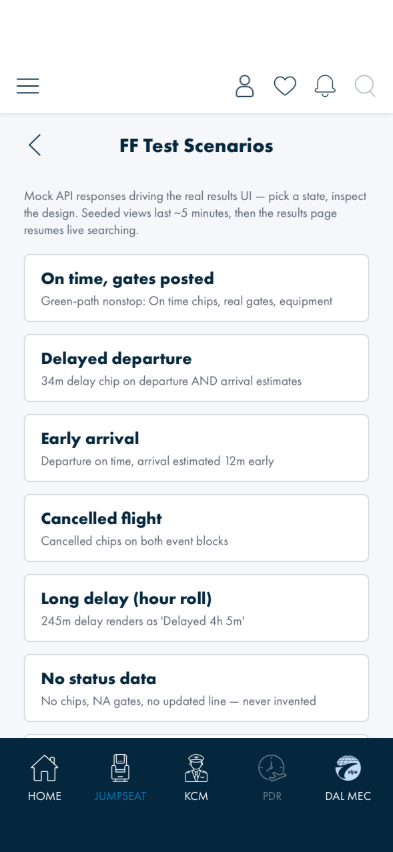
Dev Dashboard → FF Test Scenarios → Seed Saved Flights, then Dev Dashboard → Push / Deep-link
Test Scenarios → "Real push tap → post a local notification". Leave the app (Home button), wait for the
banner, and tap it in the notification drawer.
What you should see: The app opens Flight Details — a single flight card, already expanded,
with no chevron at either end (this screen is the detail, so there is nothing to collapse). Above the
card, a line saying when the status was last updated. Tapping back returns to the notifications list on
the Flight Finder tab with that alert focused — not to the home screen, even if the app was closed when
the notification arrived.
To reach the same screen without a push: FF Test Scenarios → "Flight Detail from an alert (schedule
key)", which addresses a seeded flight exactly the way a real alert does.
Something's wrong if: the tap lands on the alert list instead of a flight
card (the payload carried no schedule key — check the hub template); the card shows a different flight than
the alert named; a chevron appears on the card and collapses it to nothing; or back exits the app or lands on
the Comms tab.
6c · The status line is honest about what you're reading
Steps: On the Flight Details screen, pull down from the top of the card to refresh. Then turn the
device's network off and pull again.
What you should see: Pulling shows a small arrow that flips when you have pulled far enough; release
and the line above the card reads "Refreshing status…", then settles back to "Updated <time>". With the
network off it reads "You're offline — showing the status received <time>". It should never claim
a refresh succeeded when it did not, and never show a time the service did not report. A flight that has
already landed says "This flight has arrived" rather than reporting a failure. Backgrounding the app on
this screen and returning to it a minute later re-checks the status on its own.
Something's wrong if: the line says "Couldn't refresh" while the device is plainly
online and the flight is still ahead of you and in the schedule (that combination is a real gap —
see AB#2463), or a stale time is presented as current.
7 · Sort and filter
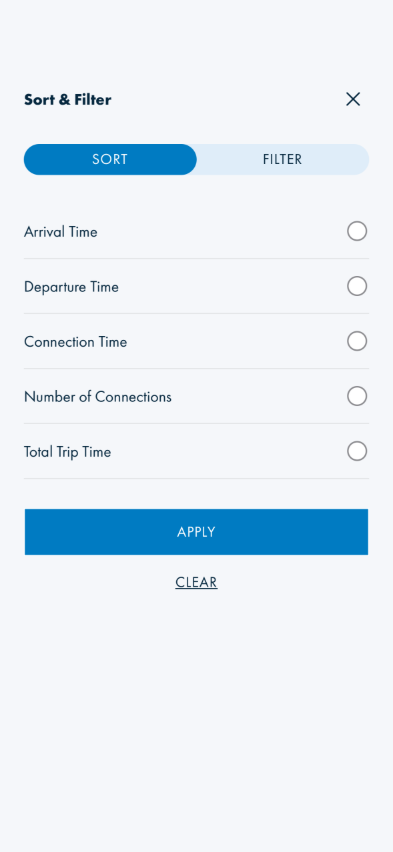
Steps: Tap the sort & filter icon, switch to the Filter tab, open Airline, check one carrier — watch the list behind the
panel. Tap Apply. Reopen, check something else, then dismiss with ✕. Switch to the Sort tab → Total Trip Time → Apply. Finally use clear followed by Apply.
What you should see: Nothing changes behind the panel until you hit Apply — checkboxes and the
sort radio are staged. Apply commits (list updates, the Sort/Filter buttons pick up their active
state/badge). ✕ throws staged changes away. clear empties the panel but only takes effect when you
Apply it.
Something's wrong if: The list reshuffles the moment you tap a checkbox, ✕
keeps changes you never applied, a checked airline filters the list to zero even though its flights are
clearly there, or "Delayed" can't match a card that wears a Delayed chip.
8 · Into a jumpseat policy — and back
Steps: With a filter applied, a sort set, a card expanded, and the list scrolled somewhere,
tap the expanded card's JUMPSEAT POLICY link. Read the policy, then use the ‹ back chevron.
What you should see: The airline's policy page (Check 10 covers its content). Coming back, the
results are exactly as you left them — instantly, with no fresh "Searching flights…": same
flights, same filter badge and sort, your card still expanded, the list still scrolled where it was.
Something's wrong if: Coming back re-runs the search (blank list + spinner),
your filters/sort/expansion reset, or the list jumps back to the top.
By design: the memory lasts ~5 minutes — return later than that and the app
deliberately refreshes the flights (statuses go stale) while still keeping your sort and filters.
A new search from the form always starts clean.
9 · One Stop and Multileg searches
Steps: Search ATL → SEA with the ONE STOP pill; expand a result. Then repeat with MULTILEG.
What you should see (One Stop): Cards with two flight numbers and durations like
"8h 19m One Stop"; expanded, two full legs separated by a gray layover band ("DEN Layover 1h 30m"), each
leg with its own statuses, gates and per-leg totals.
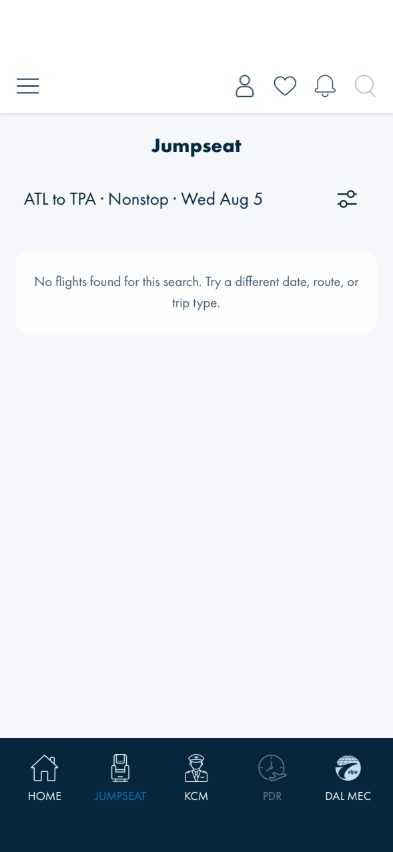
What you should see (Multileg, for now): After a long wait, the "No flights found… service may
be briefly unavailable" message.
Something's wrong if: A one-stop card lacks its layover band, or a multileg
search crashes the page rather than landing on the message.
Known outage (AB#2300): the backend currently rejects every search that
includes two-stop itineraries, regardless of route — verified with correct request payloads. Until the
backend fix ships, the empty-state message IS the expected multileg result. When it's fixed, this check
should instead show three-leg cards with two layover bands.
10 · Airline Policies directory
Steps: From the search screen's tab strip, tap AIRLINE POLICIES. Scroll the list, then
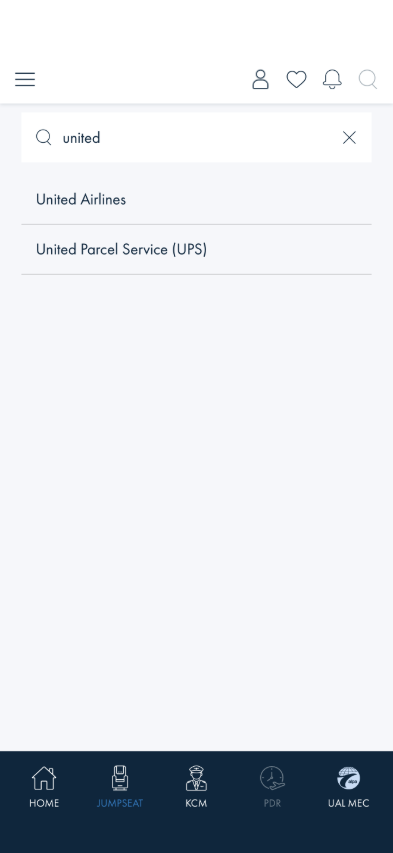
tap the magnifier in the title bar and type united into the search field that
replaces it. Tap the ✕ to clear and close the search. Open an airline, then come back with ‹.
Alphabetical directory — name + » per row (Figma-aligned 2026-08-12)
Search replaces the title bar; matches names and codes
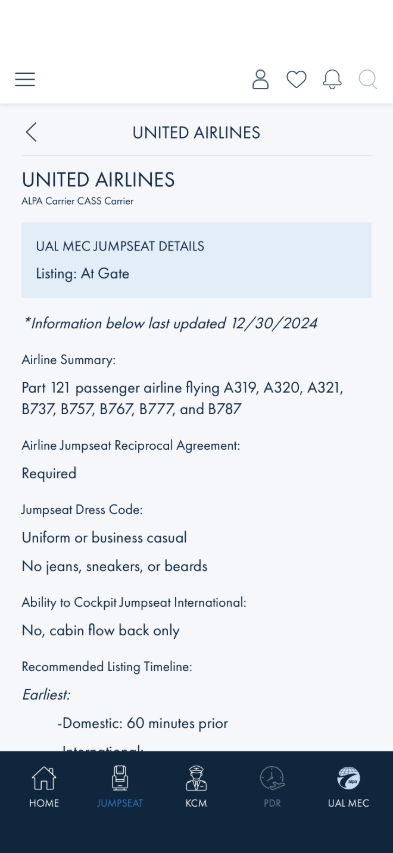
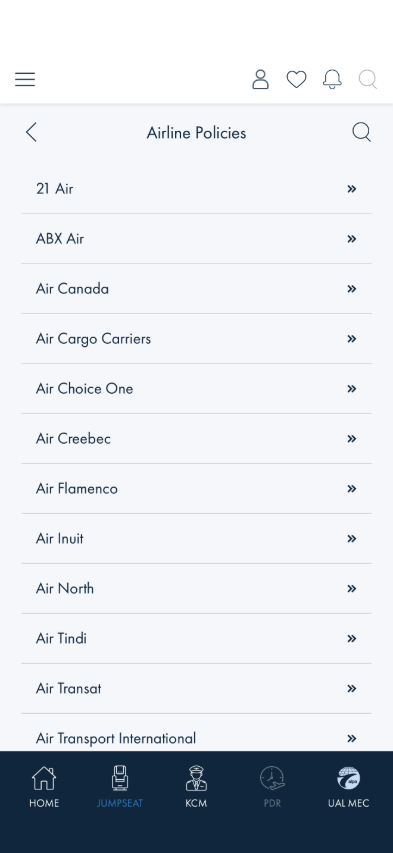
What you should see: An alphabetical directory (21 Air, ABX Air, Air Canada…), each row just
the airline name with a » chevron — no badges on rows; carrier types now appear only on the airline's
own page ("ALPA Carrier CASS Carrier" under its name). Tapping the magnifier swaps the whole title bar
for a white search field (magnifier · text · ✕) and the keyboard gets focus; rows drop their chevrons
while searching. Search narrows by name or IATA/ICAO code ("united" → United Airlines and UPS). The
✕ clears the filter and restores the title bar — the full list comes back. An airline's page
shows its name and carrier types, the shaded … JUMPSEAT DETAILS box (your MEC's listing when
there is one — GENERAL otherwise — with any contact links), a thin rule under the title bar, and the
policy body: Airline Summary, Reciprocal Agreement, Dress Code, and the rest — section titles in
regular weight with no underline — ending in the JumpseatFeedback@alpa.org line. Links open outside
the app (or dial, for phone numbers).
Something's wrong if: The list isn't alphabetical, ALPA/CASS pills show on the
list rows, the ✕ closes the field but the list stays filtered, tapping a row goes nowhere, an airline
shows someone else's policy, policy section titles render bold/underlined, or a link inside a policy
blanks the whole app out.
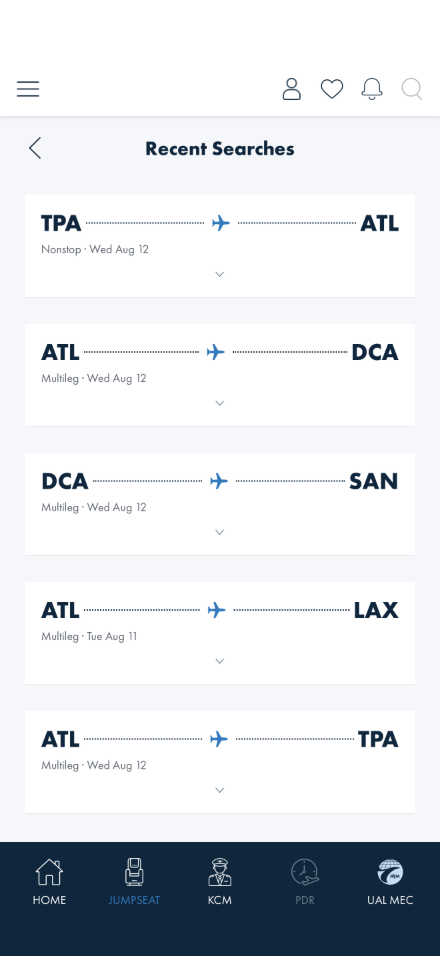
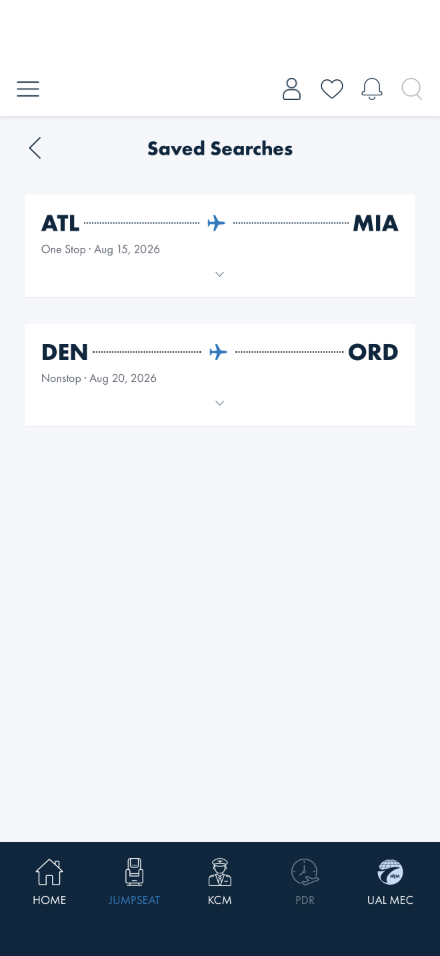
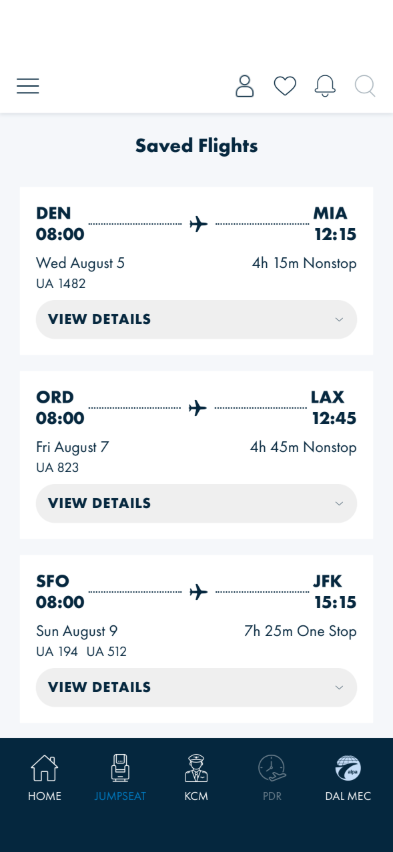
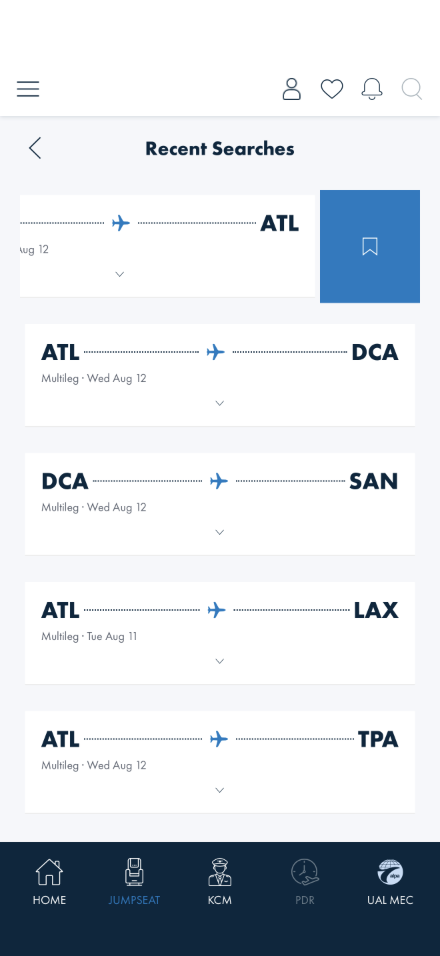
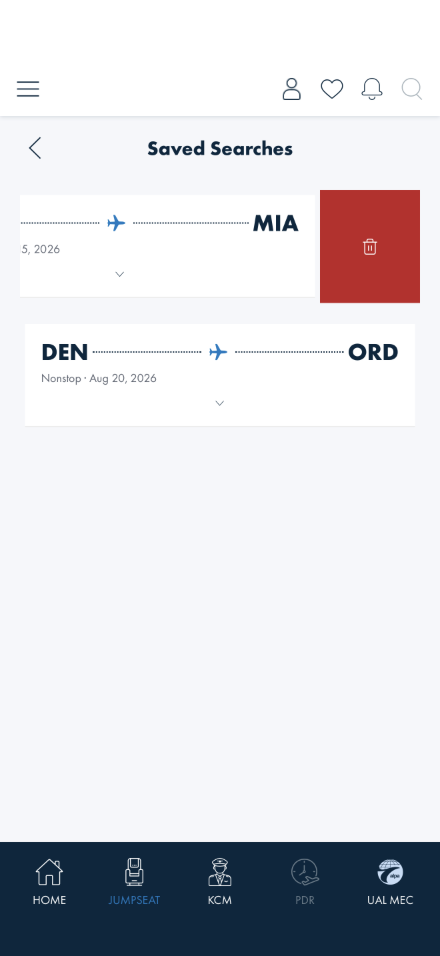
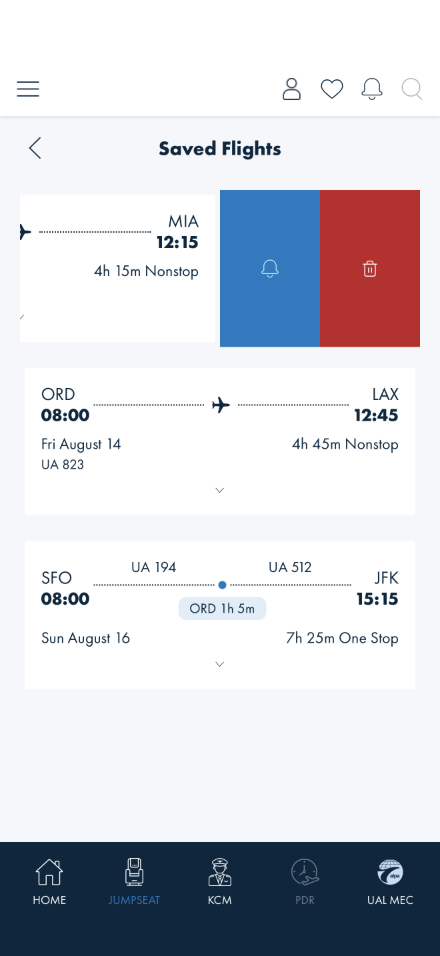
Steps: From the bottom of the search screen tap RECENT SEARCHES, SAVED
SEARCHES, and SAVED FLIGHTS in turn.
Saved Flights will be empty to start. It only fills when you save a
flight, and saving needs a signed-in search. To check the screen without one: from Page
Readiness open FF Test Scenarios (Mock) and tap Seed Saved Flights — that puts
three flights in and takes you straight there. Clear Saved Flights on the same screen
empties it again so you can check the empty state.
Recent — flick a row left to reveal Save
Saved — flick a row left to reveal Remove
Saved flights — full flight cards
FF Test Scenarios — seed or clear Saved Flights without a login
What you should see (resting state): Recent Searches and Saved Searches rows show large bold
airport codes (Futura Bold, 24px) connected by the same dotted line + plane icon every flight-result
card in this app uses — not a small chevron. No action icon is visible until you swipe — all
three lists hide their actions behind a swipe tray now (a Figma-alignment pass, 2026-08-11, matching
nodes 4713:25252/4713:25302); an inline always-visible heart/clock icon, or
a plain "›" between the codes, would mean you're looking at a stale build.
Steps (swipe tray): On any row in any of the three lists, flick it left.
Recent Searches — blue, bookmark icon
Saved Searches — red, trash icon
Saved Flights — blue bell + red trash
What you should see (swiped open): The row slides left to reveal one or two action zones.
Zone color follows what the action does, not which list it's on: an informational action (Save,
Subscribe to alerts) is always blue (Interactive/Blue-lt, #007bc2); a destructive
action (Remove, Delete) is always red (Red/500, #c02126). Recent Searches' save
action uses a bookmark icon (matching Figma node 4713:25252), not a heart. The clock
icon mentioned in earlier versions of this doc doesn't exist on these rows — tapping a row's body
re-runs its search directly.
Something's wrong if: A list crashes or renders empty rows, re-running a
recent search doesn't land on results for that route, an action zone is black or gray instead of
blue/red, Recent Searches shows a heart instead of a bookmark, a row's airport codes are joined by a
plain "›" instead of the dotted line + plane, or anything you saved or deleted comes back
differently after a restart. An empty Saved Flights list on a device where you have never saved
one is correct, not a fault.
These lists are real now, and they stick. All three are stored on your
device: save a search or a flight, force-quit the app, reopen it, and it should still be there.
Deleting is just as permanent — a removed row must not come back. That round trip is the most
useful thing to test here, and it is new, so try it on each of the three.
The lists are per-device and have nothing to do with your ALPA account: they will not follow you
to another phone, and they are separate from anything saved in the current app. That is intended,
not a bug.
The bell (alert subscription) is real: tapping it subscribes the flight's status alerts on the
notification hub using the same per-leg subscription list the legacy XAML bell writes, so it
survives restarts and is shared with the native UI. Subscribing also saves the flight
automatically; unsubscribing leaves it saved, and deleting or un-saving a subscribed flight
unsubscribes it first.
About the swipe-tray screenshots: all three (Recent Searches, Saved
Searches, Saved Flights) were captured by applying the row's own alpa-swipe--open CSS
class directly rather than a physical flick gesture — same DOM/CSS a real swipe produces
(SwipeRevealRow.razor), so the screenshots are representative. The gesture itself
(touchstart/touchend flick detection) is what
FlightFinder_SavedFlights_SwipeTray_RevealAndDelete exercises, below.
12 · The Jumpseat tab strip
Steps: On the search screen, tap each tab in the strip: FLIGHT FINDER, AIRLINE POLICIES,
ETIQUETTE, MISSION.
ETIQUETTE — real content, not highlight-only
MISSION — same
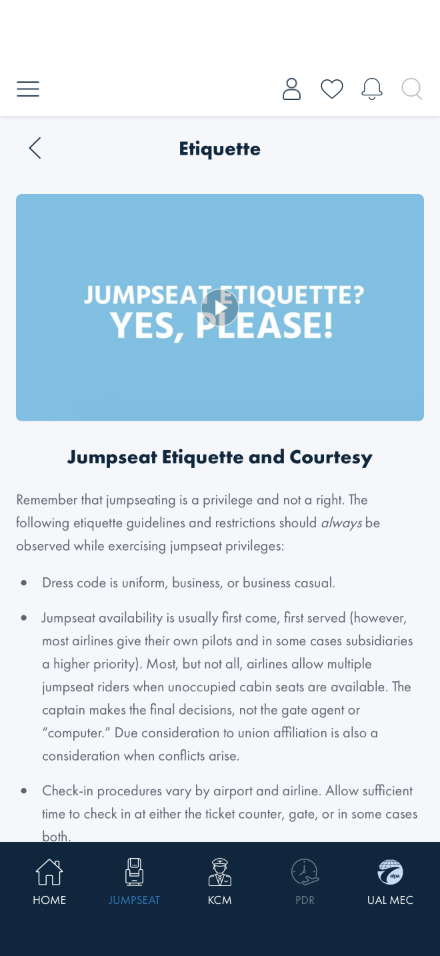
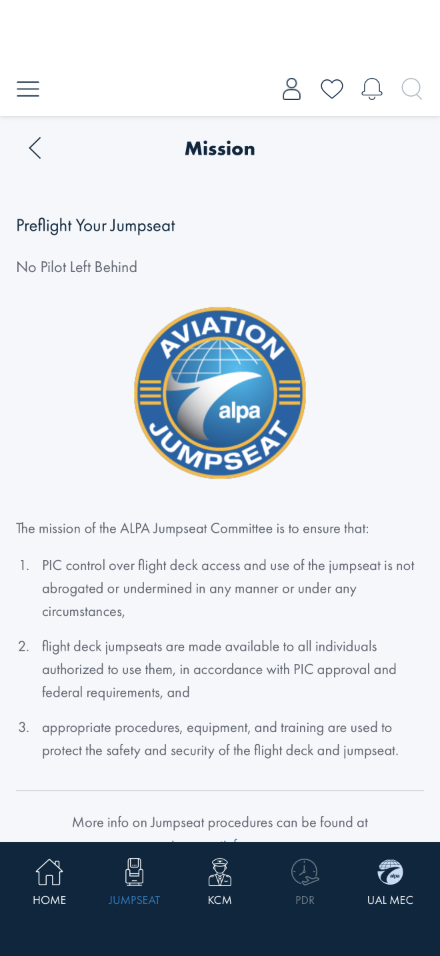
What you should see: All four tabs navigate to a real page — AIRLINE POLICIES to the directory
(Check 10), ETIQUETTE and MISSION to their own static-content pages.
Something's wrong if: Any tab fails to navigate, or ETIQUETTE/MISSION only move
the tab highlight without changing the page content.
Corrected 2026-08-11: this check previously said ETIQUETTE and MISSION only
moved the highlight because their Blazor pages didn't exist yet — verified live that both now render
real content (/jumpseat/etiquette, /jumpseat/mission). That claim was stale by
the time this pass found it; if you're reading this walkthrough much later, verify it's still current.
What this checks, overall
The complete Blazor Flight Finder surface on live production data: the search form and its guard
rails, the flight-card results experience (inline expand, per-leg live statuses, layovers), staged
sort/filter, the policy-detail round trip with full state restoration, the Airline Policies directory,
and the shape of the recent/saved lists.
What's already covered by automated tests
These run with the UI suite (BlazorWalkthroughTests), so a regression should be caught
before it reaches you. Run the checks by hand anyway — the automation checks the behavior is
present, not that it reads well. The live-search tests self-skip with a clear reason when the
suite runs logged out:
Check 3 — SEARCH FLIGHTS disables on an empty/duplicate airport, and a logged-out search shows the
sign-in message instead of a service error (FlightFinder_SearchForm_GuardRails)
Check 4 — advanced-search fields bind and the staged criteria flow into a search
(FlightFinder_AdvancedSearch_FieldsBindAndCriteriaFlow)
Check 5 — a nonstop search renders live results (FlightFinder_NonstopSearch_RendersLiveResults)
Check 6 — a flight card expands/collapses inline (FlightFinder_Card_ExpandCollapse_Inline)
Check 7 — sort/filter changes stay staged until Apply
(FlightFinder_FilterSort_StagedUntilApply)
Check 8 — the jumpseat-policy round trip restores search state without re-searching
(FlightFinder_PolicyRoundTrip_RestoresStateWithoutResearch)
Check 9 (Multileg half) — the AB#2300 outage degrades to the expected empty-state message rather than
crashing (FlightFinder_MultilegSearch_DegradesGracefully)
Check 10 — the Airline Policies directory search and detail view
(FlightFinder_PoliciesDirectory_SearchAndDetail)
Check 11 — the three lists render (FlightFinder_SavedLists_Render), a recent search
re-run opens results (FlightFinder_RecentSearches_ReRunOpensResults), the Saved Flights
swipe tray reveals and deletes (FlightFinder_SavedFlights_SwipeTray_RevealAndDelete), and FF
Test Scenarios' seed drives the real results UI
(FlightFinder_TestScenarios_SeedDrivesResultsUi)
Check 2 (rail swap) / Check 12 (tab strip) — sub-nav tab switching and the FROM/TO swap
(FlightFinder_SubNavAndSwap)
Check 1 has no dedicated automated coverage. Its video previously showed
FlightFinder_SearchForm_GuardRails's replay — that test is Check 3's, not Check 1's; the video
was misattached. Corrected by removing it rather than re-attaching the wrong clip.
What's not covered yet
Multileg results — blocked on the backend two-stop outage (AB#2300); Check 9 documents the
interim expected state.
Alert push delivery end-to-end — the bell now performs the real subscription
(2026-08-12): it writes the same per-leg notify-me list and fs- hub tags the legacy
XAML bell uses, persists across restarts, auto-saves on subscribe, and unsubscribes on
delete/un-save. What's not walked yet is a real flight-status push arriving for a subscribed
flight — that needs a live hub send.
Results paging — searches load the first 50 flights; scroll-to-load-more is a planned
follow-on, so a very busy route quietly caps at 50 today.
KCM slot false negative (AB#2540) — open; see the note under Check 6. The Flight Details
screen's live-status refresh on land / pull / resume (AB#2461) is covered by Check 6b.
Logged-out Jumpseat — while logged out the JUMPSEAT tab opens the Airline Policies directory,
not this search form; that is covered in the
Login & Logout walkthrough, Check 8.