Updated: 2026-08-27 08:24 ET · No readiness row of its own — open it from Advocacy (DONATE & JOIN), the PDR tab, or any jumpseat policy's route-information link; the header-visible variant and immersive landscape need Exit to Native Home — see Checks 5–6
TLDR:AuthenticatedWebViewPage (AB#2591, replaced the
legacy WebViewPage) has 6 checks: the chrome-free default (AB#2535, AB#2542) still fills the
screen with no leftover app chrome, a single floating ⋮ button expands into back / forward / refresh /
close, forward is dimmed until there is somewhere to go forward to, and close returns you to the app screen
you came from. Two things that used to be gaps are now fixed and checkable: the header-visible variant
(ShowCompact=False) now shows a single bar matching the Blazor screens' own header instead of
the old double chrome, and rotating to landscape auto-hides that header on phones (DQ-36, resolved) with the
page filling edge-to-edge instead of leaving black bars either side.
Before you start
Log in, then open Advocacy from the Page Readiness screen and tap DONATE & JOIN
(Advocacy walkthrough, Check 2). The PDR tab opens the same
browser on pdr.alpa.org and works just as well. This is the Blazor Advocacy page — it always opens
compact/chrome-free (Checks 1–4).
For Checks 5–6, open the hamburger menu and tap Exit to Native Home (tagged "Dev"), then tap the
Advocacy tile and Submit Meeting Report (or PAC Membership / Roll of Distinction / Donate).
This is the separate native Advocacy surface — its commands don't request compact, so they hit the
header-visible variant.
Checks
1 · Full-screen, signed in, one floating button
Steps: Open the browser as above and wait for the page to load.
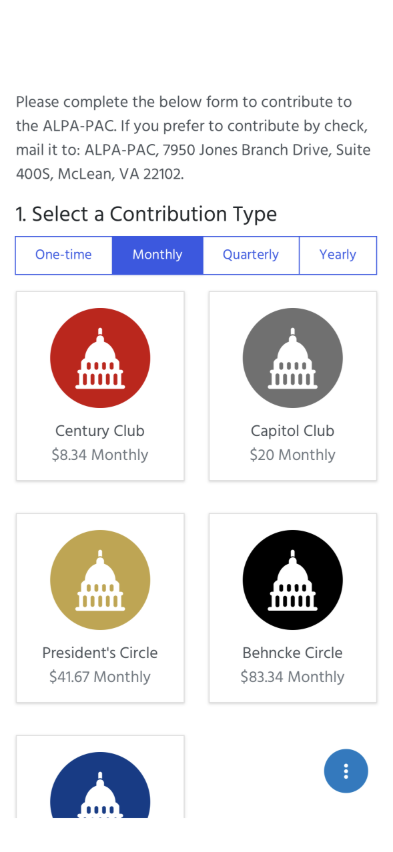
What you should see: The web page fills the screen on a white background — no ALPA top bar, no
tab bar, no title row. The page is already signed in (the PAC form shows, not a login). At the bottom
right there is one round blue ⋮ button and nothing else.
Something's wrong if: The old-style native header with a text title sits above
the page (AB#2535); the page background is dark or grey while it loads; a login form appears; or the
controls are laid out as a bar across the bottom instead of a single floating button.
2 · The cluster: back, forward, refresh, close
Steps: Tap ⋮.
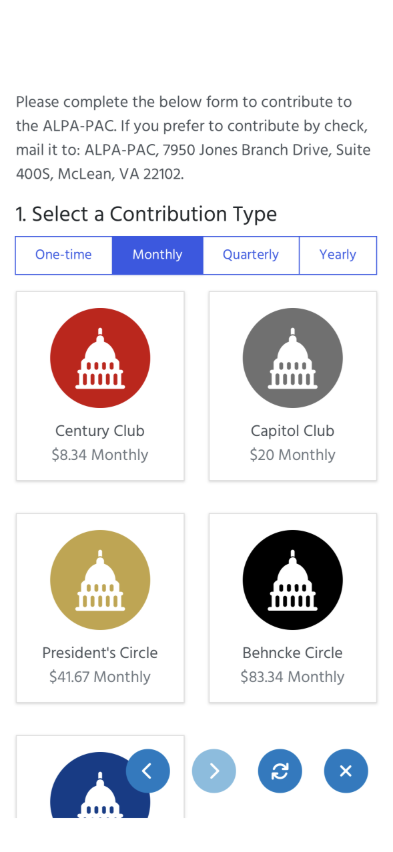
What you should see: The button expands leftwards into four round buttons: ‹ back,
› forward, ⟳ refresh, × close. Right after opening, forward is dimmed (there is
nothing ahead) and back is active. Tap ⟳: the page reloads and the cluster is still there.
Leave it alone for a few seconds and it folds back to the single ⋮.
Something's wrong if: Fewer than four buttons appear, forward is active on a
freshly opened page, or refresh sends you back to the app.
3 · Back and forward walk the page history
Steps: Follow any link on the web page (e.g. a navigation item). Open the cluster, tap
‹, then ›.
What you should see:‹ returns to the PAC form and now › is active; › goes
forward to the page you followed. Tapping ‹ on the very first page stays in the browser — it does
not close it.
Something's wrong if: Back closes the browser instead of stepping back, forward
stays dimmed after you went back, or a link opens in Safari/Chrome outside the app.
4 · Close returns you where you were
Steps: Open the cluster and tap ×.
What you should see: The browser disappears and you are back on Advocacy (or whichever
screen launched it), with the app chrome back in place. On Android the system back gesture does the same
thing (AB#2533).
Something's wrong if: Close lands on Home or the log-in screen, the tab bar does
not come back, or the app has to be relaunched.
5 · The other variant: a single header bar
Steps: From Exit to Native Home, open Advocacy and tap Submit Meeting Report
(or PAC Membership / Roll of Distinction / Donate — any of them, they all omit
ShowCompact).
What you should see: One header bar at the top — a back chevron on the left and the page's
title centered ("Advocacy" for Submit Meeting Report, since it sets a banner title but no page title) — in
the same off-white/navy styling as every Blazor screen's own header. No second bar, no blue title-banner
strip, no duplicate ALPA/hamburger/bell bar above it. The page was PushAsync'd, not modal, so
the chevron pops it off the navigation stack (back to native Advocacy) rather than dismissing a sheet.
Something's wrong if: Two bars stack above the content, the header is missing
entirely (nothing to tap back with beyond the floating cluster), or the title reads blank — the title
falls back from the banner title to the page title, so a caller that sets neither will show nothing.
6 · Immersive landscape and edge-to-edge rotation
Steps: With the header-visible variant open (Check 5), rotate the device/simulator to landscape,
then back to portrait.
What you should see: On rotating to landscape, the header disappears and the page content
reflows to fill the screen — left edge to right edge, no black bars either side, no letterboxing.
Rotating back to portrait brings the header back exactly as it was. The floating ⋮ cluster (Check 2) stays
available throughout, so there is always a way to close or navigate even with the header hidden. This is
phone-only — a tablet keeps its header in both orientations, matching how the app treats tablets as never
space-constrained everywhere else.
Something's wrong if: The header stays visible in landscape, the page renders in a
portrait-sized column with black bars on either side instead of filling the screen, or the header fails to
come back after rotating to portrait.
What this checks, overall
That every ALPA website hand-off from the Blazor surface — and every native entry point still reaching
AuthenticatedWebViewPage directly — opens in a consistent, signed-in browser with working
navigation controls, a single header matching the rest of the app in whichever chrome variant the caller
asked for, correct behaviour on rotation, and that leaving it puts you back in the app exactly where you
were.
What's not covered yet
Links that leave alpa.org — the stay-in-app / open-externally decision for third-party domains
is not walked here.
Loading-state button — while a page is still loading the cluster shows a loading variant of the
⋮ button; its cancel action was not exercised.
Documents of "webpage" type open in this same browser from the documents lists; not separately
checked.
Checks 1–2 validated live 2026-08-22 (iPhone 16 simulator); Checks 3–4 are written from the delivered
behaviour and were spot-checked, not captured. Checks 5–6 validated live 2026-08-27 (AB#2591, iPhone 17
Pro simulator) via the native Advocacy surface's Submit Meeting Report command.