Updated: 2026-08-27 11:04 ET · On the Page Readiness screen, look for: Search —
local on-device results (requires login)
TLDR: 10 checks covering every one of the 16 onboarded content
types' actual opening behavior — the empty idle state, typing a query and getting real matches pulled
from content already cached on the device (grouped into collapsible sticky-header sections by content
type), the multi-select category filter, collapsing/expanding a result section, a genuine no-match
result, tapping a result to confirm it opens real content (covering Document/Notification plus, in the
same check, Jumpseat Airline/Country/Accident Topic/KCM Airport/KCM Airline/Resource Link, and KCM
Airport's own full-screen map viewer), tapping an Event/Representative/Company Contact/Hotel/Committee
result to confirm it opens a contact card whose email/phone/link lines are actually tappable
(dial/mail/browse), two content types with their own distinct opening mechanism — Call to Action's
auto-login web view and Menu Item's server-driven deep link — and a relaunch with an already-populated
index searching immediately instead of blocking behind "Preparing…" again.
Local search went live 2026-08-25 (AB#2561) and grew from 3 to 14 content types on 2026-08-26 —
search now returns actual indexed content instead of a small set of hardcoded sample rows. Search results
and your filter selections now survive navigating away and back (tapping a result and returning no
longer resets the page). Flight Search Airport was withdrawn from search the same day it was
onboarded (2026-08-26) — it duplicated KCM Airport under near-identical names with no destination of
its own; KCM Airport is the type that actually opens a real screen. A relaunch no longer re-blocks
Search behind "Preparing…" (2026-08-26) — the on-device index survives a relaunch untouched, so
Search now shows a small non-blocking "Refreshing…" notice instead and stays fully usable against that
already-indexed content while a fresh copy loads in the background; see Check 10. Online (Coveo)
search is separately scaffolded but not enabled — every query in this build answers from the local
index; see "What's not covered yet" below.
Before you start
Search requires login. Opening Search while signed out sends you to the log-in screen,
same as most member-only screens.
Give the app a minute after your very first login before testing — but only the first time.
Search results come from whatever's already been fetched and cached on the device — a background pass
(the app's normal "cold-start" content warm-up) populates this automatically over Wi-Fi shortly after
you sign in, and the field is disabled behind a "Preparing search results…" notice until that first
pass finishes. If you search immediately after a very first login on a fresh install, some content
types may not be indexed yet. Opening Documents, Notifications, or KCM directly also caches (and
therefore indexes) whatever you view. This wait does not repeat on every relaunch — the index
survives a relaunch on disk, so from then on Search is usable immediately with a small non-blocking
"Refreshing…" notice instead (Check 10).
What's currently searchable (16 content types, 9 areas): Documents; Notifications (both the
Comms and Flight Finder feeds); KCM Airports/Airlines; Jumpseat Policies and Airlines (the latter
deliberately duplicates Policy's rows/destination); International Directory countries; In Case of
Accident topics; Member Resources' Resource Links and Call to Action links; MEC/LEC Events,
Representatives, Company Contacts, Hotels, and Committees; and navigation Menu Items. Flight Search
Airport was onboarded and withdrawn the same day (2026-08-26) — see the TLDR above — so it is not
searchable despite still being cached for the app's own Flight Finder feature. Only Push
Registration/Auth/Member Profile/App Config/Subscriptions/PAC/Diagnostics-style non-content API
responses stay excluded on purpose — see docs/detail/SEARCH-CONTENT-ONBOARDING.md for the full, current
manifest rather than trusting this list as it drifts.
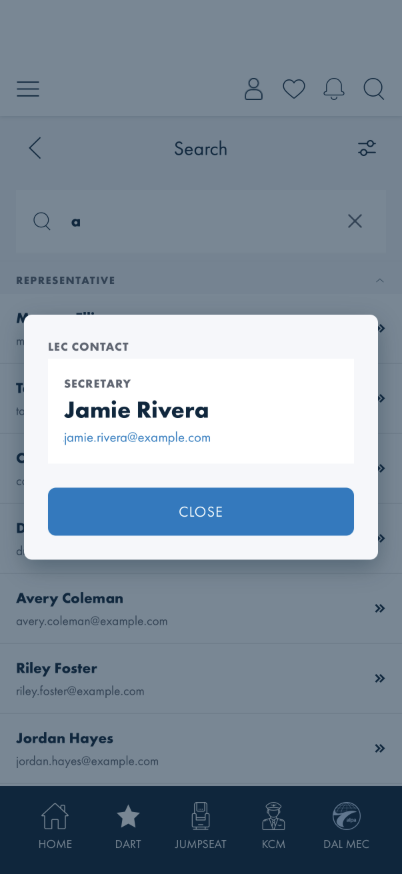
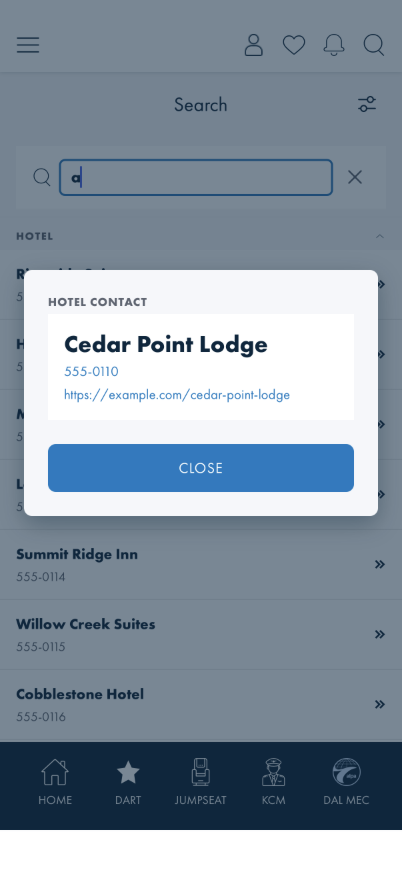
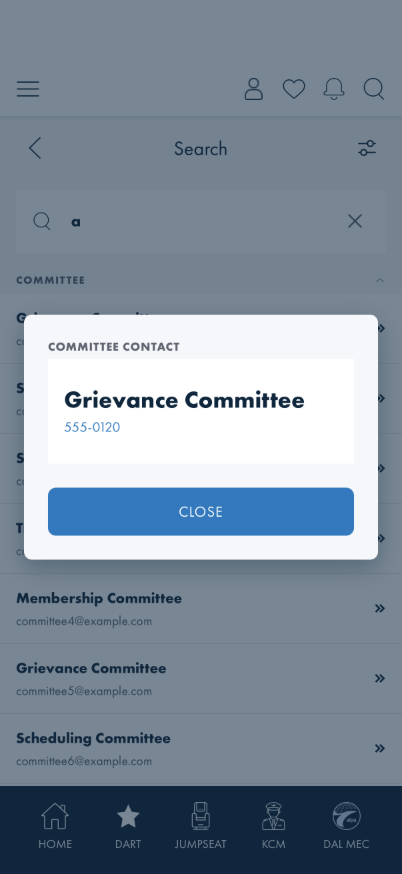
Event, Representative, Company Contact, Hotel, and Committee results open a contact card
instead of a real page — a small in-page modal (name, role/date/location where applicable, email,
phone, link) headed "MEC Event"/"LEC Event"/"MEC Contact"/"LEC Contact"/"Company Contact"/"Hotel
Contact"/"Committee Contact" so you can tell which list it came from — see Check 7. Whichever of
email/phone/link the card shows is a real tappable link (dial the phone, open the mail app, open the
browser) — see Check 7's actionable-link note. A Hotel or Committee result whose data has no valid
email, phone, or link at all is excluded from search entirely rather than shown with nothing to
contact; an Event with no valid contact is still shown (the event itself — its name, date, location —
is useful even without one).
You don't need to pick a data source — as of 2026-07-09 screens choose their own data behind the
scenes.
Checks
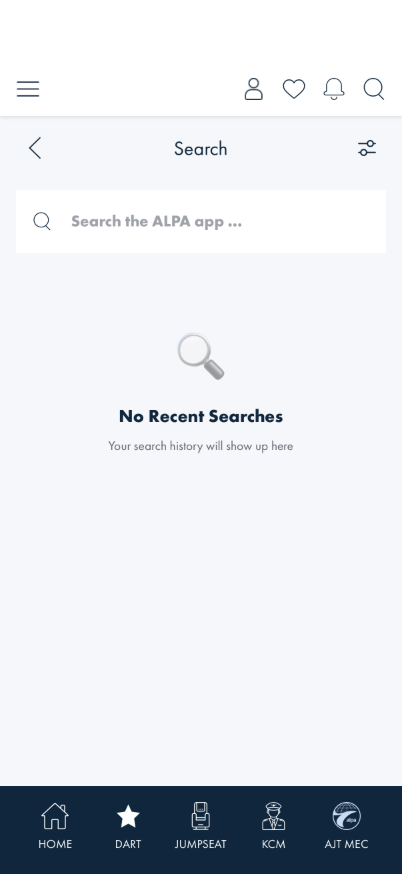
1 · Open Search with no search history yet
Steps: While logged in, tap the search icon (magnifying glass) in the top navigation bar.
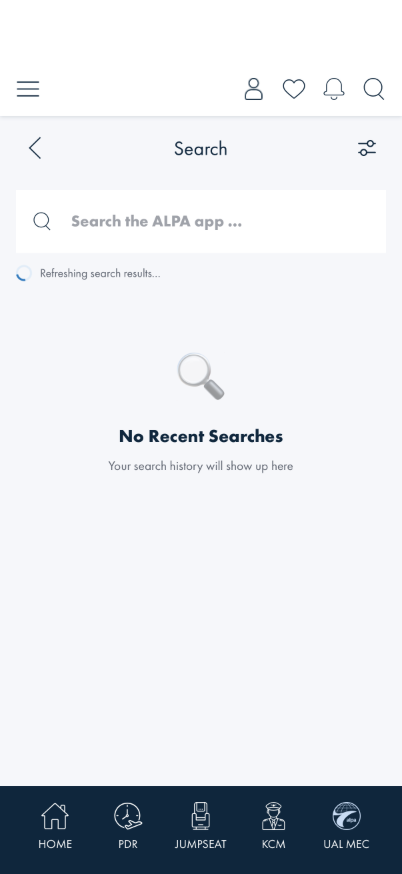
What you should see: A white search box with its own leading magnifying-glass icon (inside the
box, left of the placeholder text), and below it a "No Recent Searches" placeholder with a
magnifying-glass icon and the subtitle "Your search history will show up here". There is no list of
shortcut links (Flight Finder, KCM, Member Resources, My MEC) below it — those were removed. Once you
type something, an × clear button appears at the right edge of the box — tapping it empties the
box and returns you to this idle state (same clear affordance as the search boxes on KCM Airlines and
the International Directory).
Something's wrong if: You see a list of shortcut rows (Flight Finder, KCM
Airports & Airlines, Member Resources, My MEC) instead of the empty-state placeholder — that's the
old stub layout.
Note: there's no recent-search history feature yet, so this placeholder is what
every tester will see every time for now — that's expected, not a sign the feature is broken.
Note: if spelling-suggestion chips appear above the keyboard while you type, that's
your device's own predictive-text/autocorrect feature — an operating-system keyboard setting, not app
behavior. Turn it off under Settings if it's in your way: iOS is General → Keyboard; Android is
System → Languages & input → On-screen keyboard → (your keyboard) → Text correction.
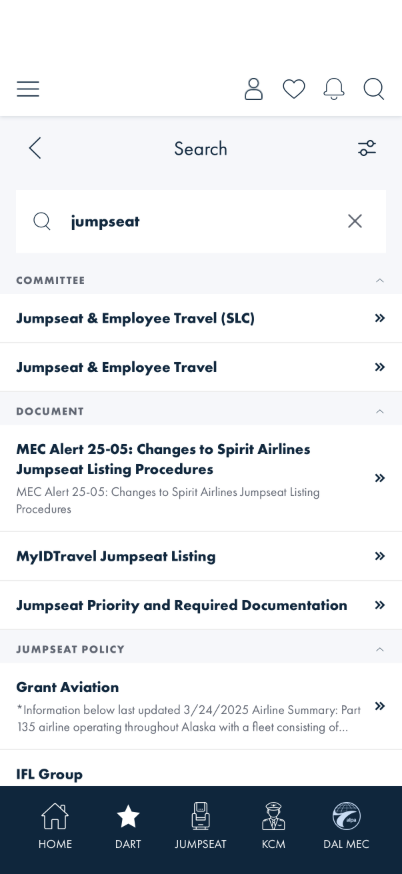
2 · Search for something real and get real matches
Steps: Type a term you know exists in content you (or the app's background warm-up) have
already loaded — e.g. jumpseat — into the search box.
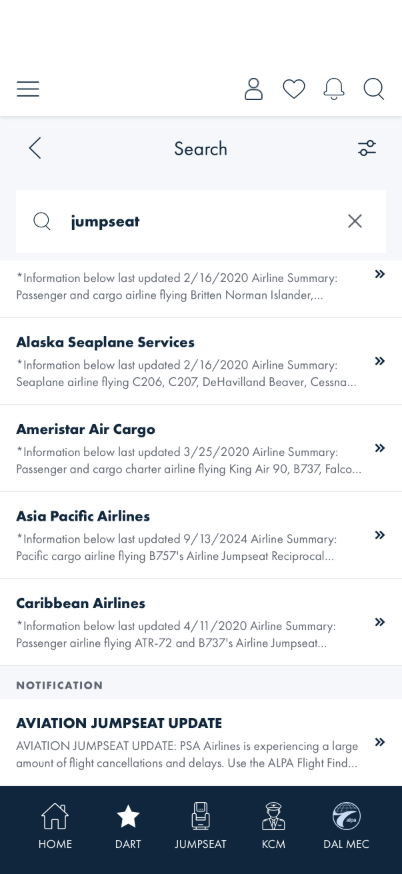
What you should see: Results appear as you stop typing (results are debounced, not instant per
keystroke) — real titles and excerpts, grouped under a section header per content type (for
jumpseat today that's COMMITTEE, DOCUMENT, JUMPSEAT POLICY, and further down
NOTIFICATION), sections in alphabetical order. This is genuine indexed content, not a fixed
sample set — try a different real term (an airport name, a notification headline you remember) and the
results (and which section headers appear) should change accordingly. Exactly which groups and how many
results appear will drift over time as real content changes — that's expected; what matters is that
results are real and grouped, not a fixed set.
Something's wrong if: You always see the exact same results regardless of what
you type, results appear as one flat list with no section headers, or the results are titled things like
"FTDT Duty Period Calculator" / "Flight Finder — Search Flights" no matter the query — those were the
old hardcoded sample rows and should no longer appear.
3 · Open the filter, deselect a category, and confirm results narrow
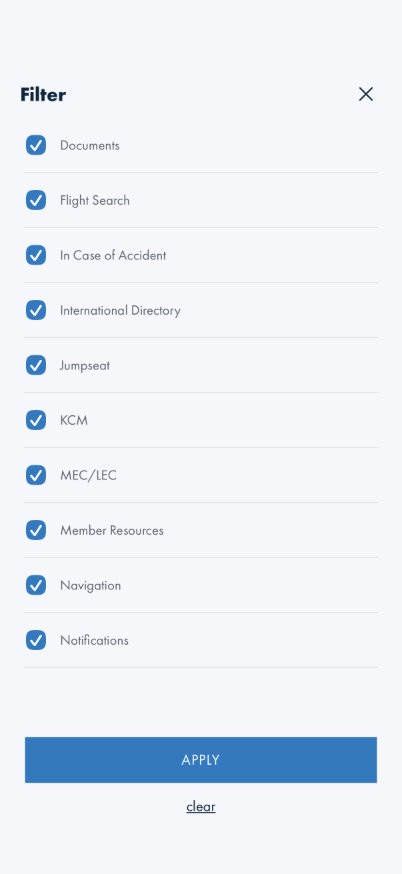
Steps: Tap the sliders icon in the top-right of the Search title bar to open the filter. The
boxes are the real areas currently indexed for search (10 today — Documents, Flight Search, In Case
of Accident, International Directory, Jumpseat, KCM, MEC/LEC, Member Resources, Navigation,
Notifications), and every box starts checked. Uncheck everything except Documents.
What you should see: Any number of boxes can be unchecked independently (not one-at-a-time like
a radio button). Tap APPLY to close the modal — the sliders icon in the title bar now shows a
small badge with the number of categories still included (not the number you unchecked). Search again
(e.g. document): with only Documents checked you get just the Documents section; re-open
the filter and check KCM back on and a KCM match reappears too — the filter genuinely narrows
local results by category, it's not cosmetic. Tap clear to reset back to every category selected
(the default), not to none.
Something's wrong if: Unchecking a second box rechecks the first one (that would
mean it's behaving like a single-select control), the badge count on the trigger icon doesn't match how
many boxes are checked, unchecking every box doesn't produce No Results, or clear
leaves any box unchecked.
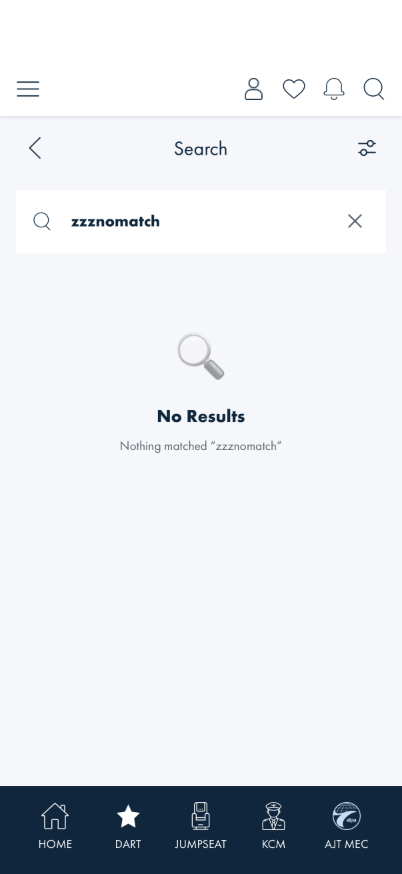
4 · Search for something that genuinely doesn't exist
Steps: Type a nonsense term unlikely to match anything, e.g. zzznomatch.
What you should see: A "No Results" empty state with the subtitle "Nothing matched
"zzznomatch"" — the exact term you typed appears in the message.
Something's wrong if: The page shows a blank area instead of the "No Results"
message, or the message doesn't include your actual search term.
5 · Tap a result and confirm it opens real content
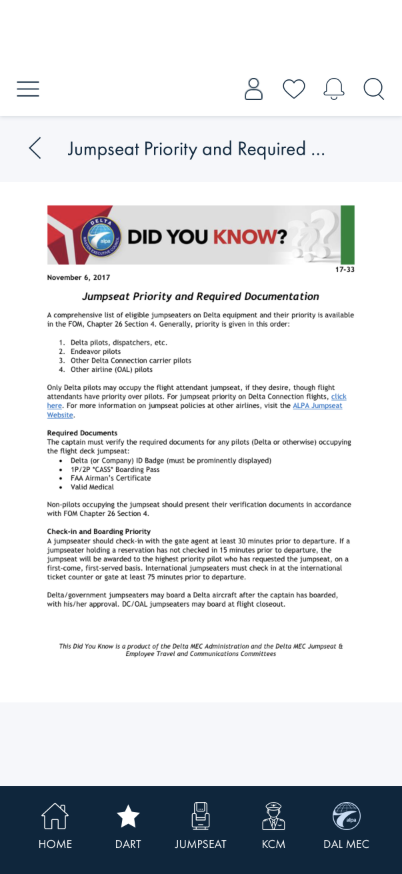
Steps: Search for a term that returns a Document result (e.g. jumpseat, per Check 2),
then tap that row.
What you should see: You're taken to the real document, not a placeholder or an error — the
title bar shows the document's own title and its actual content renders below. (You may see a one-time
"Download Documents for Offline Access?" prompt the first time you open any document — that's an
unrelated document-cache feature, not part of search; Not Now/Enable either way, then confirm the
document itself is showing.) A Notification result instead opens that notification's detail page.
Note: a handful of Documents (a "webpage" DocType, e.g. links out to a
per-MEC intranet site like an MEC Alert) deliberately open in a separate native browser view instead of
inline — the destination site needs its own auto-login and actively resists being framed, so an inline
iframe can't drive it. You may briefly see that site's own login form flash before it auto-signs-in.
This is the same shared document-open behavior everywhere in the app (not specific to Search) — it is
not a bug, and the row you tapped still opens the content it names.
Also confirmed live, same in-app-route pattern: a Jumpseat Airline result
(e.g. a carrier name) opens the same jumpseat/airline-policy page a Jumpseat Policy result does;
a Country result (e.g. a nation name) opens its International Directory detail page; an
Accident Topic result opens its In Case of Accident detail page; a KCM Airport/KCM
Airline result opens its KCM detail page. A Resource Link result is the one exception — its
destination is an author-entered external URL, so tapping it opens the system browser (or another app,
for a non-http link) instead of navigating anywhere inside this app; the Search page itself stays
exactly where it was.
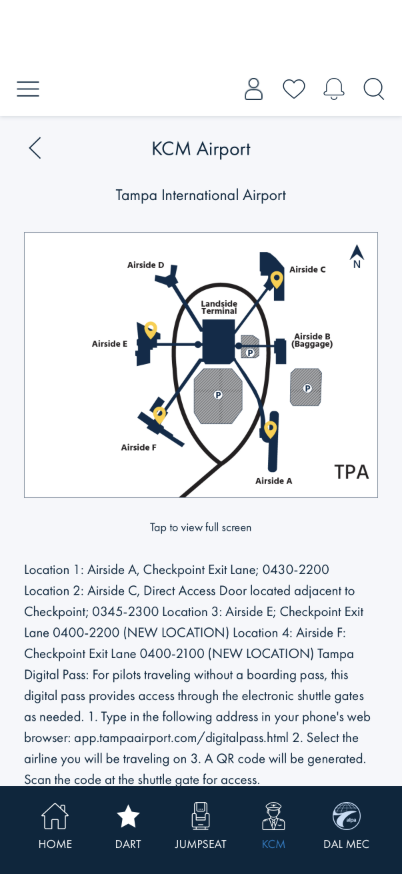
KCM Airport's full path goes one step further than a plain detail page — its cached airport
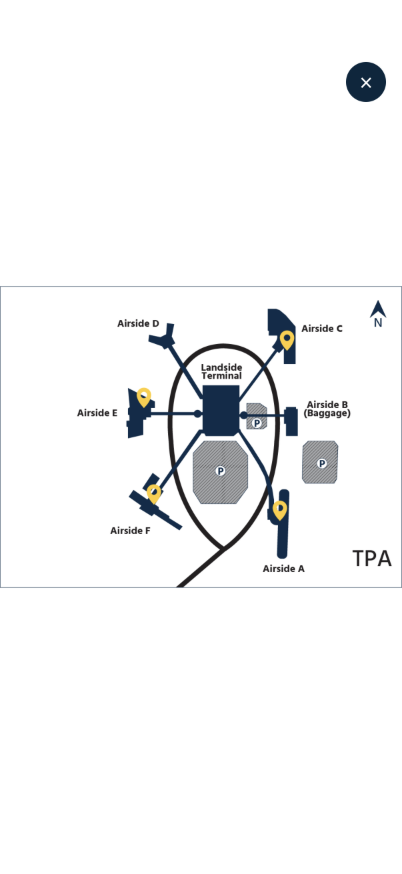
map is itself tappable ("Tap to view full screen" beneath it), opening a dedicated full-screen viewer
with its own close button (×, top-right). While the map is full screen, the page's own back chevron is
intentionally hidden rather than shown-but-inert — the only way out is the × or the system back
gesture, both of which return you to the same detail page underneath, unchanged.
KCM Airport detail page, opened from a Search result
Full-screen map, reached by tapping the map (or its caption)
Something's wrong if: Tapping a result does nothing, shows a blank/error page,
or opens content that clearly doesn't match the row you tapped; for KCM Airport specifically, if the ×
close button is hidden behind the app's own top icon row (it should sit clearly above it), or if a back
chevron is visible while the map is full screen (it should be hidden — see the note above).
6 · Collapse and re-expand a result section
Steps: With multiple result sections showing (a broad term like a single letter usually
returns several — see Check 2), tap a section header that has more than one result under it —
it carries a caret (searching jumpseat, COMMITTEE, DOCUMENT, and JUMPSEAT
POLICY all qualify today). A section with exactly one result shows a plain header with no caret —
that's intentional, not a bug (nothing useful to collapse down to a single row); for the same
jumpseat query, NOTIFICATION is currently that single-item example.
What you should see: Tapping a multi-item section's header hides its rows and rotates the
caret to point down; every other section stays exactly as it was — collapsing one section doesn't
affect the others. Tap the same header again and its rows reappear, caret pointing up. Single-item
sections (like NOTIFICATION here) never show a caret and can't be tapped to collapse, regardless
of how many other sections are open or closed. Which specific groups are multi- vs. single-item will
shift over time as real content changes — the caret-vs-plain-header rule is what to verify, not the
exact group names.
Something's wrong if: Tapping a header collapses a different section, collapses
every section at once, the caret doesn't rotate to reflect the current state, or a section with only one
result shows a caret / responds to a tap.
7 · Tap an Event, Representative, Company Contact, Hotel, or Committee result and confirm the
contact card
Steps: Search for a broad term like a single letter (if your account is MEC-affiliated), scroll
to the EVENT, REPRESENTATIVE, COMPANY CONTACT, HOTEL, or COMMITTEE
section, and tap a row.
Representative — role + name + email (LEC Contact)
Hotel — no role line, phone + website link (Hotel Contact)
Committee — no role line, phone only (Committee Contact)
What you should see: A small in-page modal opens over the results (not a navigation) — a header
naming which list this came from (MEC EVENT, LEC EVENT, MEC CONTACT, LEC
CONTACT, COMPANY CONTACT, HOTEL CONTACT, or COMMITTEE CONTACT), then the name and
whichever of role/email/phone/link the underlying record actually has — a role line only appears for
Representative/Company Contact/Hotel (Committee and Event never show one), and an Event additionally
shows its date above the role line, since it's the one type with both. A record missing some of these
just omits that line entirely (a record with none of email/phone/link is still shown for an Event, but
excluded from search results altogether for Representative/Company Contact/Hotel/Committee — nothing to
tap on for those without at least one). Whichever email/phone/link line is shown is a real link, not
plain text — tap an email line and the Mail app (or its picker) opens addressed to it; tap a phone
line and the Phone app opens ready to dial; tap a link line (Hotel's website, a Committee's link) and it
opens in the system browser, not inside the app. Tap CLOSE to dismiss the card and return to the
same result list — your search term, filter, and section-collapse state are unaffected by opening and
closing it.
Something's wrong if: Tapping the row navigates to a blank/error page instead of
opening the modal in place, the header doesn't name which list the result came from, tapping an
email/phone/link line does nothing (or the whole card doesn't respond to any tap at all), or closing the
card loses your search term or result list.
8 · Tap a Call to Action result and confirm the auto-login web view
Steps: Search for a broad term like a single letter, scroll to the CALL TO ACTION
section (Member Resources advocacy links, e.g. "Tell Congress: ..."), and tap a row.
What you should see: A full-screen web view opens over the app (not the same inline document
viewer Check 5 uses) — this is the distinct IAuthenticatedWebView path Call to Action links
always take, matching AdvocacyPage.OpenCallToActionAsync's existing behavior, since these
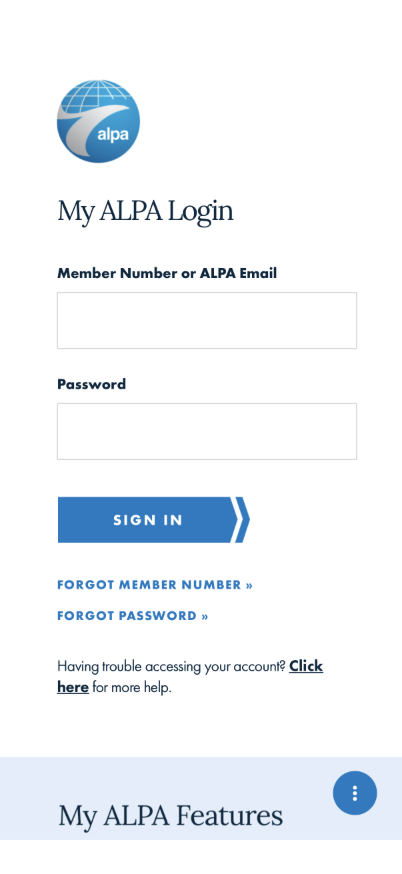
destinations need an authenticated session handed to them. You'll typically see the "My ALPA Login" form
flash briefly while auto-login runs, then land on the actual advocacy action page. A close/back control
lets you return to the same Search result list afterward, with your search term and filter intact.
Note: auto-login can occasionally time out against a particular destination
(ADFS detection failing to find the expected login-form fields) — if you land on a manual "My ALPA
Login" form instead of the actual advocacy page, that's an auto-login reliability issue, not a Search
bug; the row still correctly routed to the authenticated web view either way.
Something's wrong if: Tapping the row opens the plain external system browser
(no ALPA auto-login involved at all), opens the inline document viewer, or does nothing.
9 · Tap a Menu Item result and confirm it deep-links to the real page
Steps: Search for a broad term like a single letter, scroll to the MENU ITEM section
(app navigation entries, e.g. "ALPA Int'l Comms"), and tap a row.
What you should see: You land on the actual in-app page the menu entry names (e.g. tapping
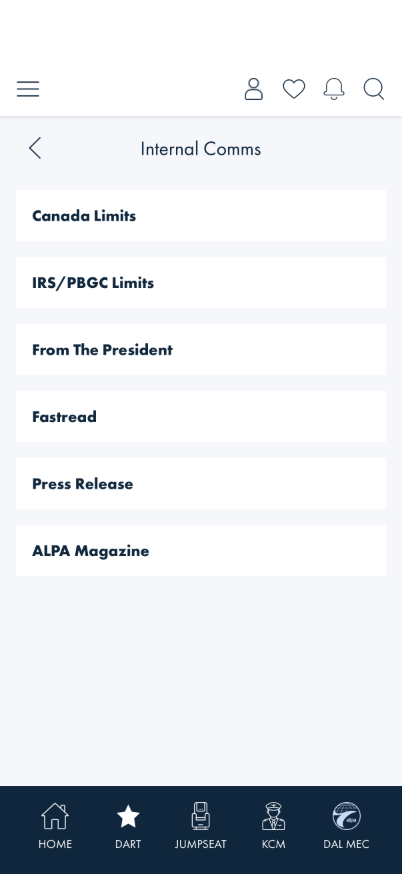
"ALPA Int'l Comms" opens the real Internal Comms list) — not a placeholder, not the generic result
excerpt. Unlike every other content type, a Menu Item's underlying value isn't a route or a plain
URL — it's a server-supplied Shell page name (e.g. "AdvocacyPage") that DeepLinkResolver
translates to a real Blazor route at tap time, since that translation can only happen in the
Presentation layer. That's an implementation detail, not something you can see directly, but it's why
this gets its own check rather than folding into Check 5.
Something's wrong if: Tapping a Menu Item result does nothing, shows a
blank/error page, or opens content unrelated to the menu entry's name.
10 · Relaunch the app and confirm search is immediately usable, not blocked again
Steps: With Search already indexed once this install (i.e. not your very first login — see
"Before you start"), fully close the app (swipe it away, or kill/relaunch it) and reopen it. As soon as
the app is back up, tap the search icon and look at the field and the notice under the search box
before waiting the usual minute.
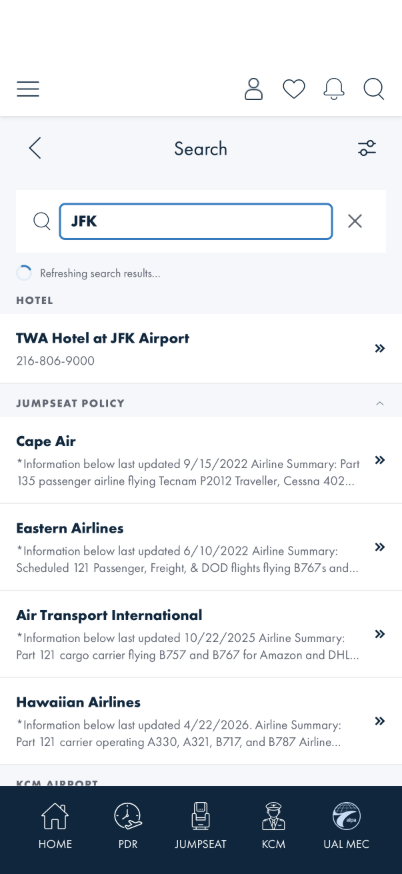
What you should see: The search field is already enabled (not greyed out), and any notice under
it reads "Refreshing search results…", not "Preparing search results…" — small and
non-blocking, not the "Getting Ready" full-page placeholder from Check 1's first-ever-login case. Type a
real term right away (don't wait) and you get real results immediately, from whatever was already
indexed before the relaunch — the notice clears on its own a few seconds later once this session's own
fresh copy finishes loading, with no page reload and without disturbing your search term or results.
What you should see: real, correctly-grouped results (here Hotel/Jumpseat Policy/KCM Airport for
JFK) while the "Refreshing…" notice is still visible — the field being enabled during a refresh
isn't cosmetic, it actually answers queries against the pre-relaunch index.
Something's wrong if: The field is disabled and the search box shows the big
"Preparing search results…"/"Getting Ready" first-launch treatment on an ordinary relaunch (not your
very first login), typing during "Refreshing…" produces no results even though the same term worked
before you relaunched, or the "Refreshing…" notice is still showing well after the app has clearly
finished loading everything else (Home, notifications badge, etc.).
Note: a genuine first-ever login (nothing indexed yet at all) still shows the
blocking "Preparing search results…"/"Getting Ready" state from Check 1 — that part is unchanged and
correct; this check is specifically about every relaunch after that first one.
What this checks, overall
That Search returns genuine on-device content instead of fixed sample rows, that the idle and no-match
states read honestly (no fake data, no silently-empty screen), that the multi-select category filter
actually narrows local results by area rather than being cosmetic, that result sections can be collapsed
independently, that a result actually leads to the real content it names — whether that's a plain in-app
route (most content types, including KCM Airport's own full-screen map viewer), a contact card naming
which list it came from with real tappable email/phone/link lines (the five contact-card types), an
authenticated web view (Call to Action), or a server-driven deep link resolved at tap time (Menu Item), and
that a relaunch reuses the on-device index it already has instead of forcing every session to sit through
the same first-time "Preparing…" wait. Every one of the 16 onboarded content types has now been
live-verified to open the destination it claims — and the one type that couldn't (Flight Search Airport)
was withdrawn rather than shipped with a placeholder, since KCM Airport already covers the same content
with a real destination.
What's not covered yet
Search is local-only. Every query in this build answers from the on-device search index —
there is no online/live search tier.
Event, Representative, Company Contact, Hotel, and Committee open a contact card (Check 7),
not a full screen — that card's "listy card generic" shape may get replaced by real MEC/Event pages
later.
No Event contact card was verified live against real event data during this pass — the two
test-member MECs checked (DAL, FDX) both had zero MEC/LEC events at the time; the extractor itself is
covered by unit tests with synthetic payloads, and its wiring is identical to the other four contact-card
types, but if you have a MEC-affiliated account with an actual upcoming event, tapping it is worth a
specific look the first time you can.
No recent-search history — there's no persistence yet, so the idle state always shows the
empty placeholder (Check 1), never a real list of past searches.
For engineers: the local-search content registry (what's indexed, from where, and why)
is documented in Search Content Onboarding.