Tester Walkthrough — FTDT (Flight Time / Duty Time)
Updated: 2026-08-05 05:35 ET · Covers the Blazor Hybrid FTDT dashboard specifically
(the beta three-tab /ftdt/dashboard experience) — not the legacy native FTDT screens. On the
Page Readiness screen set the Area dropdown to FTDT. Screenshots were captured on a
393×852 device (iPhone 15 Pro class), the width the Figma frames are drawn at.
TLDR: 11 checks across the FTDT tracker — seeding known data with
the Test Scenarios page, reading the cumulative limitation bars, the beta rest-rules engine
(§117.25 / §700.43) and its violation reporting, creating a duty period and watching limits and violations
compute live, the two-step conclude, archived logs and the delete/restore round-trip, the full op-type
range plus the FAR 117 Guide link, the Add Rest Opportunity / Add Note forms, and putting your own data
back when you're done. Two checks (5b and 5c, the acclimation and trans-theater rest rules) are blocked on a backend API and marked skip. Work through it signed in; FTDT data lives on your device and seeded data never
syncs, so only the duty period you create in Check 7 reaches your account.
Before you start
No login needed — FTDT records live on your device (they sync to your account in the background when
you are signed in).
Your own duty periods are safe. The Test Scenarios seeder hides your real records rather than
deleting them, and Restore My Data brings them back — Check 9 is the cleanup step; don't skip it.
Seeded records never reach the server either: they carry a seed: marker that every sync path
skips.
Stay signed in for this walkthrough. Seeded scenario data never reaches the server, so it
cannot touch your account, and signed in is how a member actually uses the app — it is also what the
§117.25(c)/(d) rules need (Checks 5b and 5c).
The one exception is Check 7. A duty period you create yourself is a real record, not seeded,
and it does sync to your ALPA account. Deleting it afterwards leaves a deleted-marked copy on the
server. Delete it at Check 9 and it stays a footnote rather than a surprise in your history.
The rest-rules engine and the Test Scenarios page are beta tester functionality — they exist in
this new version only (the current production FTDT has neither).
Checks
1 · The FTDT dashboard
Steps: On the Page Readiness screen set the Area dropdown to FTDT and tap the
FTDT Dashboard row.
There may be no FTDT tab in the bottom navigation. The bottom bar is a
configured shortcut list, not a fixed one — on the build this guide was captured against it reads
HOME / JUMPSEAT / KCM / PDR / DAL MEC, with no FTDT entry. The Page Readiness route above always
works; use the tab only if your build happens to show one.
The dashboard opens on Cumulative Limitations, not on your duty periods. That is
intended — the first question is whether you are within limits. Your individual duty periods are one tab
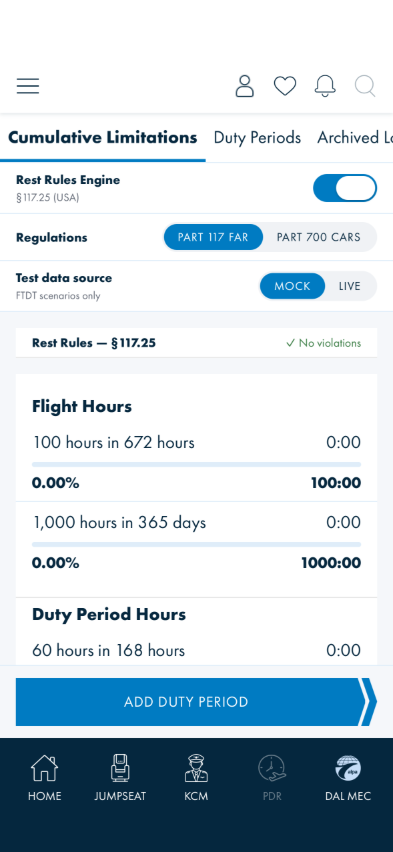
across, under Duty Periods. With no data the cumulative bars read zero rather than showing nothing,
so a screen of zeros is correct, not a failure to load.
What you should see: Three tabs — Cumulative Limitations, Duty Periods,
Archived Logs — with the cumulative tab open: Flight Hours and Duty Period Hours limit bars, the
tester setup rows (next check), and the blue ADD DUTY PERIOD » button pinned at the bottom.
Something's wrong if: A tab is missing, or the screen is blank instead of showing
the limit groups (they show zeros when you have no data — blank is different from zero).
2 · The tester setup rows
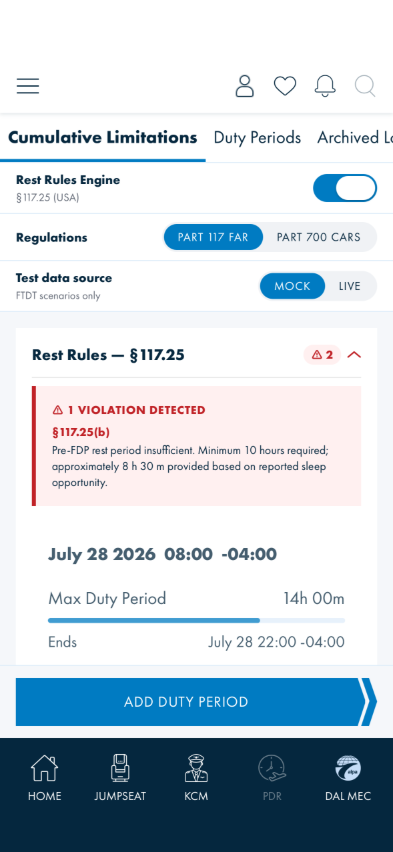
Steps: On the Cumulative tab, look at the three rows above the limit bars: Rest Rules
Engine (on/off), Regulations (Part 117 FAR ↔ Part 700 CARs), and Test data source
(Mock ↔ Live — FTDT scenarios only).
What you should see: Turning Rest Rules Engine on adds a "Rest Rules — §117.25" (or
§700.43 in CARs mode) card below the rows; switching Regulations flips the rule set and the
subtitle under the engine toggle. Each control responds immediately.
Something's wrong if: Toggling the engine on/off changes or deletes any of your
duty-period data — the toggle only changes what's calculated and shown, never the records.
3 · Seed known data with Test Scenarios
Steps: On the Page Readiness screen, set the Area dropdown to FTDT (it opens on
the first area, so the FTDT rows are not shown until you pick it — scrolling will not find them). Then
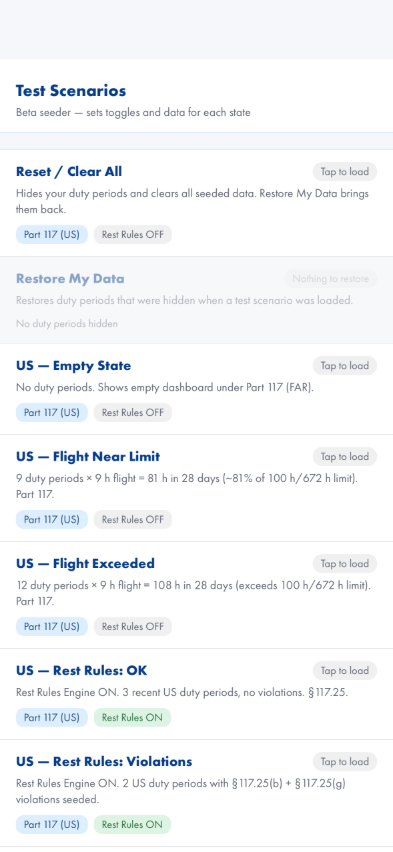
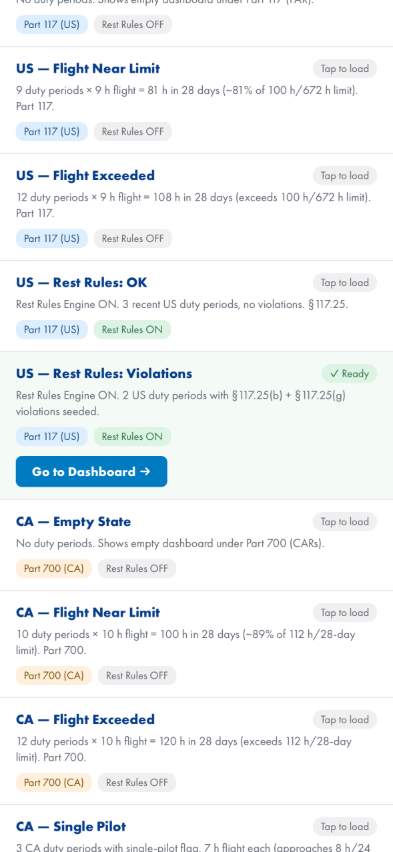
tap Test Scenarios (Beta), tap US — Rest Rules: Violations, and wait for its badge.
One card per prepared state — US and CA sets
Tapped — the badge flips to ✓ Ready
What you should see: The tapped card shows ✓ Ready. The scenario sets the right toggles
for itself and fills the tracker with synthetic duty periods that produce the state its name says
(near-limit bars, rest violations, an empty state, …).
Something's wrong if: The badge never turns Ready, or the dashboard afterwards
doesn't match the scenario's name (e.g. "Rest Rules: Violations" seeded but no violations show with the
engine on).
4 · Cumulative bars — and they must agree with the current app
Steps: Back on the dashboard's Cumulative tab, read the four limit bars against the seeded
scenario.
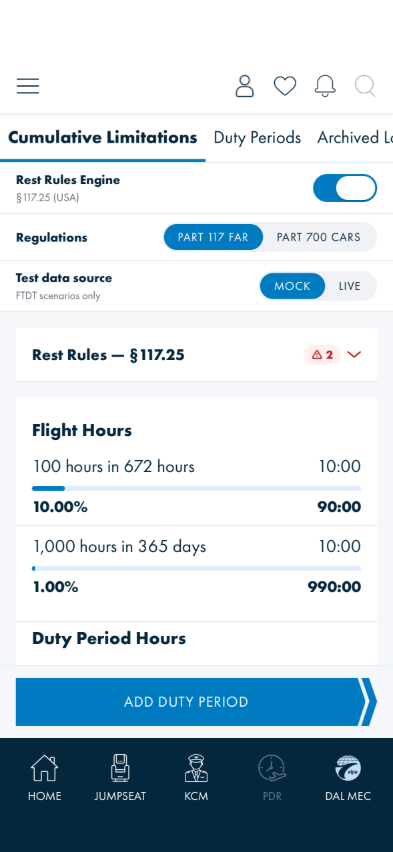
What you should see: Four bars. With US — Rest Rules: Violations seeded, the two
Flight Hours bars are fixed: 10:00 of 100-in-672 (10.00%, 90:00 remaining) and
10:00 of 1,000-in-365-days (1.00%, 990:00 remaining).
The two Duty Period Hours bars move with the clock — don't check them against a
fixed number. The seeded duty periods sit near the edge of the 168-hour window, so as real time
passes the older ones age out of it and the totals fall. Two readings taken 40 minutes apart during
validation gave 18:12 and 17:29 for the 60-in-168 bar. Check the arithmetic instead: used +
remaining must equal the limit, and the percentage must match used ÷ limit.
Whatever the figures are, they are the same numbers the current production FTDT screen computes from
the same records — the two versions share one data store, so if you open the classic FTDT screen the
totals must match exactly.
Something's wrong if: A bar's hours, percentage, and remaining figures don't
agree with each other (but see the 59:59 rounding note under Known gaps first), or the new dashboard and
the classic FTDT screen disagree about the same data.
5 · Rest-rules violations (beta)
Steps: With the engine on and the violations scenario seeded, look at the "Rest Rules — §117.25"
card. Tap its header to expand.
What you should see: A ⚠ count in the card header, and expanding it lists each violating
duty period with the specific rule and reason. This scenario seeds one §117.25(e) violation
("Rest period 8.50h is less than the 10h minimum required before reserve or flight duty period.") and
one §117.25(c) ("New-theater acclimation: largest continuous rest in past 168h is 31.00h;
36h required."), matching the rules named on the scenario card itself. With a clean
scenario ("Rest Rules: OK") the card shows ✓ No violations instead.
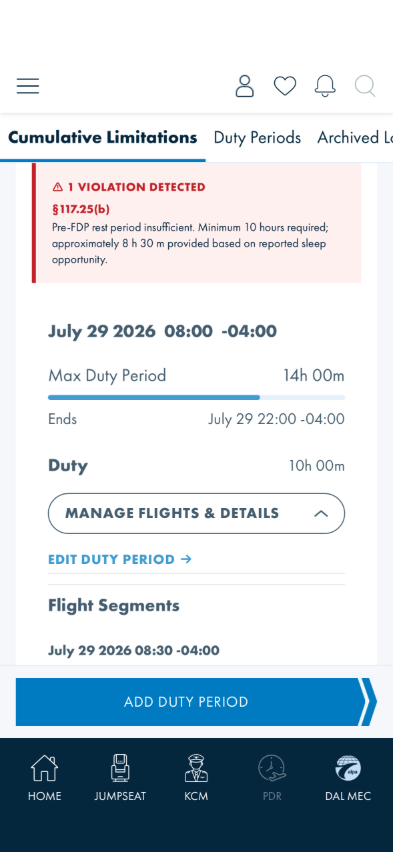
Then act on one without leaving the tab. Each violating period is the same card you see on
the Duty Periods tab, so tap MANAGE FLIGHTS & DETAILS on it and you get the same four
actions — EDIT DUTY PERIOD, ADD FLIGHT SEGMENT, ADD REST OPPORTUNITY,
ADD NOTE. Editing from here opens the period the violation is about, so check the date on the
Edit screen matches the one you tapped.
The violation and the period it belongs to, with the same management row the list has
One difference from the Duty Periods tab, on purpose: there is no swipe-to-delete
here. These rows explain a violation; deleting a duty record from a panel you opened to read would be too
easy to do by accident. Delete lives on the Duty Periods tab, and on the Edit screen.
Something's wrong if: The count disagrees with the listed violations, a
violation text names hours that don't match the duty periods on the Duty Periods tab, or
EDIT DUTY PERIOD here opens a different period than the one the violation named.
5b · Trans-theater rest (§117.25(d)) — blocked, not ready for testing
Skip this check. The rule is built and wired, but it cannot produce a result yet,
so nothing here is testable and an absent §117.25(d) violation is not a bug to report.
What it will do, once unblocked: flag the extra rest required after a duty period that follows
travel across more than 60° of longitude — the trans-theater case. The rest-rules card will list it
alongside the other §117.25 citations you saw in Check 5.
Why it can't run today: the rule needs two things about each airport that the app cannot get
yet — its longitude, to measure the distance travelled, and its time zone, to count
physiological nights. The app reads airport details from the same cache the Flight Finder uses, and the
backend airports API does not return those fields yet. Until it does, the rule stays dormant by design
rather than guessing: a wrong rest calculation is worse than no rest calculation.
There is a second condition, and it applies even after the API ships. The rule
measures distance from your home base, which the app takes from your profile. With no home base
on your profile, §117.25(c) and (d) stay dormant whatever the airport data says — so the Cumulative tab
now carries a Home base override field. Type an airport code there to stand in for your profile,
and leave it blank to use your real one. That field is what will let you vary routes and time-zone
differences once the airport data lands; it does nothing on its own today.
What changes when the API ships: it will return each airport's latitude and longitude plus the
time zone name for where that airport is. No app update is needed to switch the rule on — it begins
evaluating as soon as the data arrives, so this check becomes live without a new build.
For whoever picks this up: the dormancy is the null-tolerant contract on
IAirportLookup — absent fields mean §117.25(c)/(d) stay quiet. When the fields land, re-run
Check 5 with a duty period that crosses more than 60° of longitude and confirm the citation appears.
5c · Acclimation rest (§117.25(c)) — blocked, not ready for testing
Skip this check, for the same reason as 5b. The rule is built and wired but
cannot produce a result yet, so an absent §117.25(c) violation is not a bug to report.
What it will do, once unblocked: upgrade your weekly rest requirement when you are in a new
theater and not yet acclimated. The ordinary §117.25(b) block of 30 continuous hours becomes
36 — and completing that 36-hour rest is itself what makes you acclimated again.
What will trigger it: a duty period with Acclimated switched off on its Edit
screen. That toggle is the "am I in a new theater" input, and it is the one part of this check you can
already exercise — the switch works today, it simply has nothing to feed.
Why it can't run today: the same gate as 5b. Working out whether you are in a new theater
means comparing where you are against your home base, which needs airport longitude from the
backend airports API, plus a home base on your profile and being signed in. Miss any one of
those and the rule stays quiet by design.
Why both checks are blocked together: §117.25(c) and (d) are hydrated by the
same code path — one airport lookup, one home-base resolution, feeding both rules. Whatever unblocks 5b
unblocks this at the same moment, so expect to test them as a pair rather than one after the other.
6 · Duty Periods tab and per-period management
Steps: Open the Duty Periods tab. Tap MANAGE FLIGHTS & DETAILS on any card.
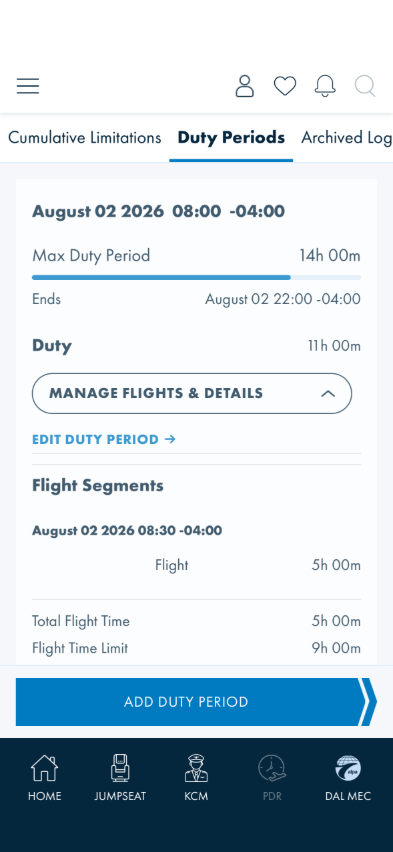
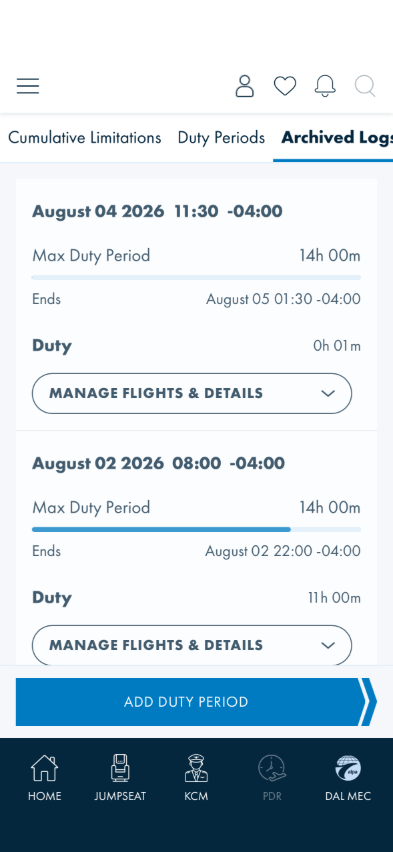
What you should see: One card per duty period (start, Max Duty Period, Ends, Duty hours), and
the manage row expands to four actions: EDIT DUTY PERIOD, ADD FLIGHT SEGMENT,
ADD REST OPPORTUNITY, ADD NOTE — each opens its own form
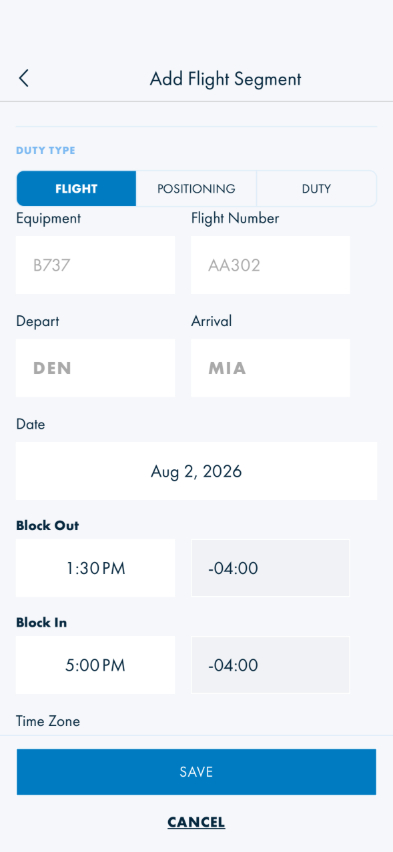
(flight segment form: Equipment, Flight Number,
Depart, Arrival, Date, Time Zone).
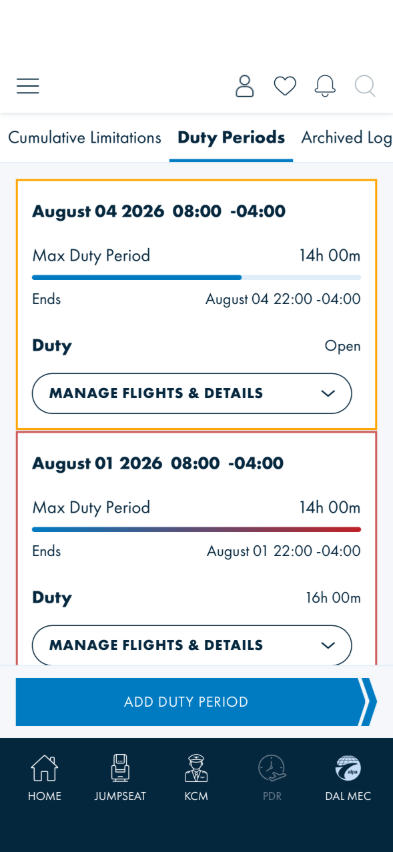
A card with a coloured outline is flagged, not broken. Cards are white with a
plain divider. Two states outline the card instead: amber means the duty period is still
open — no end time recorded, or a flight segment inside it is still open — and red means
it has exceeded its limit. Both are deliberate signals about the record, not rendering faults.
The duty period you create in Check 7 will be amber until you conclude it, and turns white once you do.
To see them without creating anything, seed US — Card States from the Test Scenarios page:
it lays one of each next to the other. Red wins where a period is both open and exceeded — an open
period never concludes, so it can exceed while still open, and the danger signal must not be hidden
behind the open one.
Seeded by US — Card States — open (amber) above exceeded (red); an ordinary
concluded period has no outline, as in the screenshot above
Something's wrong if: A card's action opens the wrong duty period (check the
dates), or an add form saves onto a different period than the one you managed. Also report a card whose
outline contradicts what it says — amber while the Duty row shows concluded hours rather than
Open, or no outline at all on a period you have not concluded.
7 · Create a duty period — limits and violations compute live
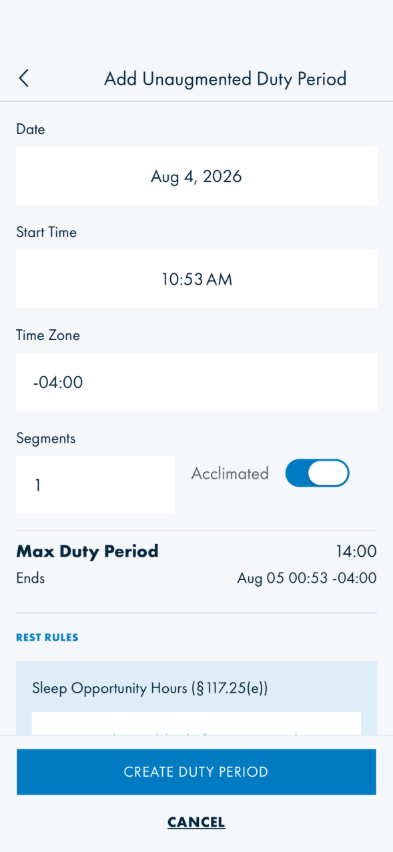
Steps: Tap ADD DUTY PERIOD → choose Unaugmented → leave the prefilled date/time
and tap CREATE DUTY PERIOD.
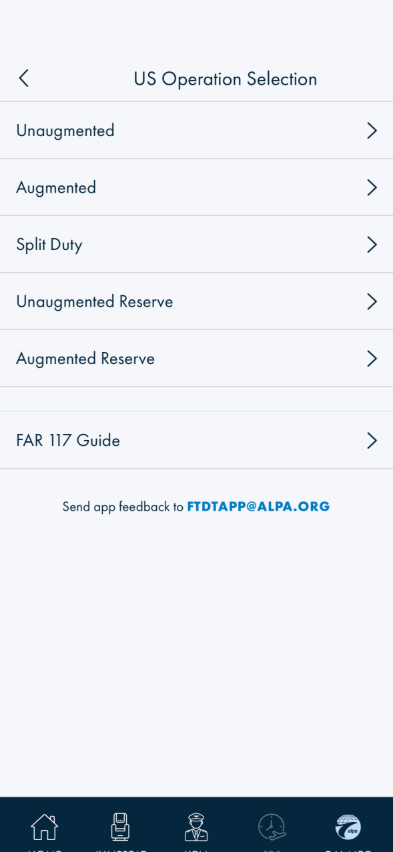
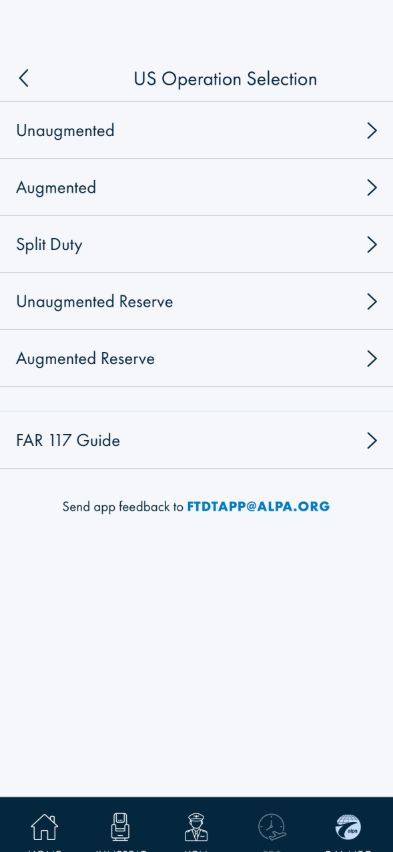
Operation types (matches the current app 1:1)
Create form — date/time/zone, segments, §117.25(e) sleep hours
What you should see: The create form computes Max Duty Period and Ends live,
before you submit, and carries an Acclimated toggle. Creating lands you on the Edit page
with both figures already computed and Ends equal to start + Max Duty Period. With the engine on,
rest violations against your neighbouring duty periods are flagged immediately — whether any appear
depends on how far your new period sits from the seeded ones, so no new violation is not by itself a
failure. The rest-rules inputs — Sleep Opportunity Hours §117.25(e) and the Insufficient Rest
§117.25(f) toggle — are on this page too.
Something's wrong if: Create silently does nothing, the computed Ends time
doesn't equal start + Max Duty Period, or violations appear/disappear without any input changing.
8 · Conclude is a two-step action
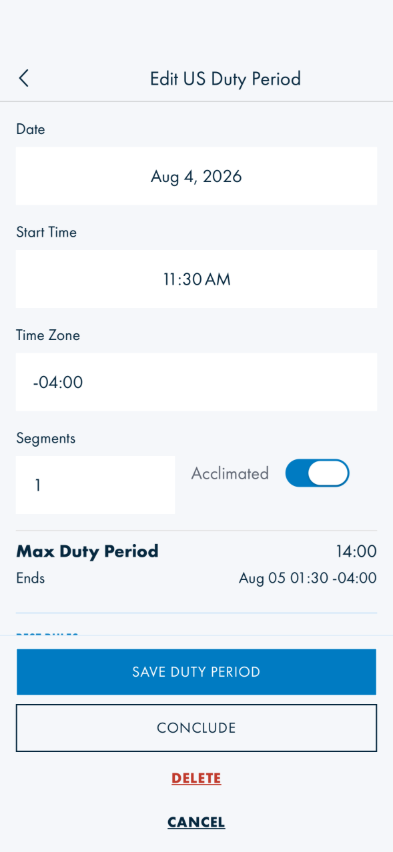
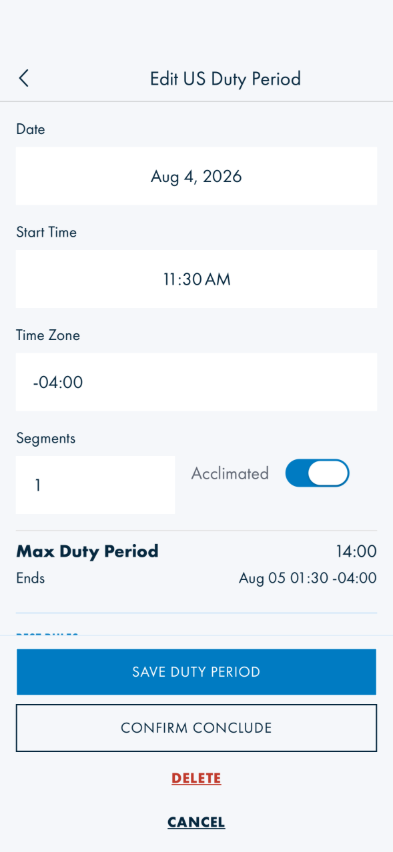
Steps: On the Edit page, tap CONCLUDE once, then read the buttons before tapping again.
What you should see: The first tap arms the action — the button changes to
CONFIRM CONCLUDE — and only the second tap actually concludes the period and returns you to the
Duty Periods list. (This is deliberate: concluding writes the end of the duty period.)
Something's wrong if: A single tap concludes immediately, or CANCEL doesn't
disarm it.
Verified end to end (2026-08-04). The first tap arms, CANCEL disarms back
to CONCLUDE without leaving the page, and the second CONFIRM CONCLUDE tap concludes the
period and lands on the Duty Periods tab. The earlier 2026-07-17 "inconclusive" flag on the second tap
was a limitation of the scripted-tap tooling, not an app issue.
9 · Archived Logs, and the delete/restore round-trip — then put your data back
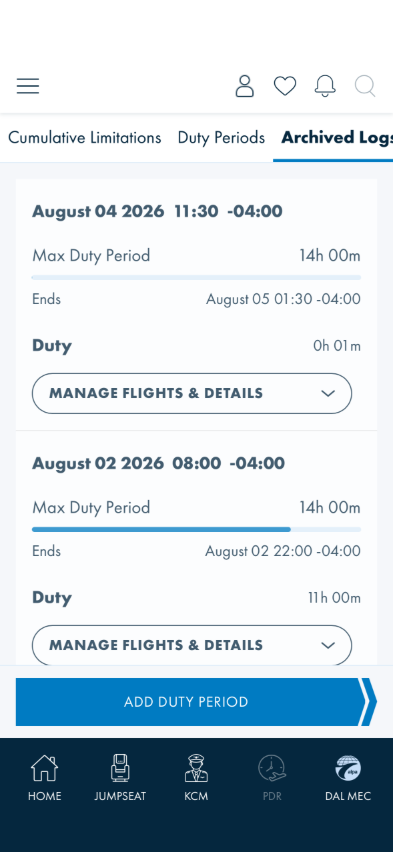
Steps: Open the Archived Logs tab and confirm older records render the same card layout.
Then, on the Duty Periods tab, open MANAGE FLIGHTS & DETAILS → EDIT DUTY PERIOD on
any period and tap DELETE. Finally, to finish: go back to Test Scenarios and tap
Restore My Data.
What you should see: Archived periods listed read-only-style with the same card anatomy; and
after Restore My Data the seeded synthetic records are gone and your own duty periods (if you had
any) are back — the card tells you how many were being held.
Something's wrong if: Restore leaves seeded scenario data behind, or your own
records don't come back.
The DELETE button (on any Edit Duty Period page) is a two-step action,
like Conclude (Check 8): the first tap arms it and the button changes to CONFIRM DELETE;
only the second tap deletes. And it isn't a hard delete either: the period moves straight to
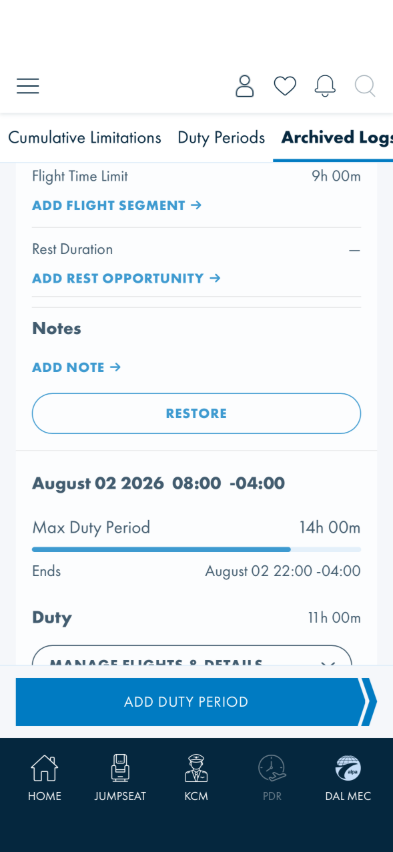
Archived Logs, and re-opening its
MANAGE FLIGHTS & DETAILS panel there shows a RESTORE action that puts it back on the
Duty Periods tab exactly as it was (confirmed live: totals on the Cumulative tab dropped after
delete and returned to their prior values after restore).
After DELETE — the period lands in Archived Logs, not gone
Its manage panel there offers RESTORE
Something's wrong if: DELETE removes a period without it appearing in Archived
Logs (a real, unrecoverable data loss — report immediately), or RESTORE doesn't return it to Duty Periods
with its original data intact.
Worth a design conversation: DELETE now confirms before acting, which closes
most of the earlier concern. What remains is that it still reads as permanent (red text, the word
"delete") while it actually archives reversibly — a tester who deletes something has no on-screen cue
that Archived Logs holds it and offers RESTORE.
10 · Add Rest Opportunity and Add Note
Steps: On the Duty Periods tab, open MANAGE FLIGHTS & DETAILS on any card, then tap
ADD REST OPPORTUNITY. Go back and tap ADD NOTE.
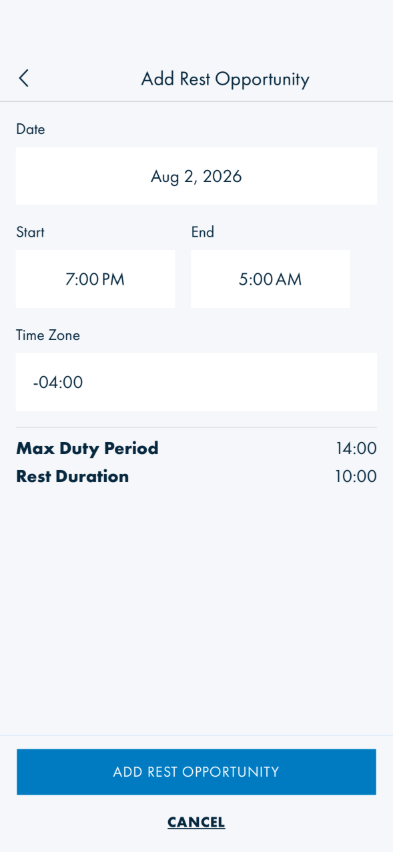
Date / Start / End / Time Zone, with Max Duty Period and Rest Duration shown for context
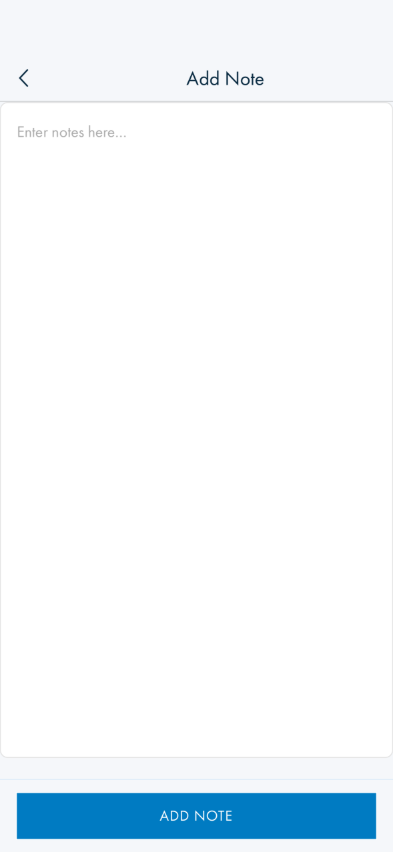
Single free-text note field
What you should see:Add Rest Opportunity takes Date, Start, End, and Time Zone, and
shows the duty period's current Max Duty Period and Rest Duration above the save button for reference.
Add Note is a single "Enter notes here…" textarea saved with ADD NOTE.
Something's wrong if: Either form saves onto a different duty period than the
one you opened it from, or the rest opportunity doesn't factor into the rest-rules violation check
(Check 5) afterwards.
11 · Full op-type range and the FAR 117 Guide
Steps: With Regulations set to Part 117 FAR on the Cumulative tab, tap
ADD DUTY PERIOD. Note the full list of operation types, then tap FAR 117 Guide at the
bottom.
What you should see: Five US operation types — Unaugmented, Augmented, Split Duty,
Unaugmented Reserve, Augmented Reserve — Check 7 above only walks Unaugmented; the others are real,
separate create paths worth spot-checking too. Below the list: a FAR 117 Guide row and a
"Send app feedback to FTDTAPP@alpa.org" button. Switching Regulations to Part 700 CARS
changes this to CA Operation Selection with four types (no Split Duty) and drops the FAR 117 Guide
row (it's US-specific) while keeping the feedback button.
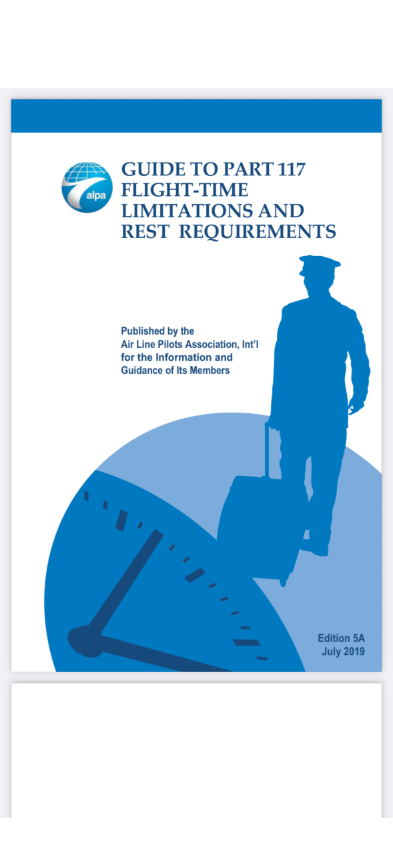
What you should see (FAR 117 Guide): Tapping it opens ALPA's actual "Guide to Part 117
Flight-Time Limitations and Rest Requirements" PDF in an in-app web view (member-gated — it auto-signs
you in). The My ALPA login form may flash on screen for a few seconds first, with your member number
already filled in, while the auto-sign-in completes — that is expected, not a login wall.
Known issue — getting back out (reported 2026-08-04, don't re-report): there is
no ✕ on screen when the PDF opens. Its action button is laid out almost entirely off-screen past
the top-left corner; only a small corner of it is tappable. Tapping that corner reveals a
‹ and an ✕ at the bottom right — and of those, only ‹ actually leaves the PDF.
✕ just hides the two buttons again. Use ‹ to return to Select Operation Type.
Something's wrong if: A non-Unaugmented op type's create form is missing fields
Unaugmented has, the FAR 117 Guide link 404s or shows a login wall instead of auto-signing in, or the
feedback button does nothing when tapped (it should open your device's mail composer addressed to
FTDTAPP@alpa.org).
What this checks, overall
The full FTDT loop on the new dashboard — seeding known states, cumulative-limit math (which must agree
exactly with the current production FTDT screen, since both read the same records), the beta rest-rules
engine's violation reporting under §117.25, per-period management including the less-common add-rest/add-note
forms, the full op-type range and the FAR 117 Guide reference link, live limit computation on create, the
deliberate two-step conclude, archived logs with the delete/restore round-trip, and restoring the tester's
own data afterwards.
Known gaps / differences from the current app (don't re-report these)
The 60-in-168 duty bar sums to 59:59. Its used and remaining figures are each rounded to the
minute independently, so they can land a minute short of the limit (18:12 + 41:47 seen during
validation). The other three bars sum exactly. Reported 2026-08-04 — don't re-report, but do report any
bar that is out by more than a minute.
The three dashboard tabs don't all fit — and that is the design. The strip scrolls sideways and
snaps to whichever tab you select, so all three are reachable; the label is just clipped until you tap it.
Figma draws it the same way, and harder: the dashboard frame lays the tab row out at 458 points inside a
345-point container, and the archived-logs frame shows that row scrolled left to bring the third tab into
view. On device the row needs 423 in a 393 viewport, so it is clipped less than the design intends.
The bottom navigation is cut off on Select Operation Type. That page renders taller than the
screen, pushing the bar's labels half below the bottom edge. Cosmetic — the buttons still work.
Workflows don't map one-to-one. The current app is a single list page with a Calculate-style
form; the new design is a three-tab dashboard where Create lands on an Edit page with live-computed
limits. Compare results (totals, violations, end times) between the two, not screen-by-screen
layouts.
§117.25(c) and (d) never fire. Both are blocked on the backend airports API returning airport
longitude and time zone, and both additionally need a home base on your profile with you signed in — see
Checks 5b and 5c. Built, wired, dormant on purpose; not gaps to report. They share one hydration path, so
they will start working together rather than separately.
Rest rules exist only here. The production FTDT has no §117.25/§700.43 rest work at all — there
is nothing to compare the rest-rules card against except the regulation text and the seeded scenarios.
Limit-bar colors. Bars now render the blue-to-red gradient as a bar approaches its limit.
The exact stops are still pending design polish, so compare the behaviour (redder as it fills), not the
precise shade.
Engineers: sync data-integrity for the rest-rules fields has its own test plan —
FTDT-REST-RULES-TEST-PLAN.md (manual full re-pull:
Settings → FTDT Manual Sync in the current app).